Odoo Inventory plans stock with forecasts, not with generative AI. Reordering rules, the replenishment report, the forecasted report and purchase suggestions calculate from your own demand history and lead times and need no AI credits. Odoo 20 adds suggested minimum and maximum levels for reordering rules, while the Odoo AI agents use IAP credits.
This article was first written for Odoo 19. It is now updated for Odoo 20, released on 24 September 2026, and says for each feature which version brought it and whether it needs the Odoo AI app.
Table of contents
What counts as AI in Odoo Inventory?
How does Odoo suggest minimum and maximum stock levels?
How does automatic replenishment work in Odoo 20?
Where do you see the forecast for a single product?
How does Odoo suggest purchase quantities?
Which stock reports help you plan ahead?
What counts as AI in Odoo Inventory?
Two different things are called AI in Odoo Inventory. The planning features of the Inventory and Purchase apps are statistical: they work with your stock moves, sales history, lead times and the rules you set. They are part of the standard apps and use no AI credits.
The generative AI comes from the Odoo AI app, introduced with Odoo 19. Its agents answer questions about your data in natural language, build views and, since Odoo 20, create and update records on request. In Odoo 20, all AI features need credits, which you buy through Odoo’s In-App Purchase (IAP) service.
Some features that earlier versions of this article called AI are rules you configure: putaway rules decide where received goods are stored, and barcode scanners or IoT devices record stock moves as they happen. They are useful, but they do not learn on their own.
Source: Odoo 20 release notes.
More background: our complete guide to Odoo Inventory and what the Odoo AI app can do.
How does Odoo suggest minimum and maximum stock levels?
A reordering rule keeps the forecasted stock of a product between a minimum and a maximum. Odoo 19 added a horizon (365 days by default), a Deadline field with the latest date to reorder before stock hits the minimum, and previews such as order frequency and average stock, based on past demand.
Odoo 20 goes one step further and suggests the minimum and maximum themselves. In the replenishment report, the Replenishment Information icon of a rule opens a dialog with the Min - Max Suggestion block. Under Based on you choose the period the demand is calculated from, for example the last 30 days or the same month last year, and a percentage factor. Odoo then shows the demand per day, the minimum with the days of demand it covers and the maximum with the days between two replenishments.
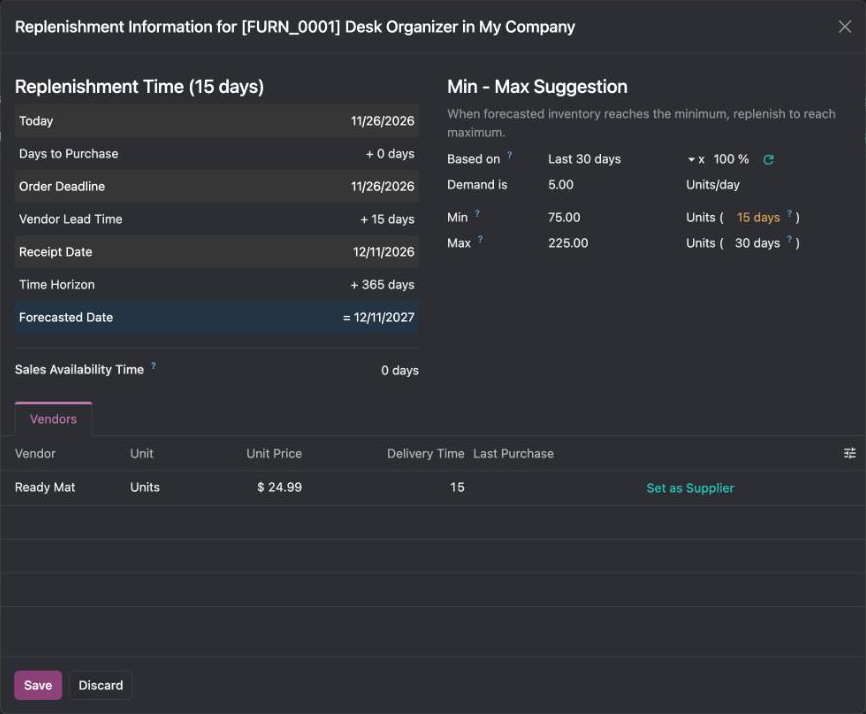 Suggested minimum and maximum in the replenishment information of a reordering rule in Odoo 20
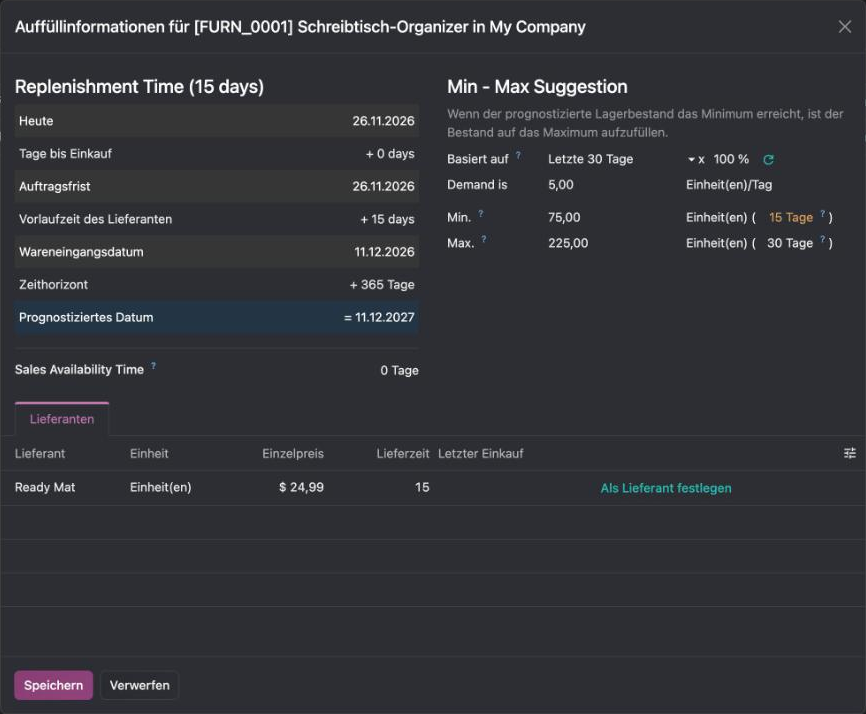 Suggested minimum and maximum in the replenishment information of a reordering rule in Odoo 20
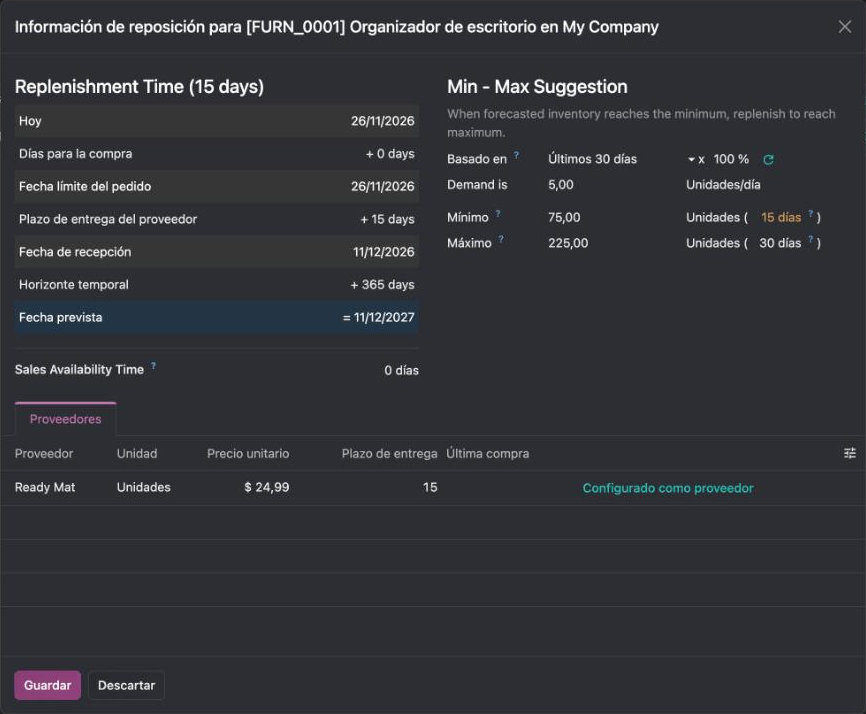 Suggested minimum and maximum in the replenishment information of a reordering rule in Odoo 20
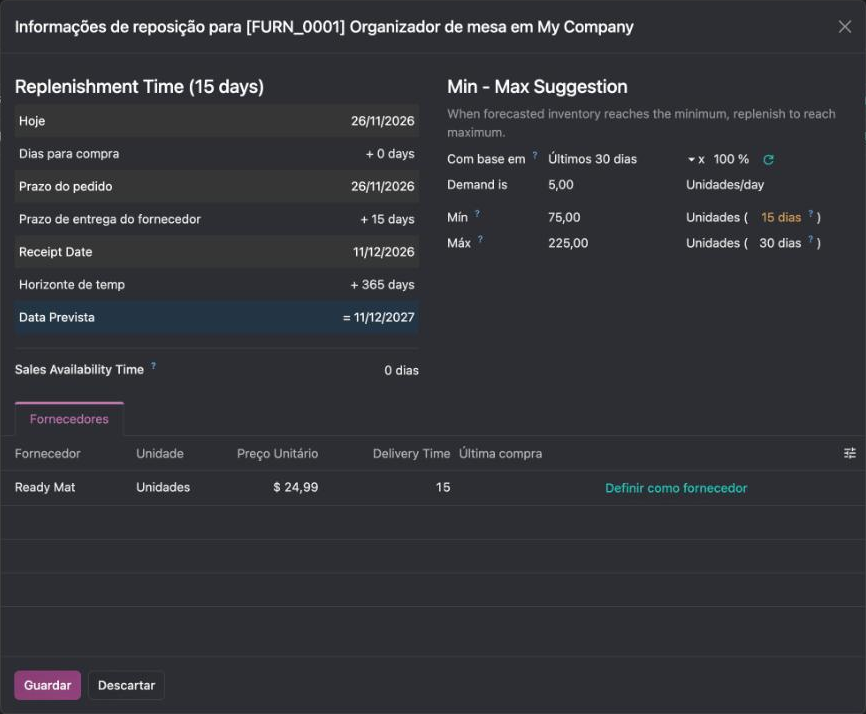 Suggested minimum and maximum in the replenishment information of a reordering rule in Odoo 20
“Most stock-outs we see in Odoo projects are not a forecasting problem but a data problem: vendor lead times nobody maintains, reordering rules copied from the old system. Clean those first, then let Odoo suggest the min and max,” says Mi Dinh, Manager ERP Consulting at much. Consulting.
For planned production, the Master Production Schedule (MPS) has been able to calculate forecasted demand for future periods from historical data since Odoo 19.
Sources: Odoo 19 release notes and Odoo 20 release notes.
How does automatic replenishment work in Odoo 20?
Replenishment in Odoo runs on reordering rules. A rule with the trigger Auto creates a request for quotation, or a manufacturing order, as soon as the forecasted quantity falls below the minimum. A rule with the trigger Manual only lists the product in the replenishment report, and you decide when to order.
Open the report under Inventory > Operations > Procurement > Replenishment. For each product it shows the stock on hand, the forecast, the minimum, the maximum and the quantity to order. In Odoo 20, the former Order and Order to max buttons are a single Order button. If you order a product in advance, without the To Reorder filter, Odoo orders the maximum minus the forecast.
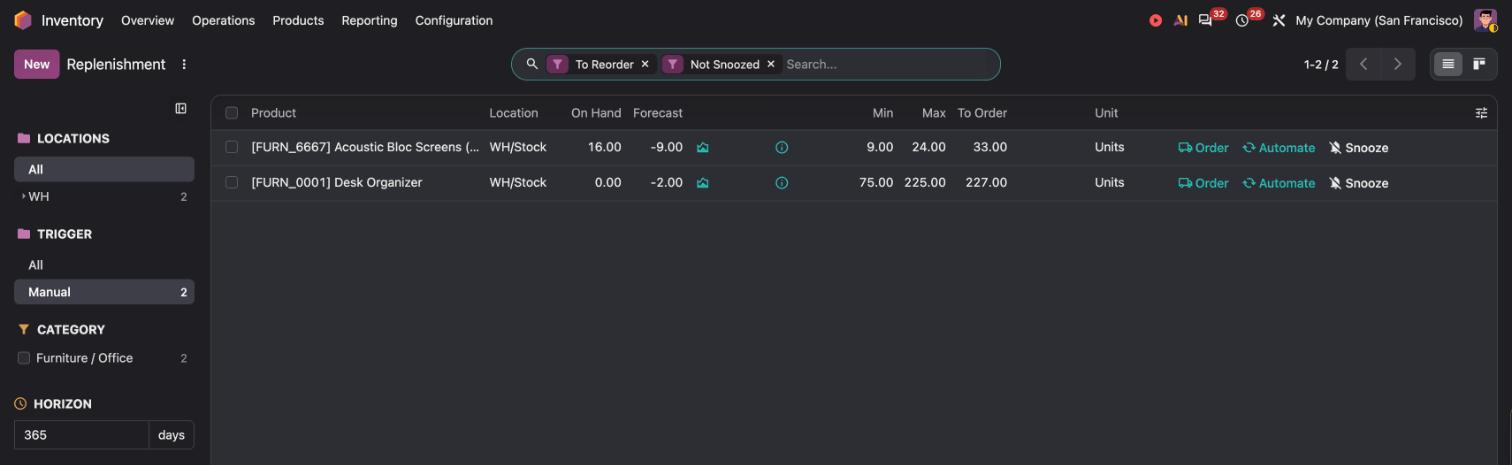 The replenishment report in Odoo 20 with forecast, minimum, maximum and quantity to order
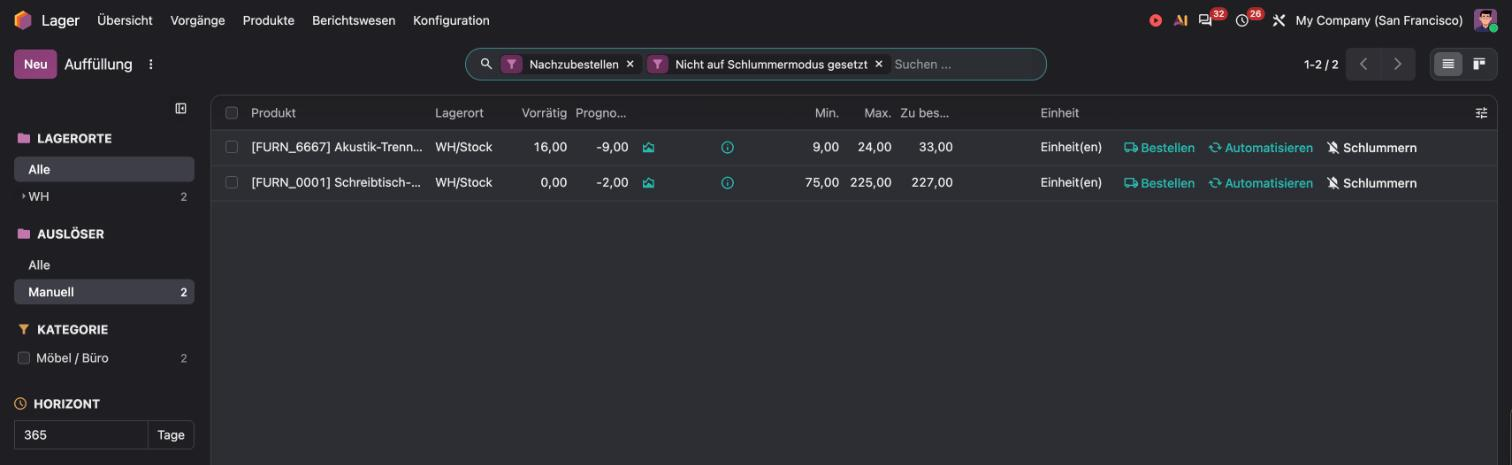 The replenishment report in Odoo 20 with forecast, minimum, maximum and quantity to order
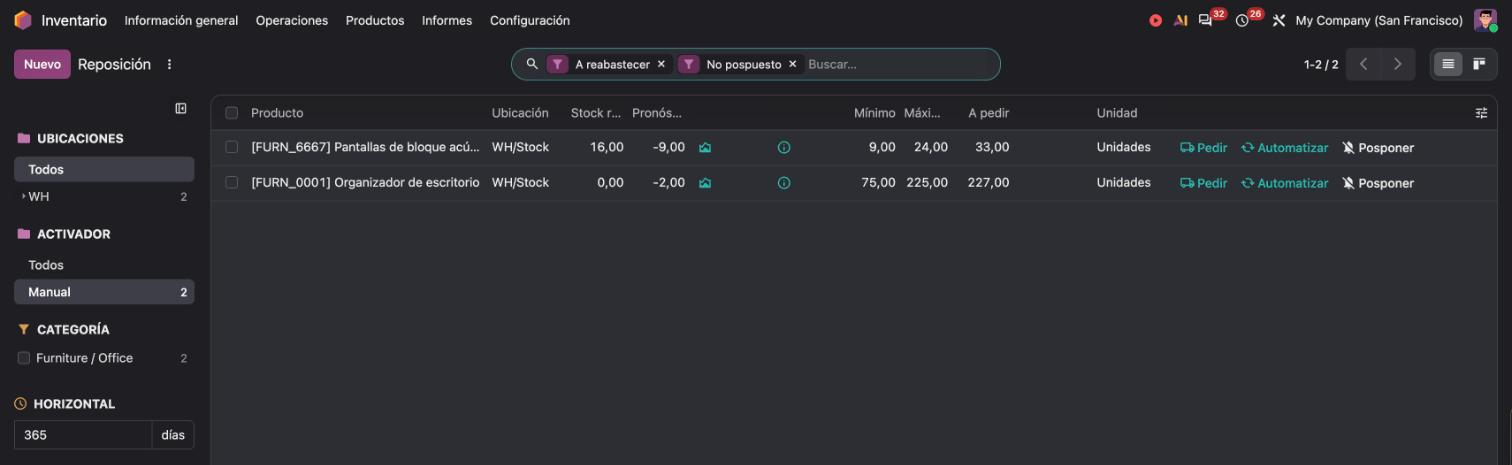 The replenishment report in Odoo 20 with forecast, minimum, maximum and quantity to order
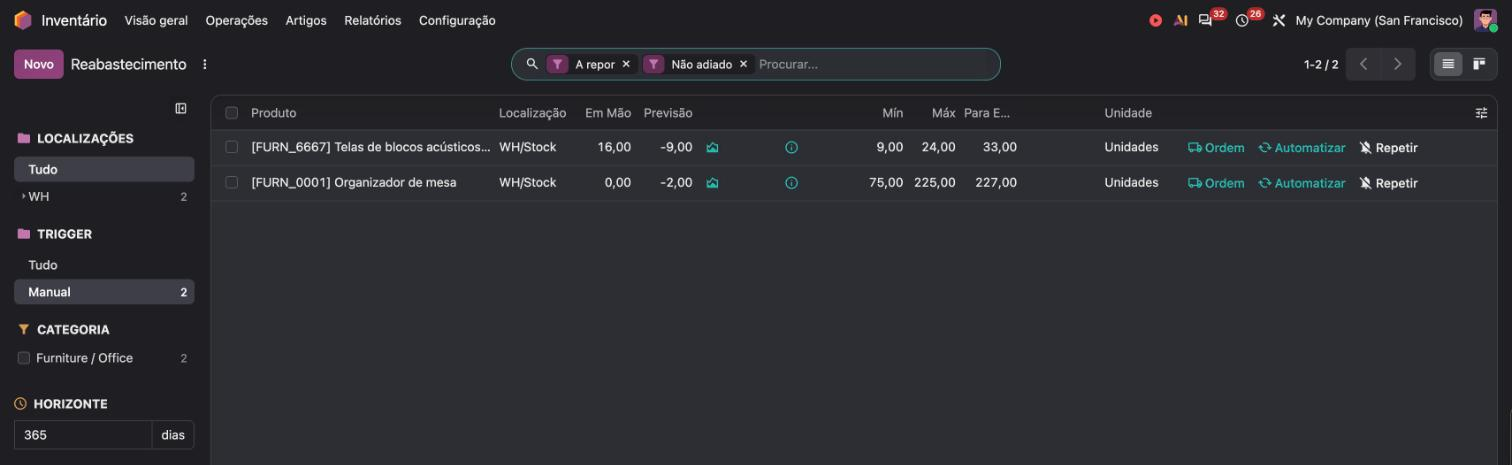 The replenishment report in Odoo 20 with forecast, minimum, maximum and quantity to order
Whether Odoo buys or manufactures depends on the product’s route. How the Buy, Manufacture and other routes work in Odoo 20 is explained step by step in our Odoo 20 inventory routes tutorial.
Sources: Reordering rules and Replenishment report in the Odoo 20 documentation.
Where do you see the forecast for a single product?
Every product has a forecasted report. Open it from the product form or with the Forecast Report button in the replenishment report. It shows the quantity on hand, the incoming receipts and outgoing deliveries by date and the resulting forecast, so you see which orders a shortage would affect.
Odoo 19 added expired products to the report: it shows which products with expiration dates should be removed from stock. In Odoo 20 you can allocate quantities to orders directly from the forecasted report, and the allocation report has a new design.
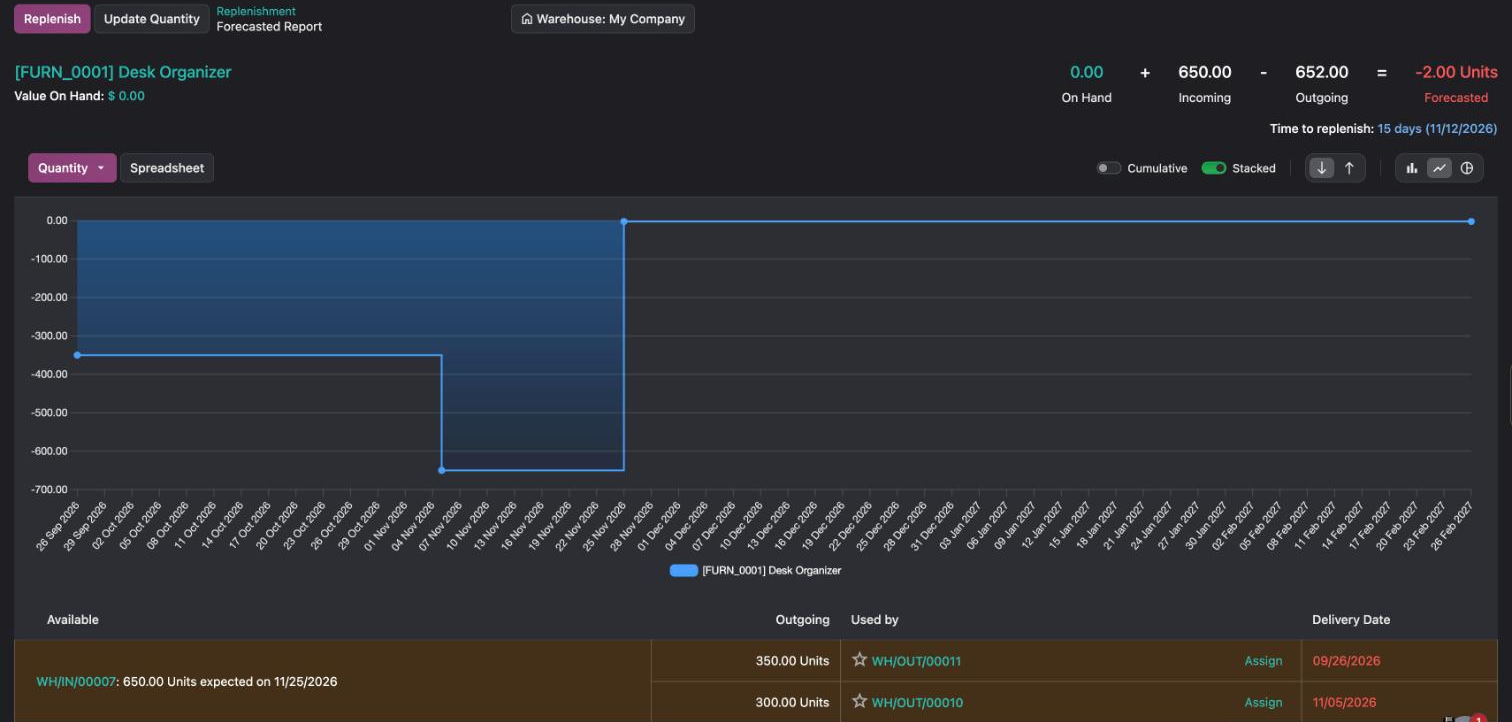 Forecasted report of a product in Odoo 20 with on-hand, incoming and outgoing quantities
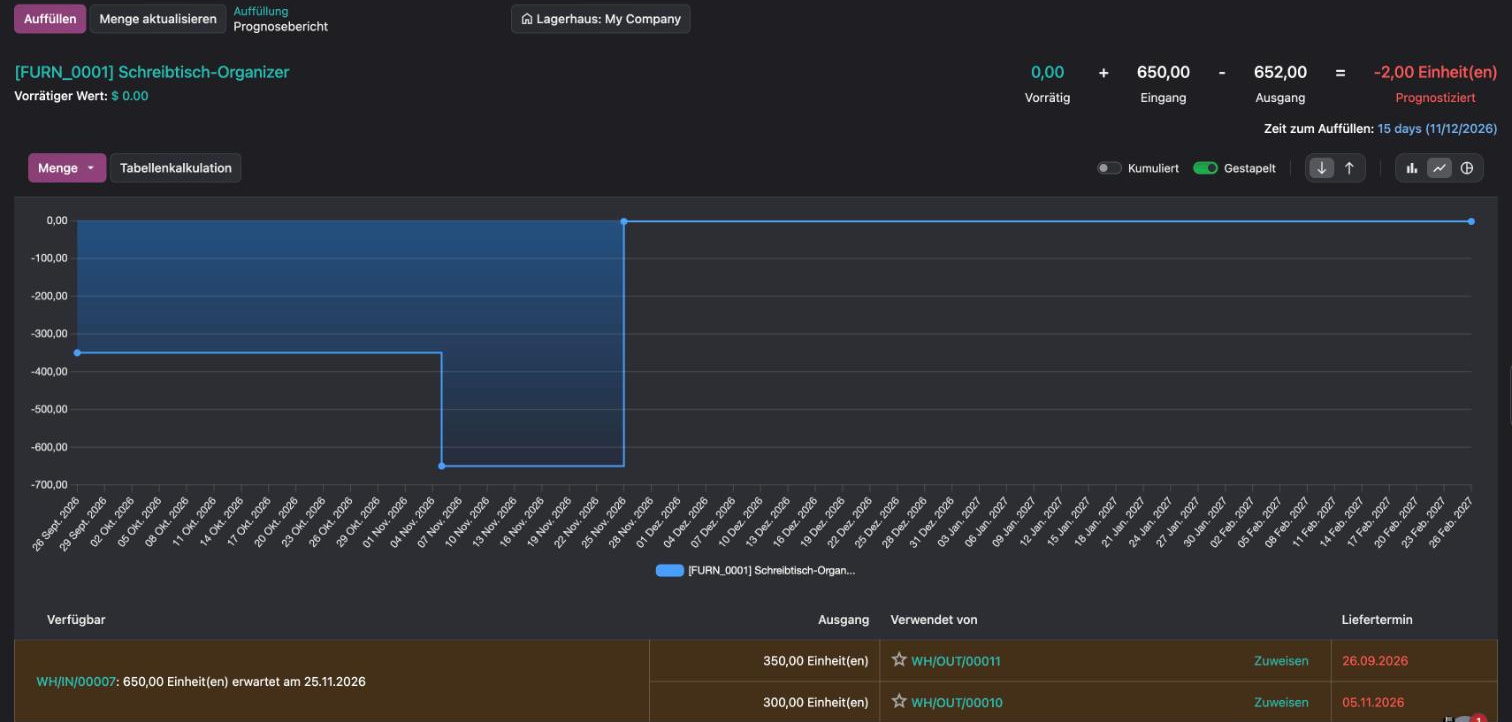 Forecasted report of a product in Odoo 20 with on-hand, incoming and outgoing quantities
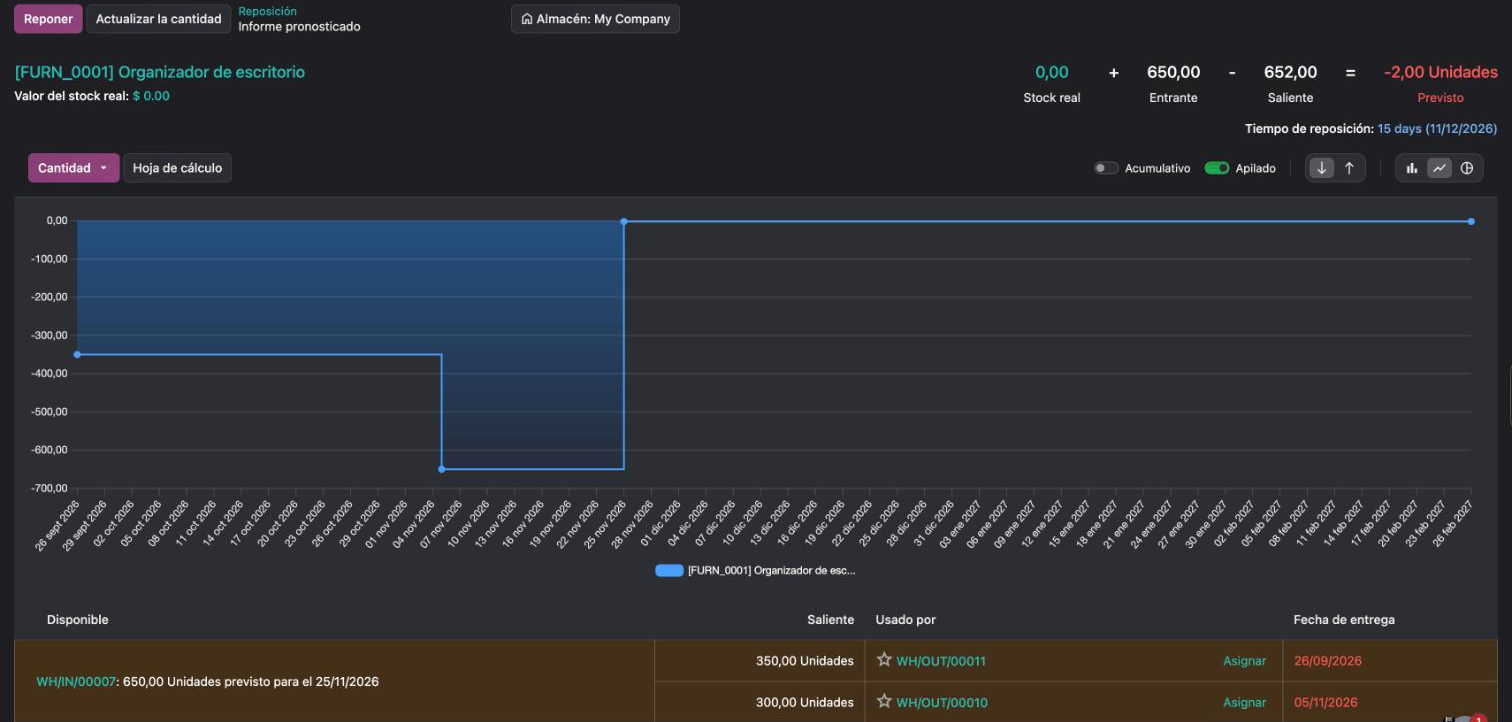 Forecasted report of a product in Odoo 20 with on-hand, incoming and outgoing quantities
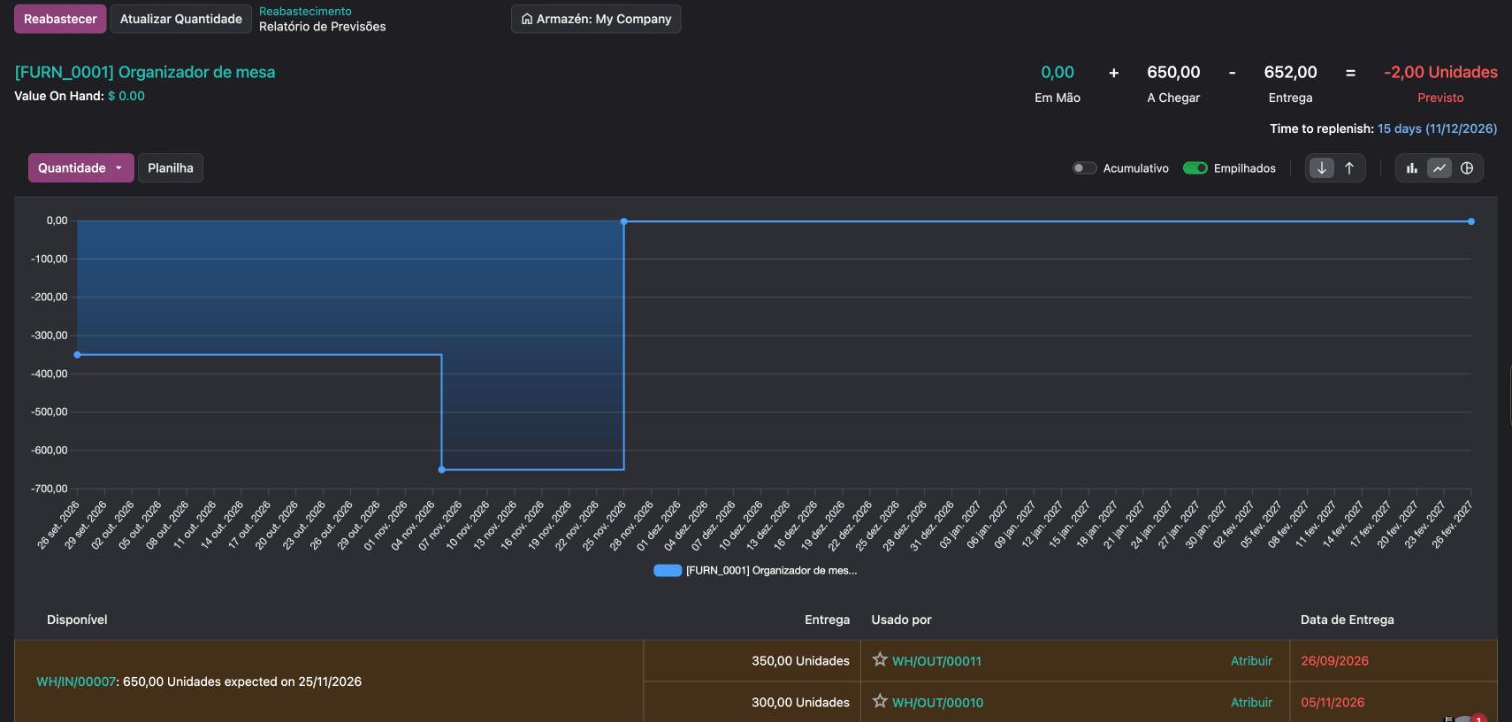 Forecasted report of a product in Odoo 20 with on-hand, incoming and outgoing quantities
Sources: Odoo 19 release notes and Odoo 20 release notes.
How does Odoo suggest purchase quantities?
Since Odoo 19, the product catalog of a request for quotation suggests quantities to buy from a vendor, based on the sales and demand history of your products. To use it, open a request for quotation under Purchase > Orders > Requests for Quotation, choose the vendor and click Catalog. No AI credits are involved: the suggestion is a calculation on your own data.
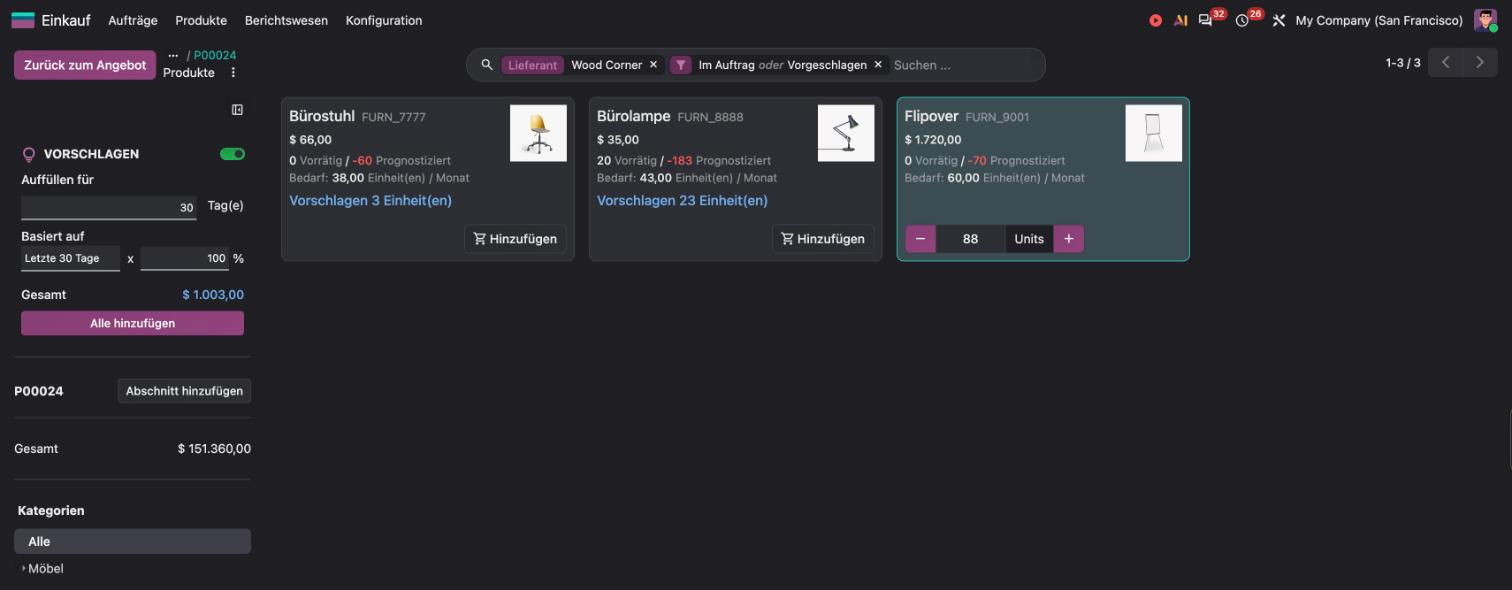
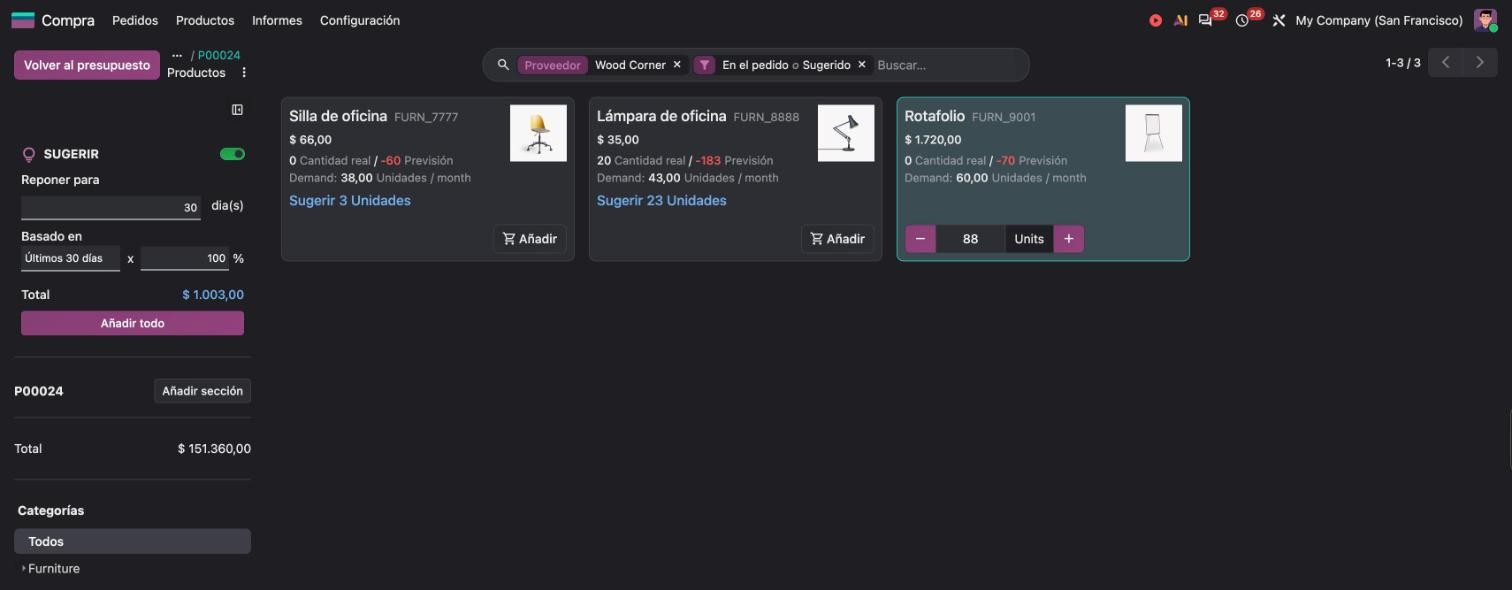
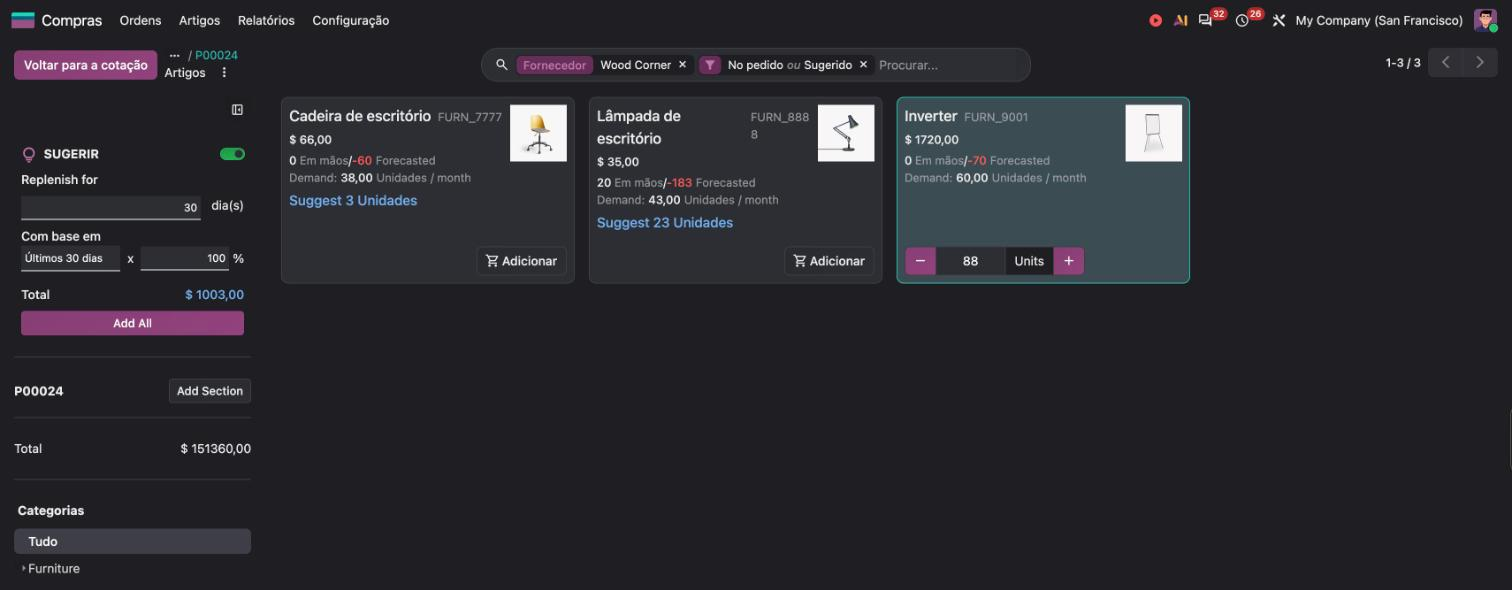
Turn on Suggest and a panel opens on the left: Replenish for sets how many days the order should cover, Based on sets the demand period and a percentage factor, and Add All adds the suggested quantities to the request for quotation. A product card only shows a suggestion, such as Suggest 3 Units, when the demand over that period exceeds the forecasted stock. The filter In the Order or Suggested narrows the list to these products. In the screenshot below, Replenish for is set to 30 days.
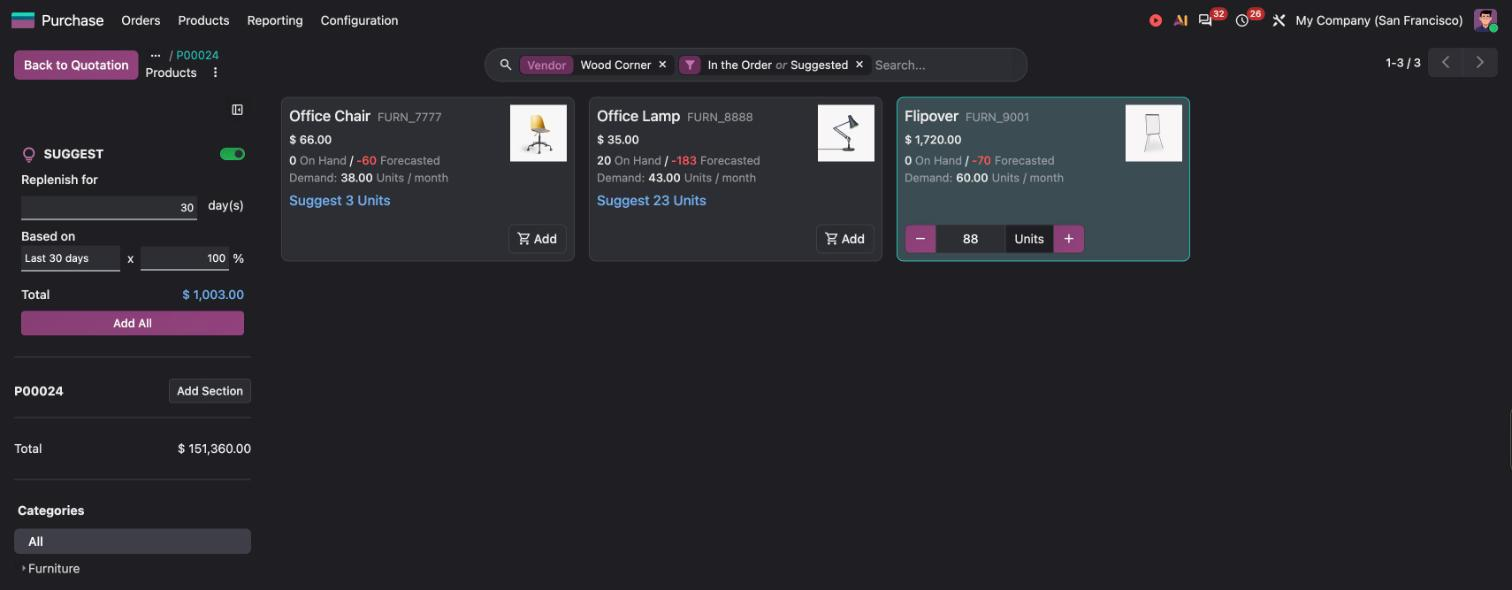 Suggested purchase quantities in the product catalog of a request for quotation in Odoo 20
 Suggested purchase quantities in the product catalog of a request for quotation in Odoo 20
 Suggested purchase quantities in the product catalog of a request for quotation in Odoo 20
 Suggested purchase quantities in the product catalog of a request for quotation in Odoo 20
Source: Odoo 19 release notes.
Which stock reports help you plan ahead?
Odoo 20 brings two reports that help with stock planning. In the stock report under Inventory > Reporting > Stock, the left side panel has a new Inventory at Date field: it opens a calendar with a time field, so you can view your inventory at a past date with a precise timestamp, and your filters stay in place when you click Apply. A stock aging report is available from the pivot view of Inventory > Reporting > Moves Analysis.
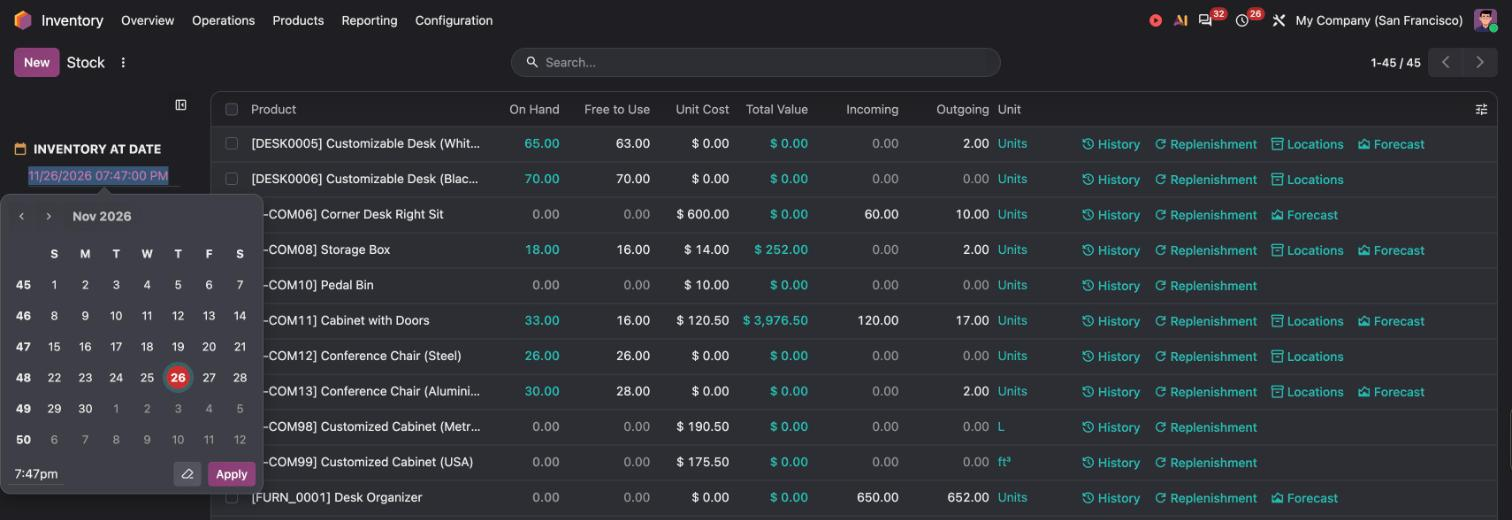 The stock report in Odoo 20 with the date picker for inventory at a past date
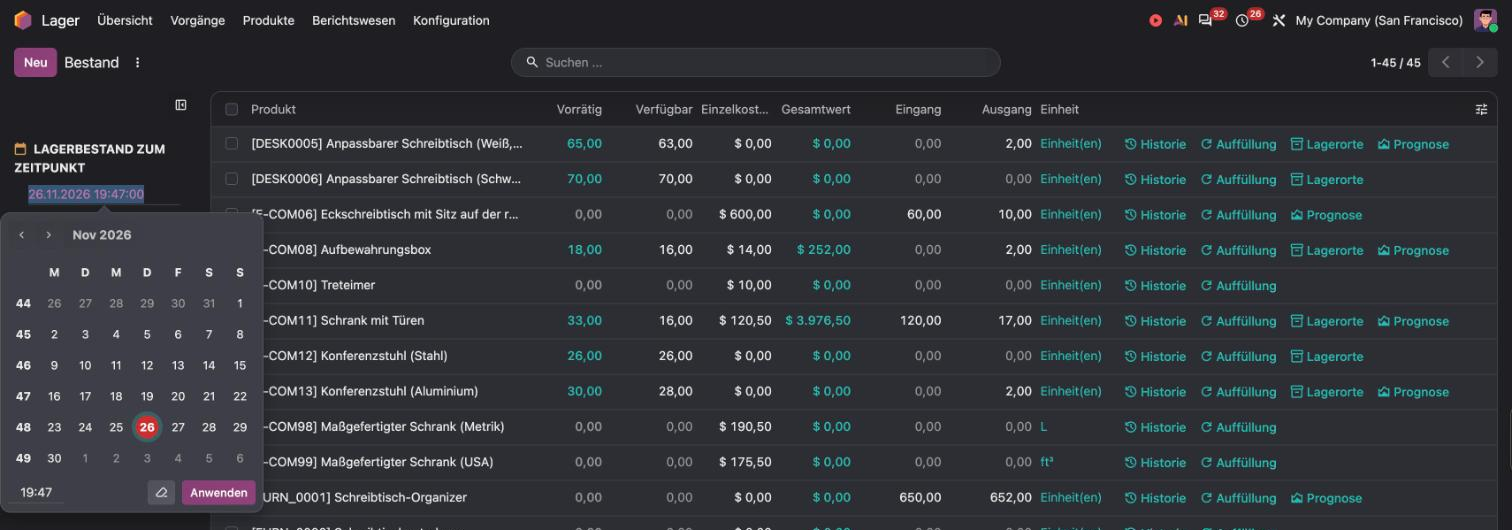 The stock report in Odoo 20 with the date picker for inventory at a past date
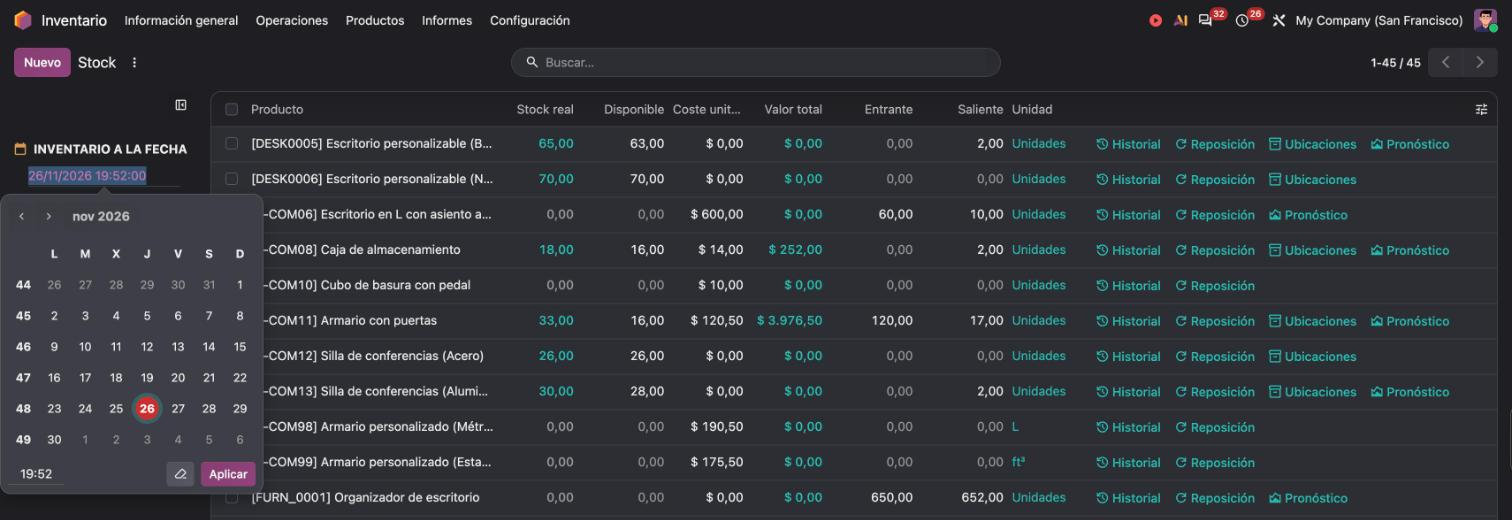 The stock report in Odoo 20 with the date picker for inventory at a past date
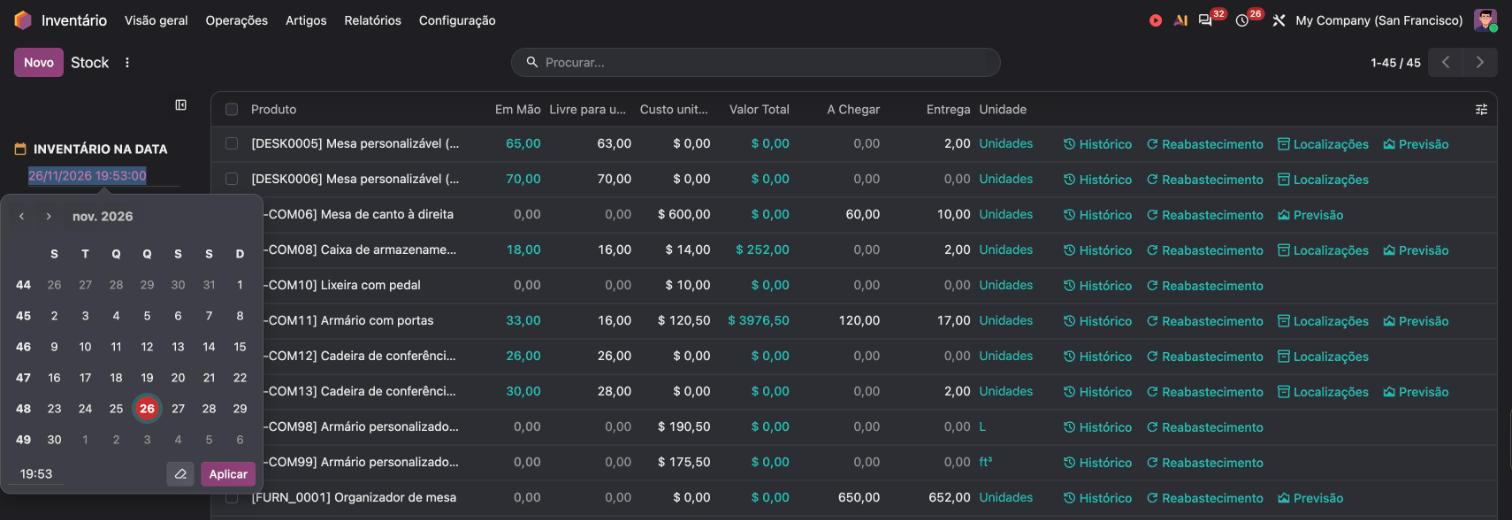 The stock report in Odoo 20 with the date picker for inventory at a past date
Source: Odoo 20 release notes.
What changed between Odoo 19 and Odoo 20?
If you plan an upgrade, these are the inventory planning changes that matter:
- Reordering rules: Odoo 20 suggests minimum and maximum levels from demand history, coverage days and order frequency.
- Replenishment report: one Order button instead of Order and Order to max.
- Forecasted report: quantities can be allocated to orders directly from the report.
- Returns: the return wizard is gone and the returns process is simpler. The Odoo 19 version of this article described AI that detects returns; Odoo does not document such a feature.
- Stock reports: inventory at a past date in the stock report, and a stock aging report in Moves Analysis.
- AI: all AI features need IAP credits; agents can now create and update records and can be called by automated and scheduled actions.
Every other change: our overview of the new features in Odoo 20.
FAQ: AI and forecasting in Odoo Inventory
Does Odoo Inventory use AI to forecast demand?
Not in the generative sense. Odoo calculates forecasts from your stock moves, sales history, lead times and reordering rules. Odoo 20 also suggests minimum and maximum stock levels from demand history, coverage days and order frequency. These calculations are part of the standard Inventory and Purchase apps and use no AI credits.
Do the inventory forecasting features need AI credits in Odoo 20?
No. Reordering rules, the replenishment report, the forecasted report and purchase suggestions run without credits. Credits are needed for the Odoo AI app: in Odoo 20, all AI features, such as AI agents, AI fields and Ask AI, consume credits that you buy through Odoo’s In-App Purchase (IAP) service.
How are the suggested min and max quantities calculated?
Odoo 20 bases them on the product’s demand history, the minimum days of coverage you want and how often you order. In the replenishment information of a rule you choose the demand period, for example the last 30 days, the last 12 months or the same month last year, or enter a custom daily demand instead.
Where is the replenishment report in Odoo 20?
Go to Inventory > Operations > Procurement > Replenishment. The report lists the products of manual reordering rules whose forecast falls below the minimum, with stock on hand, forecast, minimum, maximum and the quantity to order. Select the lines and click Order, or click Automate to let a rule order on its own.
Can Odoo create purchase orders automatically?
Yes. A reordering rule with the Auto trigger creates a request for quotation for the product’s vendor as soon as the forecasted stock falls below the minimum; with a Manufacture route it creates a manufacturing order instead. You still confirm the request for quotation before it becomes a purchase order.
What can the Odoo AI app do in Inventory?
Its agents work across apps: you can ask them about stock data in natural language, let them build a view or, since Odoo 20, have them create and update records. Odoo’s default agents include none built for Inventory, and every request uses AI credits. The forecasts and suggestions above work without the AI app.
Is it worth upgrading to Odoo 20 for inventory planning?
If you replenish with reordering rules, it is worth testing: the suggested min and max levels save manual tuning, and the single Order button makes the replenishment report simpler. Odoo 19 stays in standard support until September 2028, so you have time to try the suggestions on a copy of your database first.
Talk to us about planning in Odoo Inventory
Talk to our Odoo experts and see how reordering rules, forecasts and AI can automate your logistics processes.