Yes, one Odoo database can run several companies. Each company keeps its own chart of accounts, taxes, currency and warehouses. Each user only works in their allowed companies. Records are shared or kept separate with the Company field. Odoo inter-company rules automate cross-company sales, purchases and invoices, and branches cover sub-units such as regional offices.
You can manage multiple companies in a single Odoo database
Odoo’s multi-company functionality allows you to operate several businesses from one system while keeping data structured and access controlled. Each company can have its own customers, suppliers, warehouses, and financial records, or you can share resources where needed.
What can Odoo multi-company do?
This flexibility allows businesses with multiple legal entities, subsidiaries, or brands to operate efficiently within a single system.
Each company has its own settings, including accounting rules, bank accounts, and tax configurations.
Users can be assigned to specific companies or have access to multiple companies with the right permissions.
Certain data (such as products or contacts) can be shared across companies or kept separate.
Inter-company transactions, such as invoicing or stock transfers, can be automated.
Odoo multi-company: which operations does it simplify?
Odoo provides businesses with multiple entities with the flexibility to operate independently while enabling structured collaboration where needed. These are some ways in which Odoo can help your multi-company operations:
- Multi-entity accounting: Odoo generates separate financial reports per company or consolidates financial data across entities.
- Multiple websites: you can run distinct websites for each company with independent branding and domains, while optionally sharing customer accounts or pricing.
- Inter-company stock and purchases: Odoo automates stock transfers and inter-company sales or purchase orders to reduce manual work.
- Shared employee management: you can assign employees to multiple companies with controlled access, managing payroll and expenses per entity or centrally.
How do you set up Odoo multi-company?
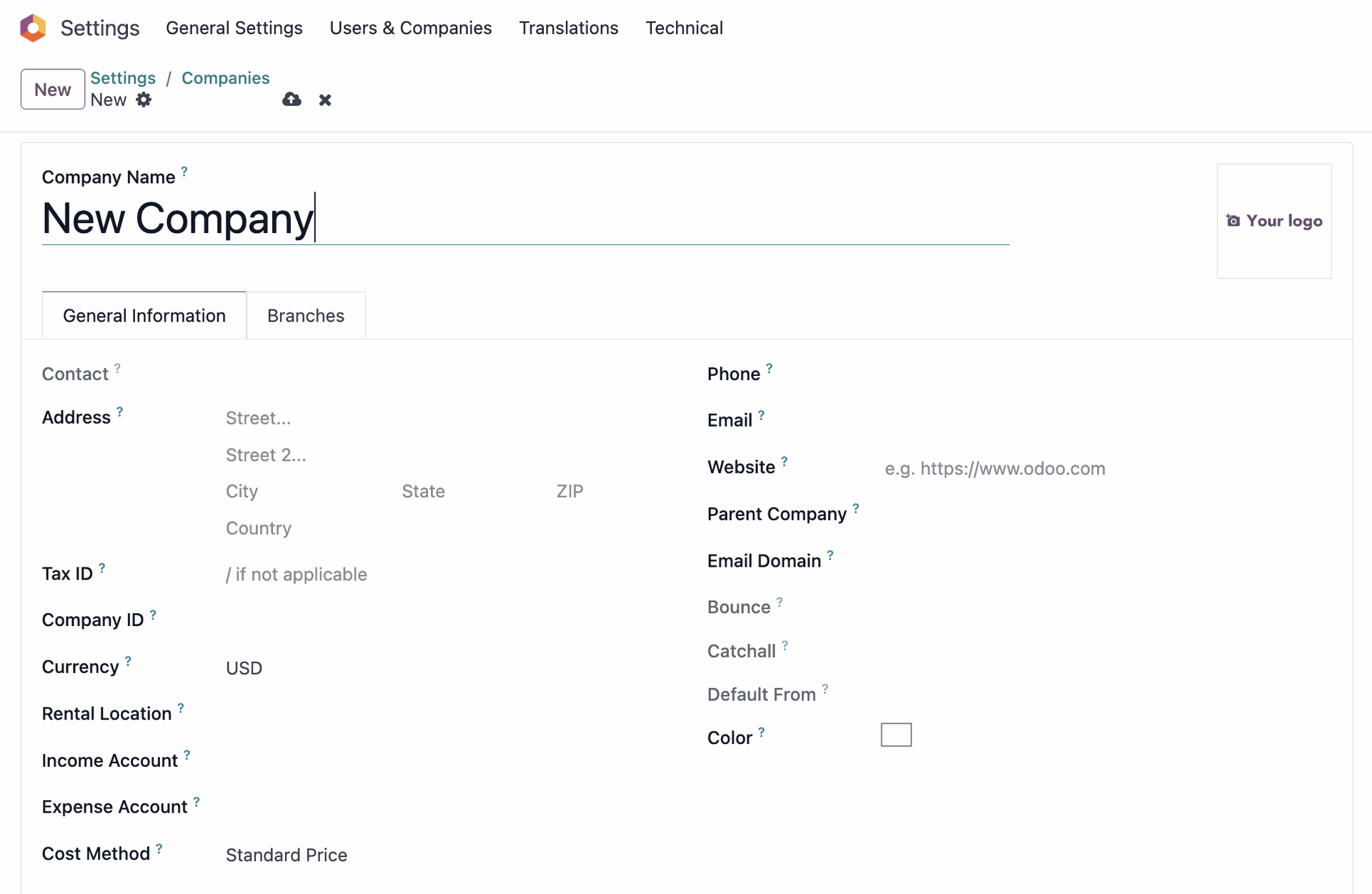
1. Create a new company
Go to General Settings > Companies > Manage Companies
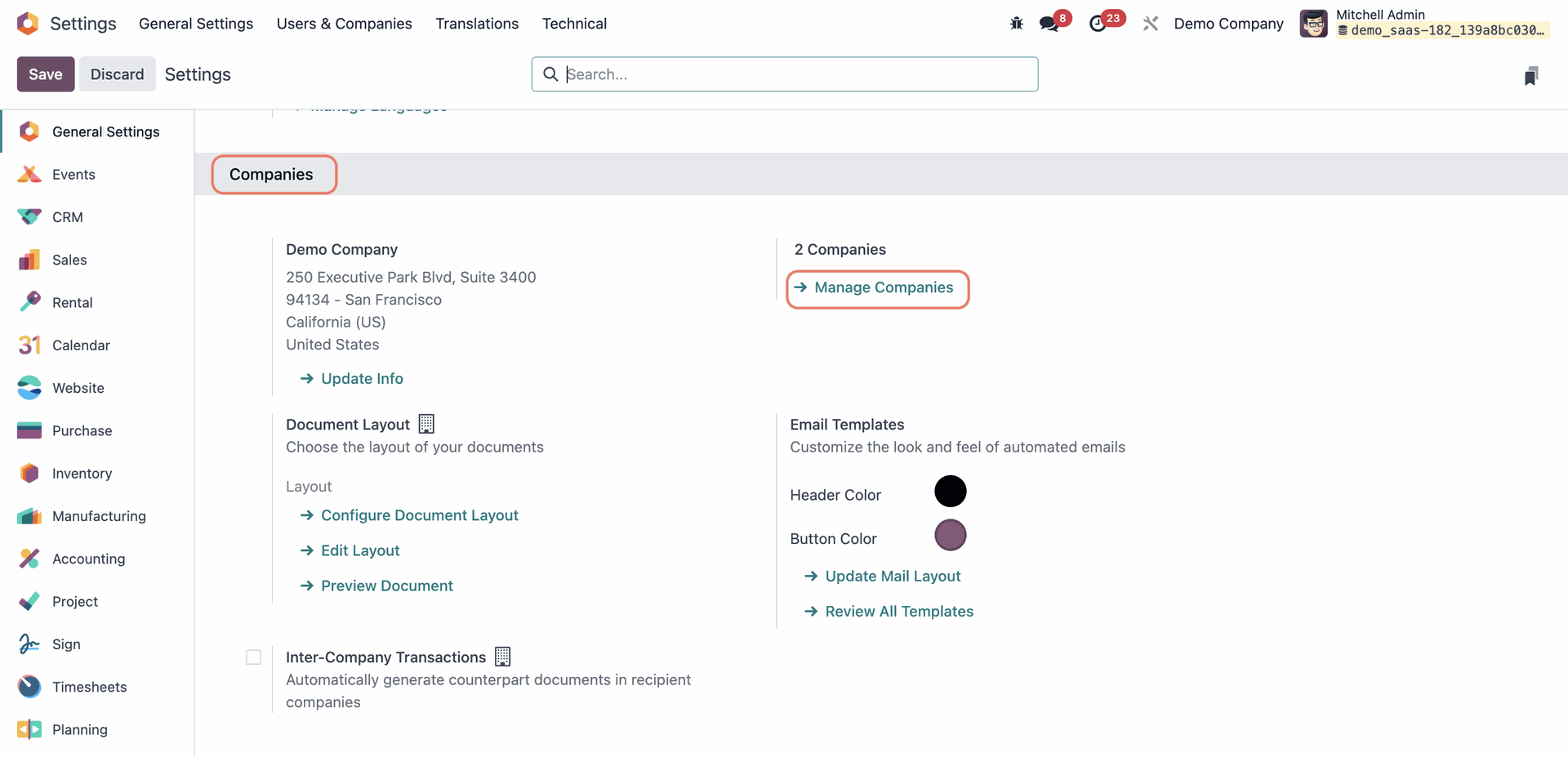
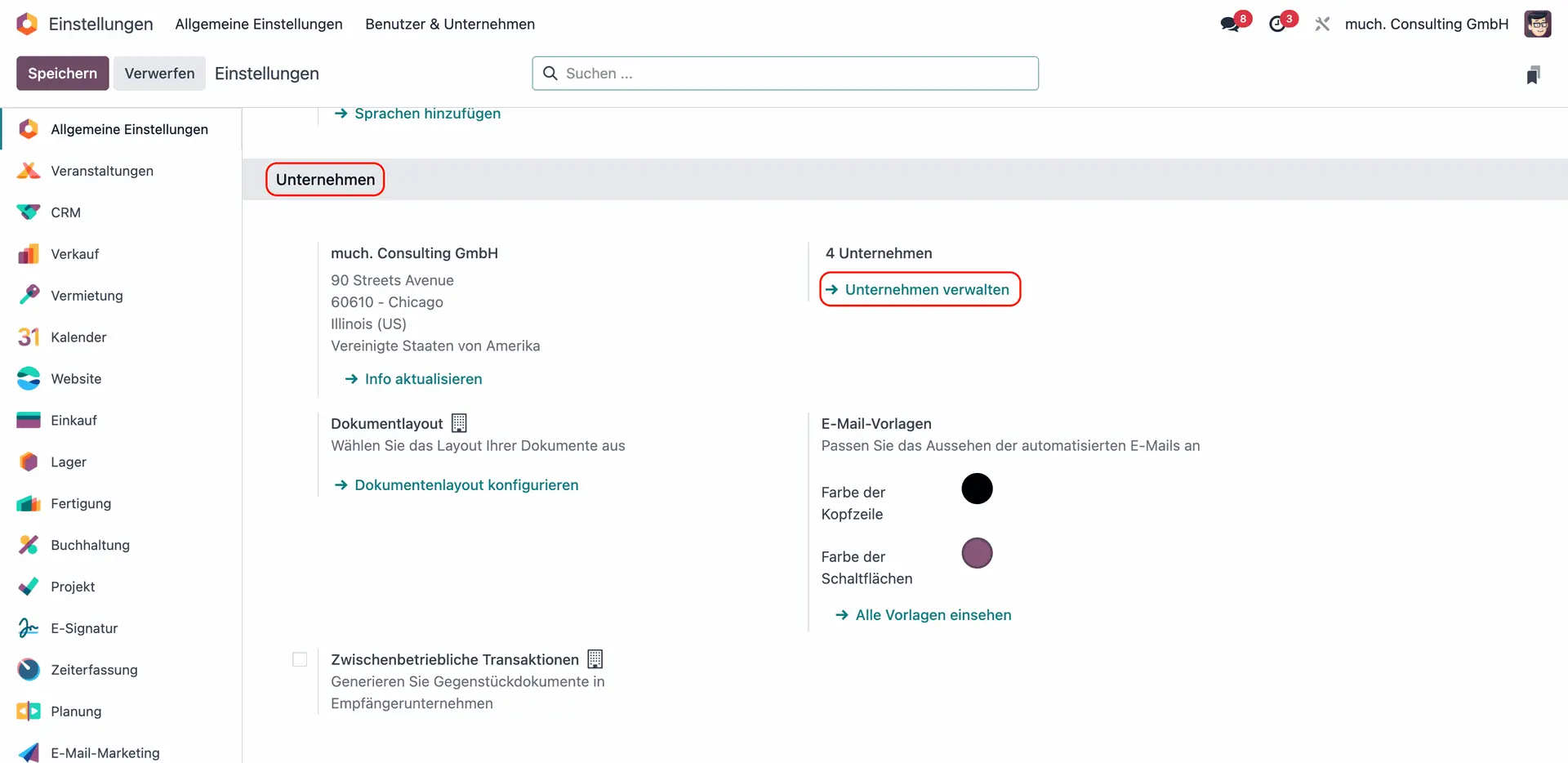
Click New, then fill in the company’s details (name, address, VAT, currency, etc.) and save the company.
2. Manage & edit companies
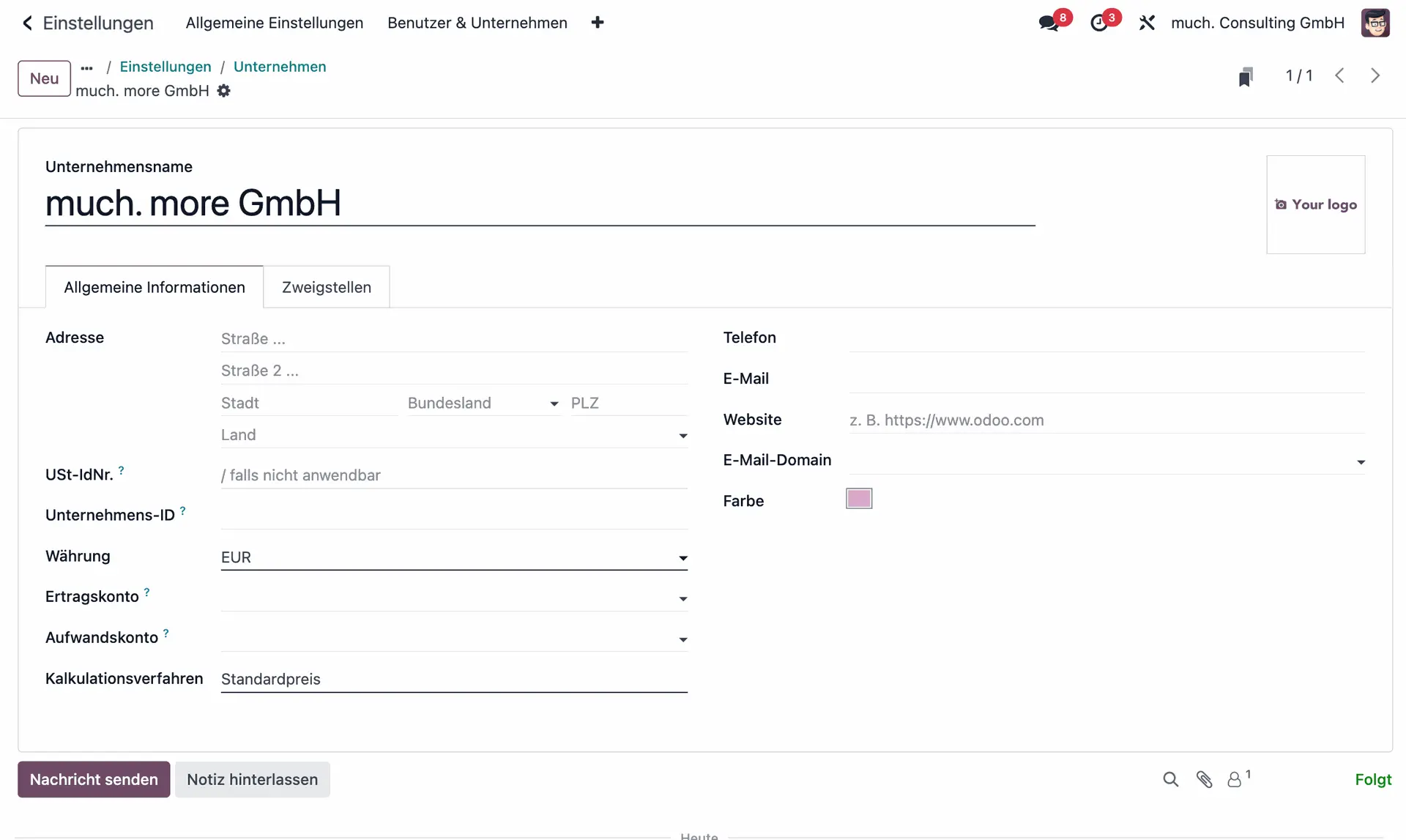
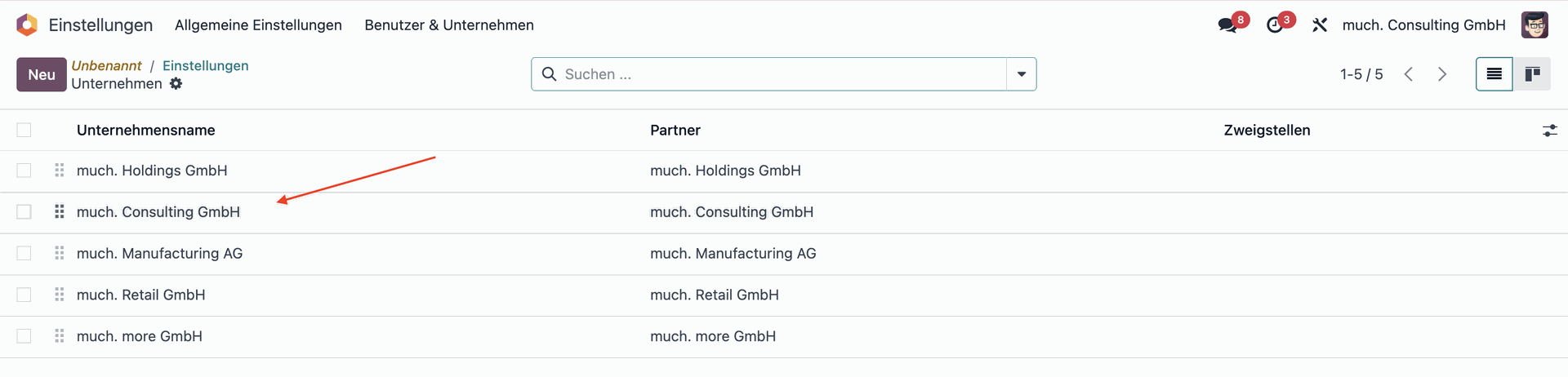
To edit an existing company:
- Go to General Settings > Companies > Manage Companies and select the company

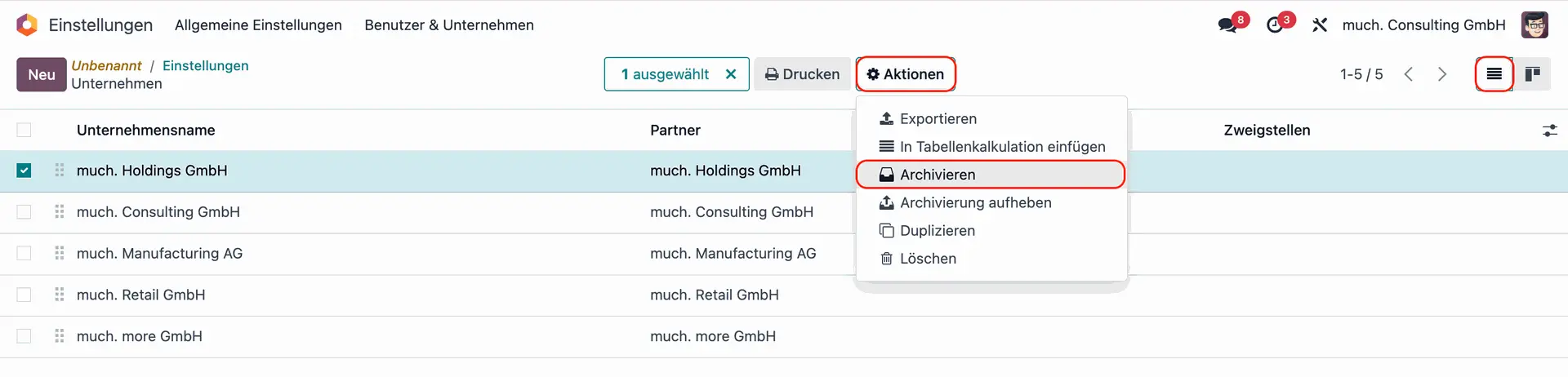
To archive a company:
- Click the List View icon in the top-right corner
- Tick the checkbox next to the company name
- Click on Actions > Archive

3. Assign user access rights
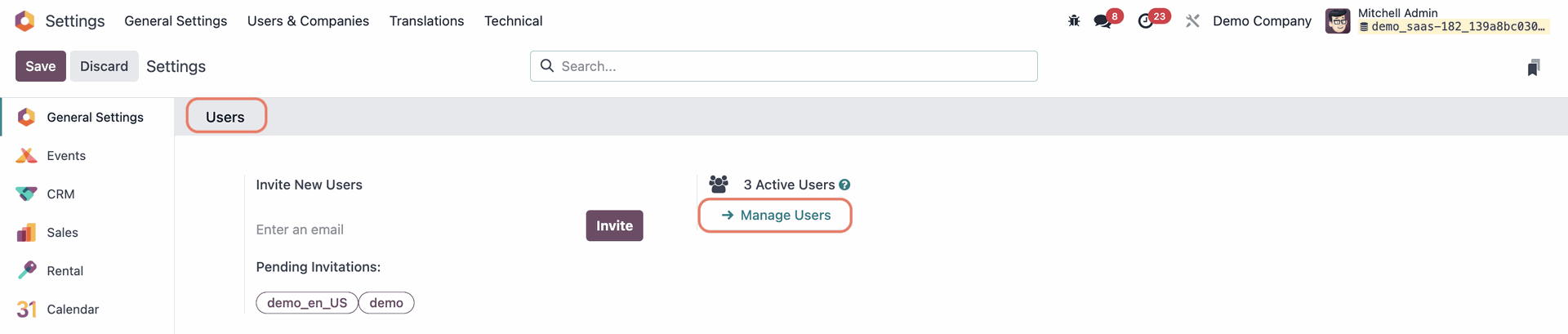
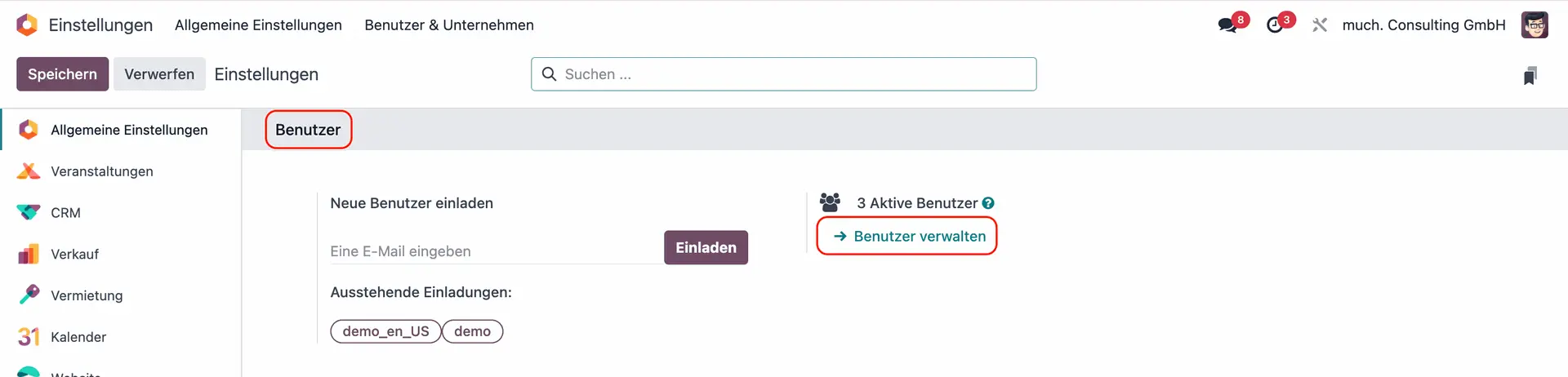
Go to General Settings > Users > Manage Users
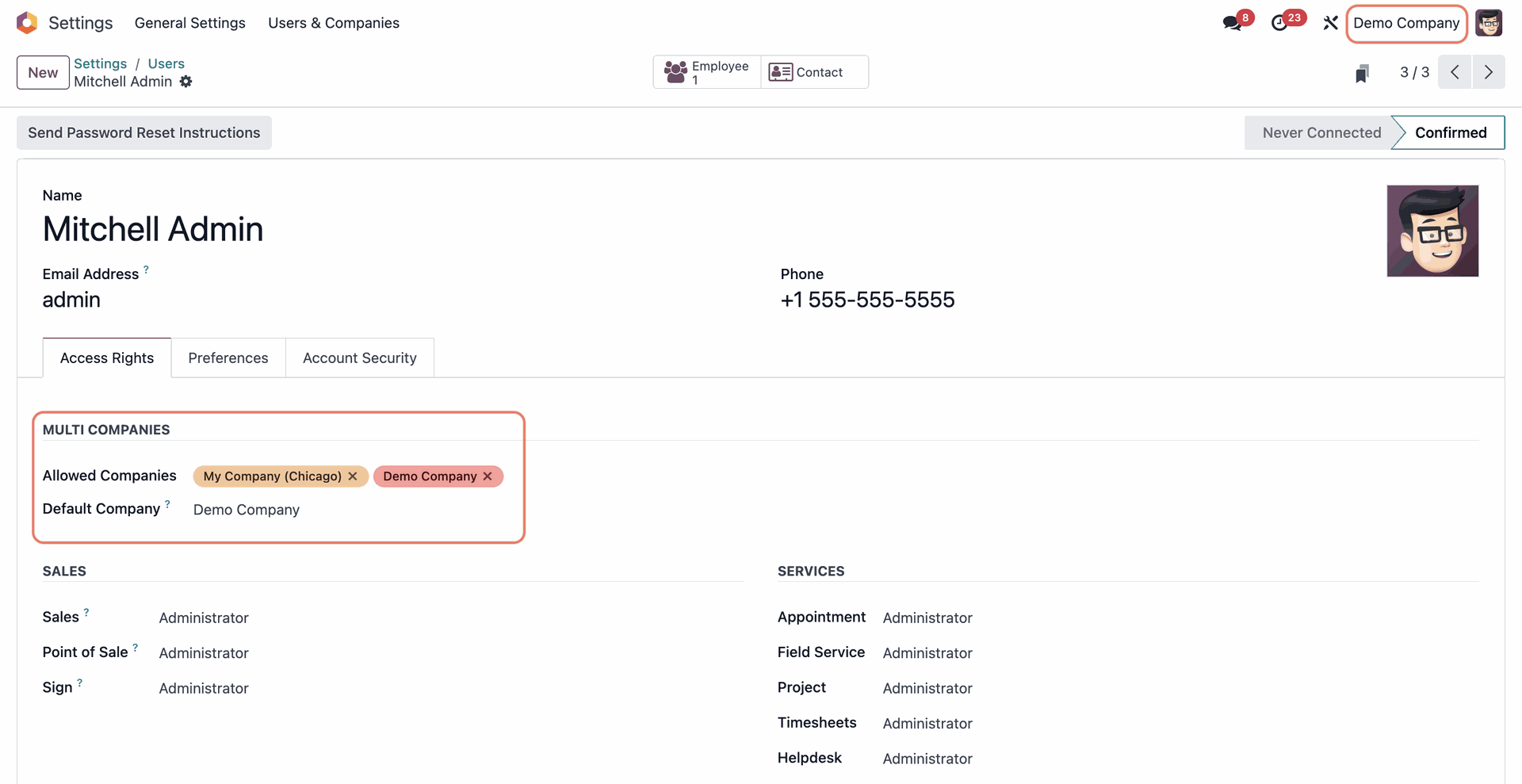
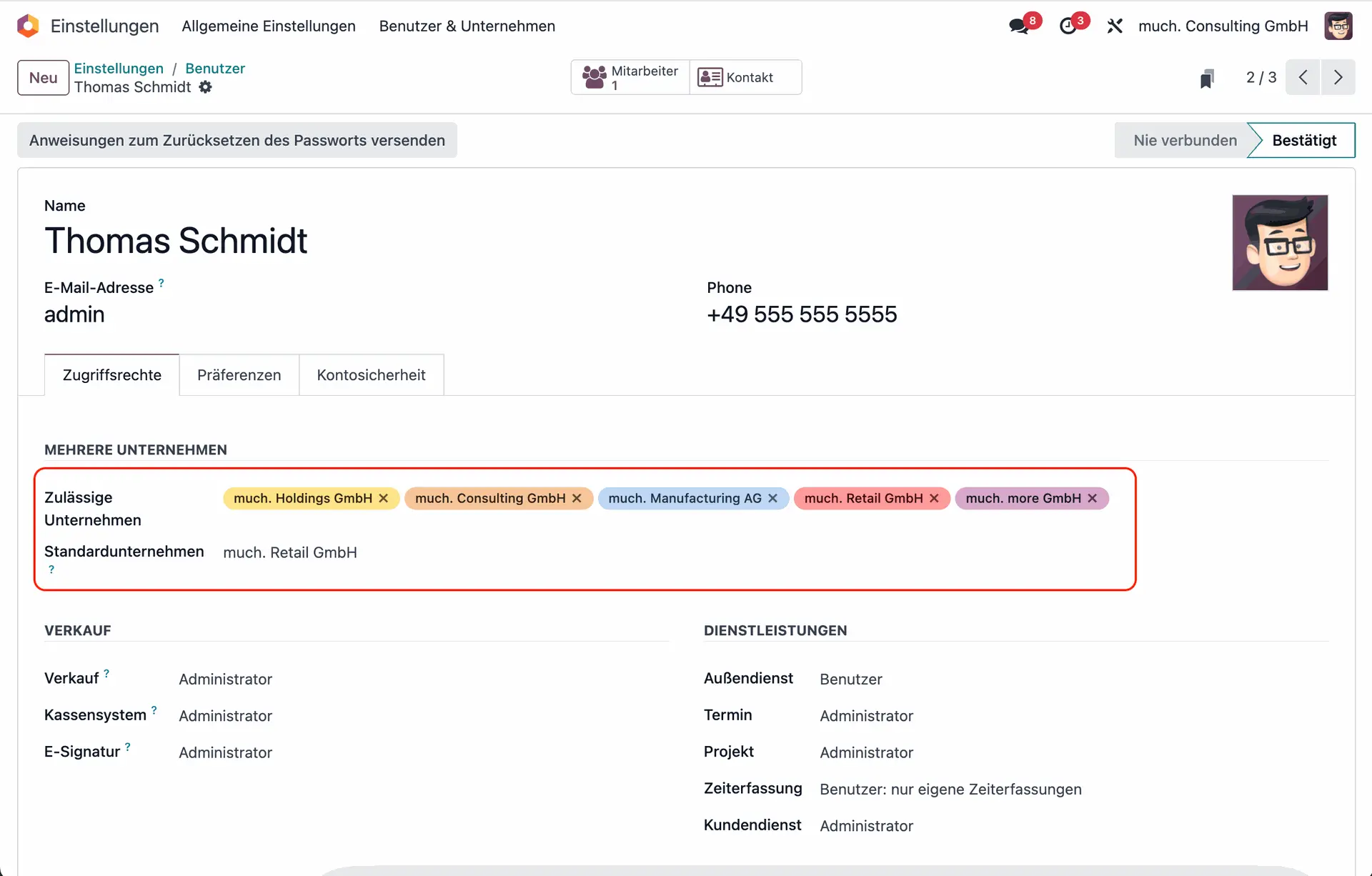
Select a user and update their Allowed Companies:
- Users with access to multiple companies can switch between them
- Users with access to only one company can only work within that company
Set the Default Company (users can have multiple allowed companies, but only one default).
Set the user's access rights. They apply in every company the user is allowed to access.
4. Switch between companies
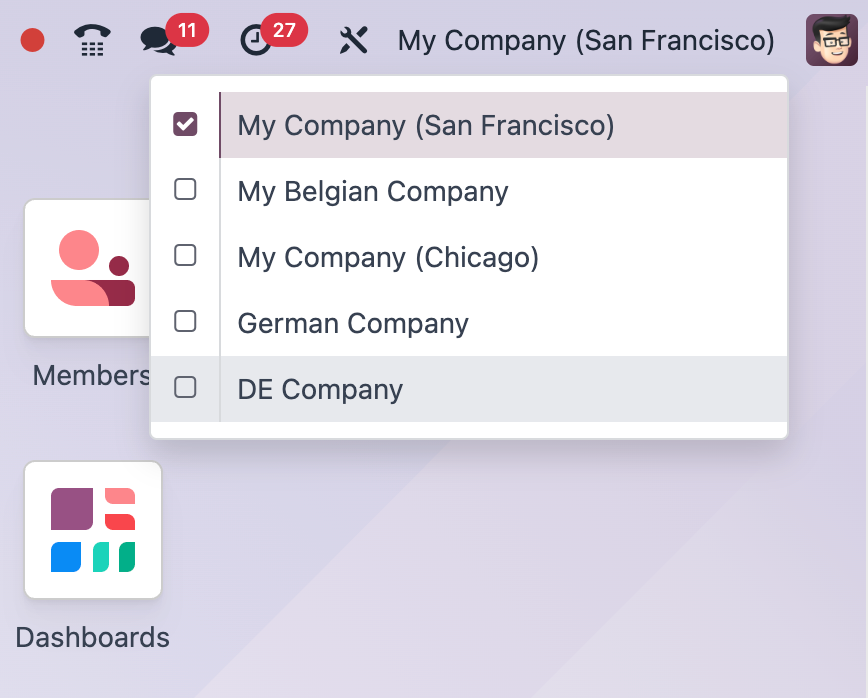
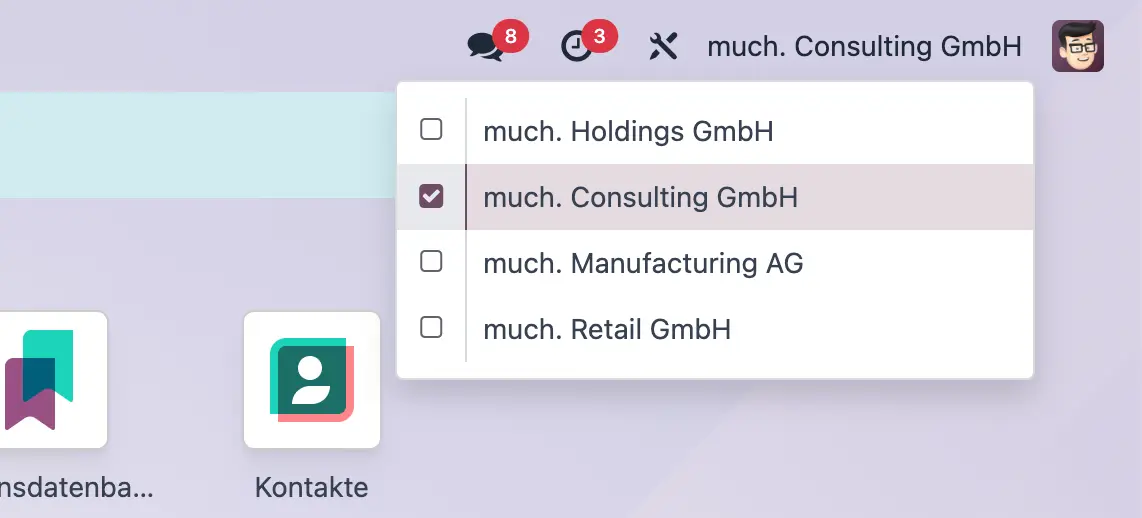
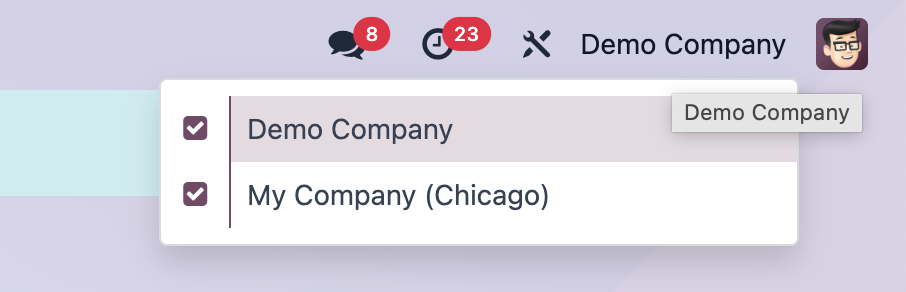
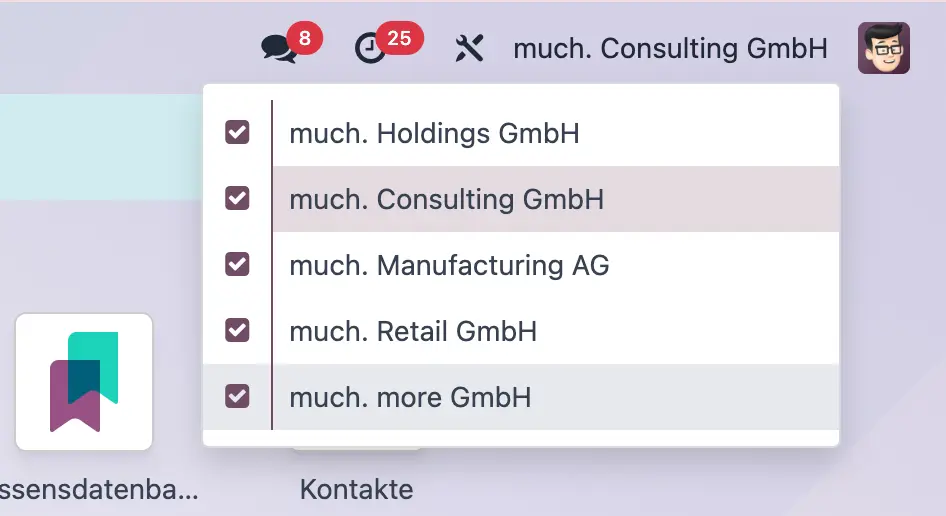
Click the company name in the top-right corner of the Odoo interface.
Tick the checkboxes next to the companies you want to activate.
The highlighted company is the active environment.
If multiple companies are activated, Odoo will show shared records where applicable.
5. Share or restrict data between companies
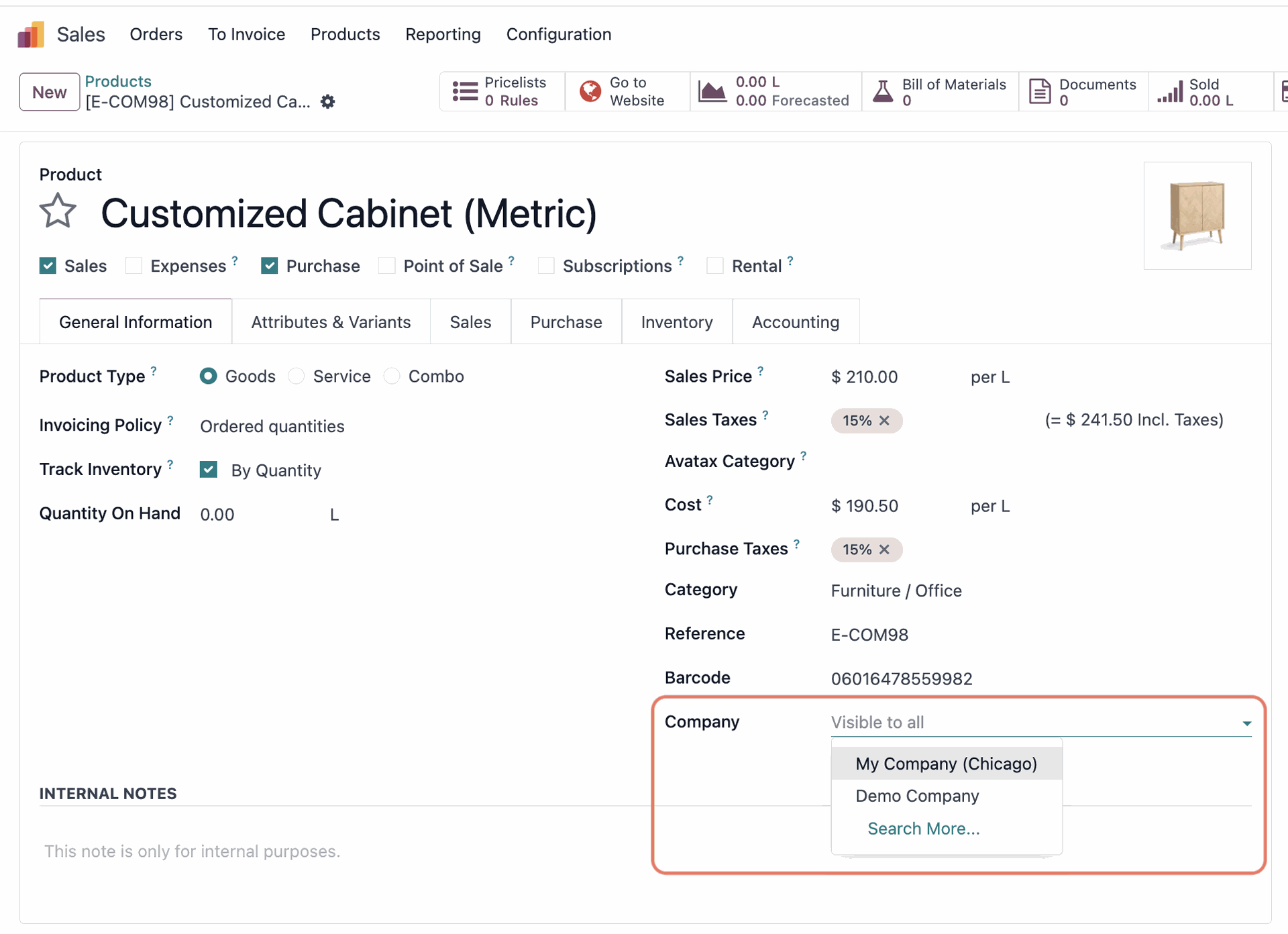
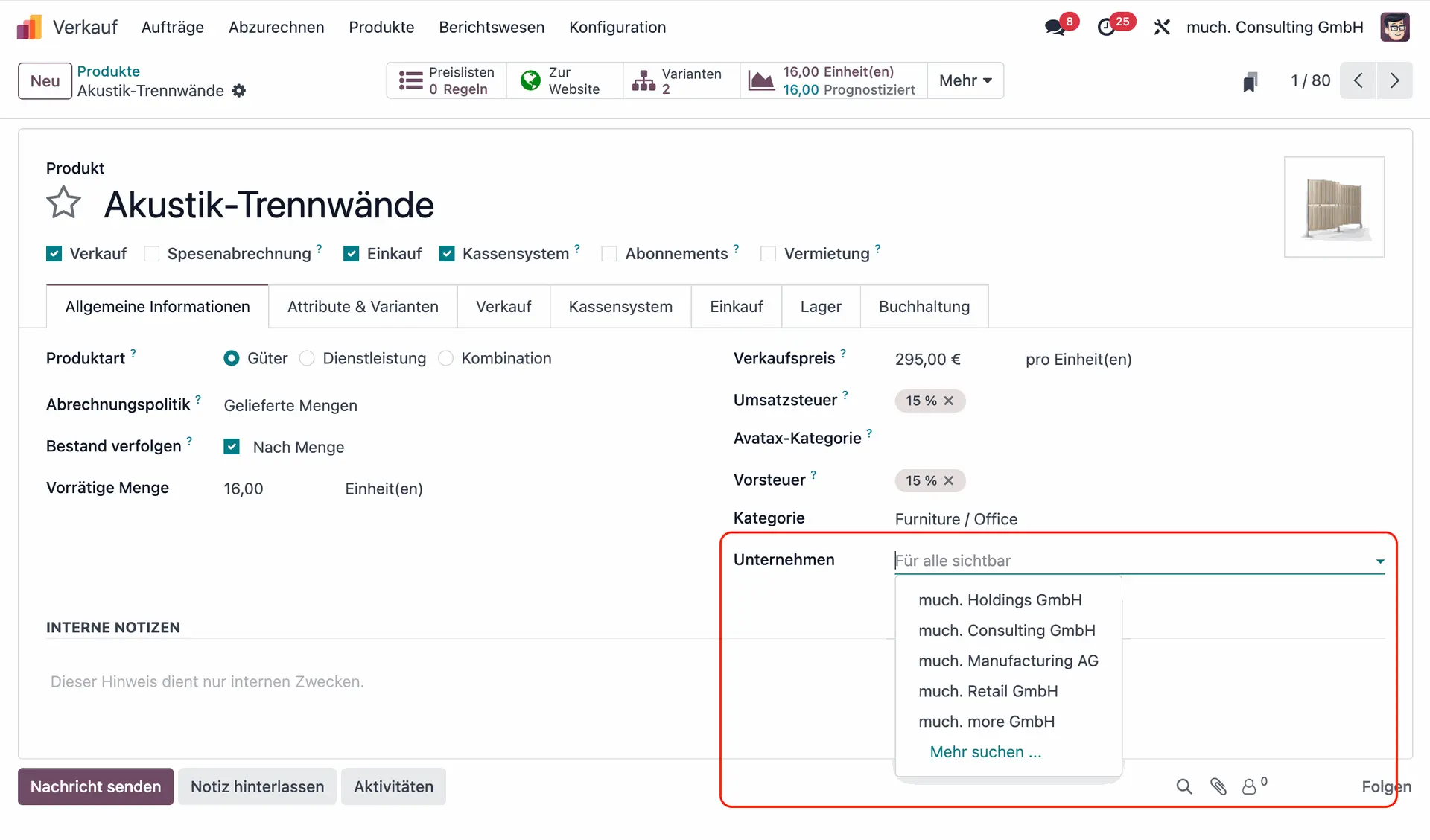
In a multi-company setup, some records (such as products, contacts, and equipment) can be shared across all companies or restricted to a specific company. Odoo allows you to control this at the record level.
- To share a record across all companies: leave the Company field blank.
- To restrict a record to a specific company: Select the relevant company in the Company field
When multiple companies are activated in the top-right company selector, records shared between those companies will be visible in both environments.
When working in a multi-company setup, creating a new record will:
- Use the active company (the one highlighted in the company selector)
- Default to no company if the record type supports cross-company use (e.g., products)
- Follow company-specific settings if the record is tied to a document from another company (e.g., a sale order for a different entity)
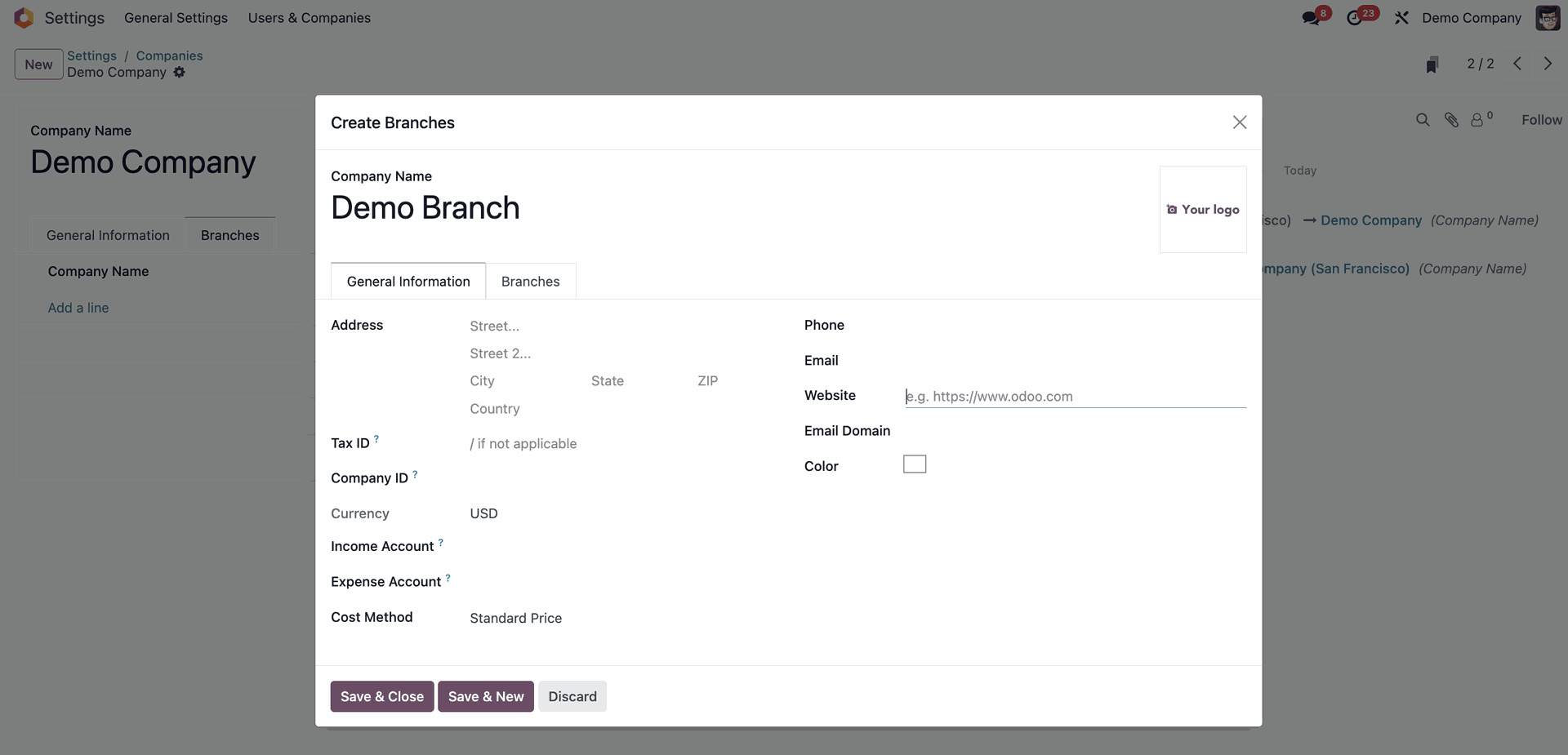
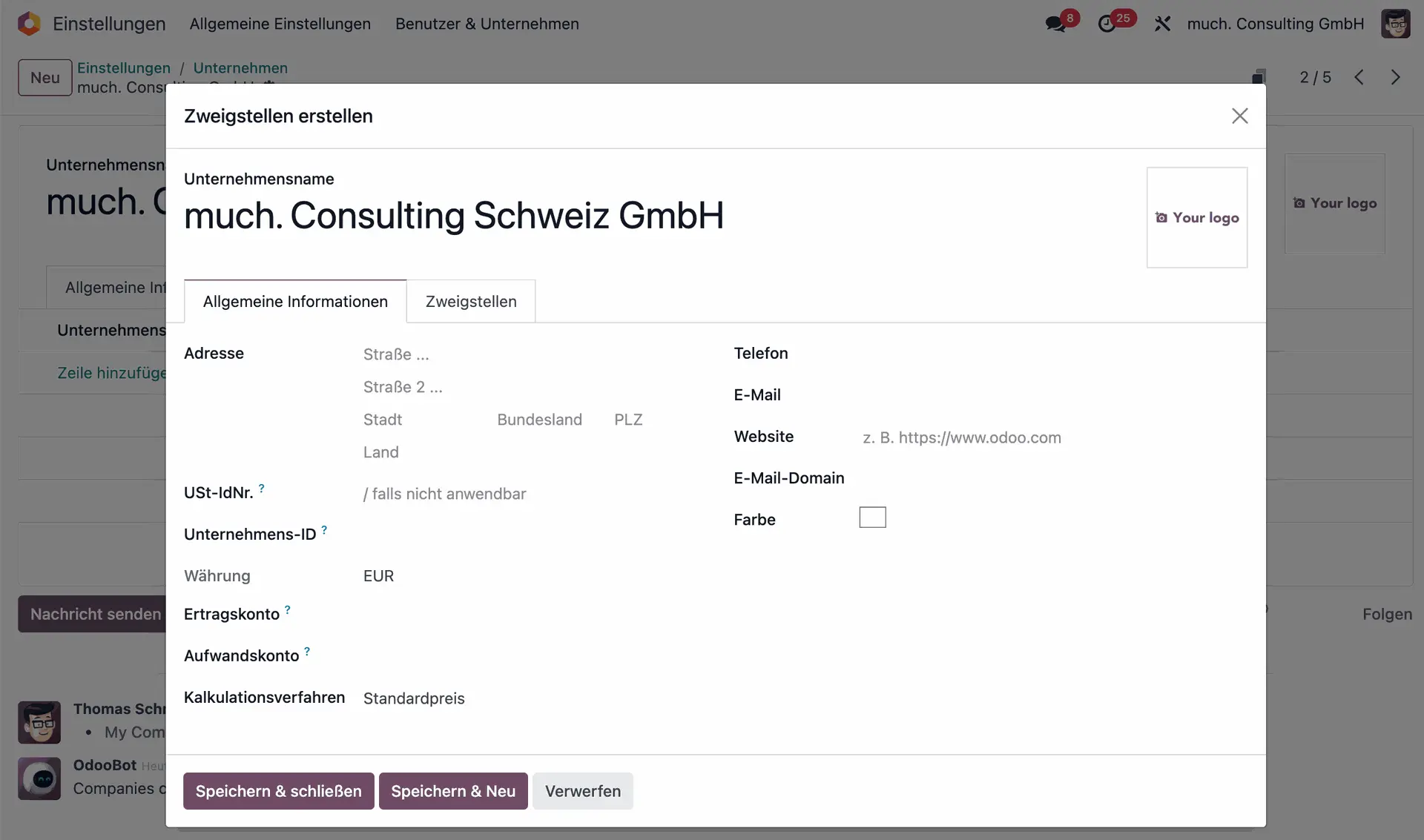
6. Add branches (if needed)
Branches are subdivisions within a company, useful for structuring departments, locations, or regional offices.
- To add a branch, go to General Settings > Companies > Manage Companies
- Select the company that the branch belongs to
- Open the Branches tab and click Add a Line
- Fill in the branch details and save
Note: branches use the parent company's chart of accounts, main currency, taxes and fiscal localisation.
Odoo multi-company works across all Odoo apps
Odoo’s multi-company setup applies in every business area. Each record is either tied to one company or shared between companies. This guide covers Odoo 20, released at Odoo Experience 2026, and Odoo 19. Here's how it works in key areas:
 Sales & CRM
- Manage separate or shared customer databases.
- Assign sales teams to specific companies.
- Create price lists for each company or share them across businesses.
 Inventory & Manufacturing
- Keep stock separate per company or allow inter-company transfers.
- Configure warehouses for each company.
- Automate inter-company stock movements. In Odoo 20, one company can resupply another through routes.

 HR & Payroll
- Assign employees to a specific company or allow them to work across multiple entities.
- Separate or centralise payroll and expenses.
 Accounting & Finance
- Keep financial reports separate or generate consolidated reports for all companies.
- Assign different charts of accounts and tax rules per company.
- Automate inter-company invoices and transactions.
Odoo multi-company FAQs
Can I manage multiple companies in one Odoo database?
Yes. One Odoo database can hold several companies. Each keeps its own chart of accounts, taxes, currency, warehouses and documents such as quotations and invoices. Products and contacts are shared by default. You can report per company or, once consolidation is set up, for the whole group.
How does Odoo separate accounting data between companies?
Every accounting document, such as an invoice, bill or journal entry, belongs to one company through its Company field. Users only see the companies in their Allowed Companies, and only data from the companies active in the company selector. Each company also has its own chart of accounts, journals and taxes.
Can I manage transactions between my companies in Odoo?
Yes. Enable Inter-Company Transactions in the Settings app, under Companies. When Company A confirms a sales order to Company B, Odoo can create the matching draft purchase order for Company B in the same database. Posted invoices can also create matching vendor bills. Odoo 20 adds resupply routes between companies.
How do I create consolidated group reports for several companies in Odoo?
Odoo consolidates within the Accounting app, without a separate consolidation app. You map similar accounts across companies, create a multi-ledger for the consolidating company and, optionally, horizontal groups that show each company's contribution. Then select the companies and the consolidation ledger in the report. See how one client consolidated its multi-company accounting.
Can each company in an Odoo database use a different currency?
Yes. Each company has its own main currency, which Odoo sets from the company's country and which you can change in the Accounting settings. Invoices and bills can still be issued in other currencies, exchange rates can update automatically, and exchange differences are posted to dedicated accounts. Consolidated reports use the selected company's rates.
Does multi-company cost extra in Odoo?
No. Odoo Enterprise is priced per user, not per company, so adding companies adds no fee. Multi-company is part of the Custom plan, which you already need for Odoo.sh or on-premise hosting, Studio and the external API. Only on the Standard plan, which runs on Odoo Online, does adding a second company move you to Custom.
Should I use a branch or a separate company in Odoo?
Use a branch when a unit shares the parent company's books. Branches use the parent's chart of accounts, main currency, taxes and fiscal localisation, and the parent sees all branch reports, invoices and bills. Use a separate company for an entity that needs its own currency, chart of accounts or localisation, such as an acquired business.
Need help managing multiple companies in Odoo?
Whether you need full separation between companies or controlled inter-company interactions, we can help ensure everything is set up correctly. Talk to our experts to discuss your Odoo setup and business needs!