There are 2 non-negotiables to set up Odoo AI
First things first, you need an Odoo Enterprise licence.
Every Standard AI feature in Odoo 19 carries an OEEL-1 licence, which is exclusive to Enterprise.
Secondly, you need at least one LLM API key to connect an AI model to Odoo.
Odoo 19 currently supports two providers:
Provider | Models available | API key setting |
OpenAI | gpt-3.5-turbo, gpt-4, gpt-4o, gpt-4.1, gpt-4.1-mini, gpt-5, gpt-5-mini | ai.openai_key |
gemini-2.5-pro, gemini-2.5-flash, gemini-1.5-pro, gemini-1.5-flash | ai.google_key |
Both can be configured simultaneously. Different agents can use different providers and models.
Odoo 19 integrates AI all across the system
Odoo 19 AI features are context-aware and appear across various parts of the platform depending on what you are trying to achieve.
Ask AI button (top right)
This is the most visible entry point to AI: the button in the top bar of every Odoo screen.
Type a question or request in plain language, and it searches your database or navigates to the correct view for you.
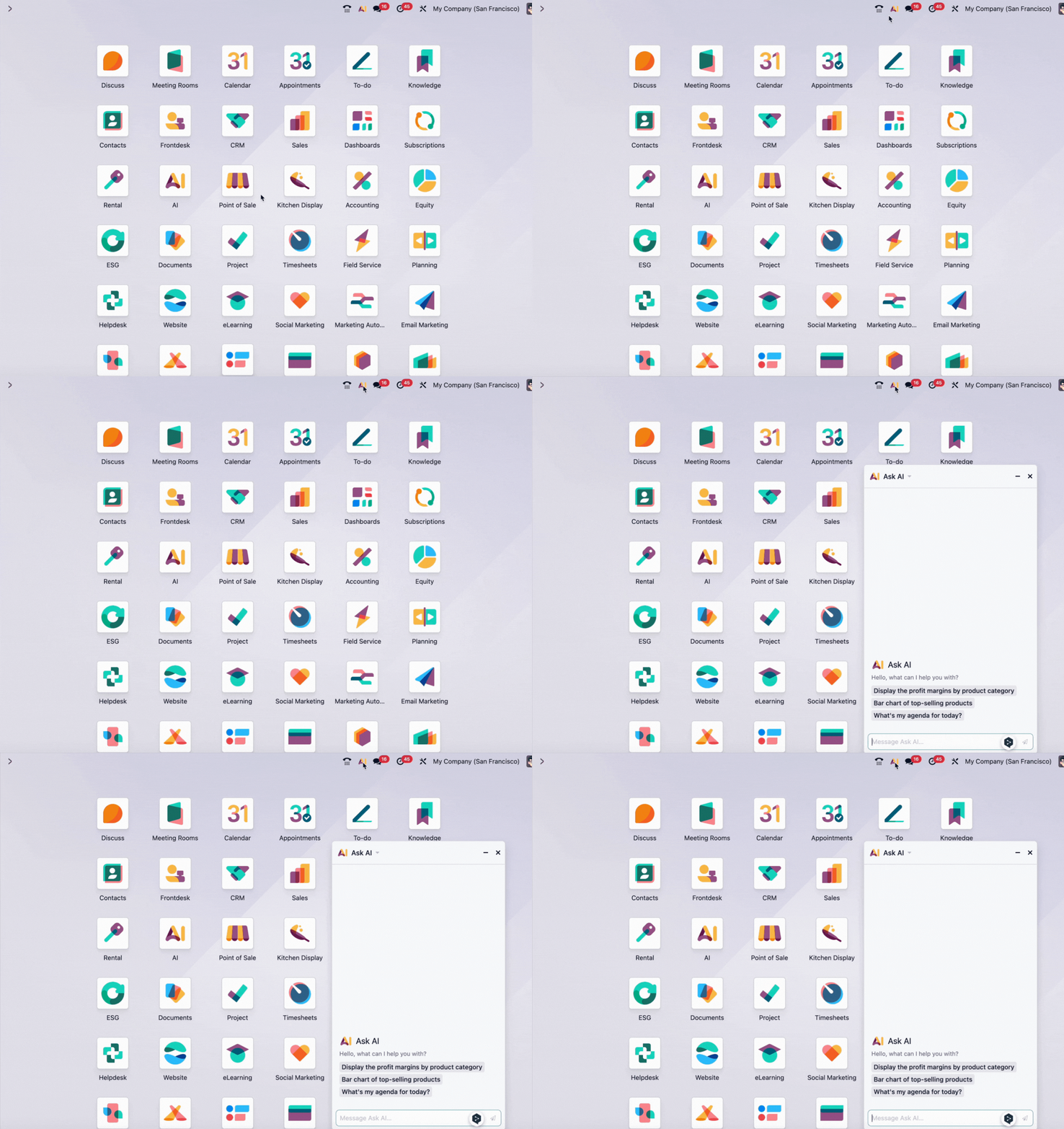
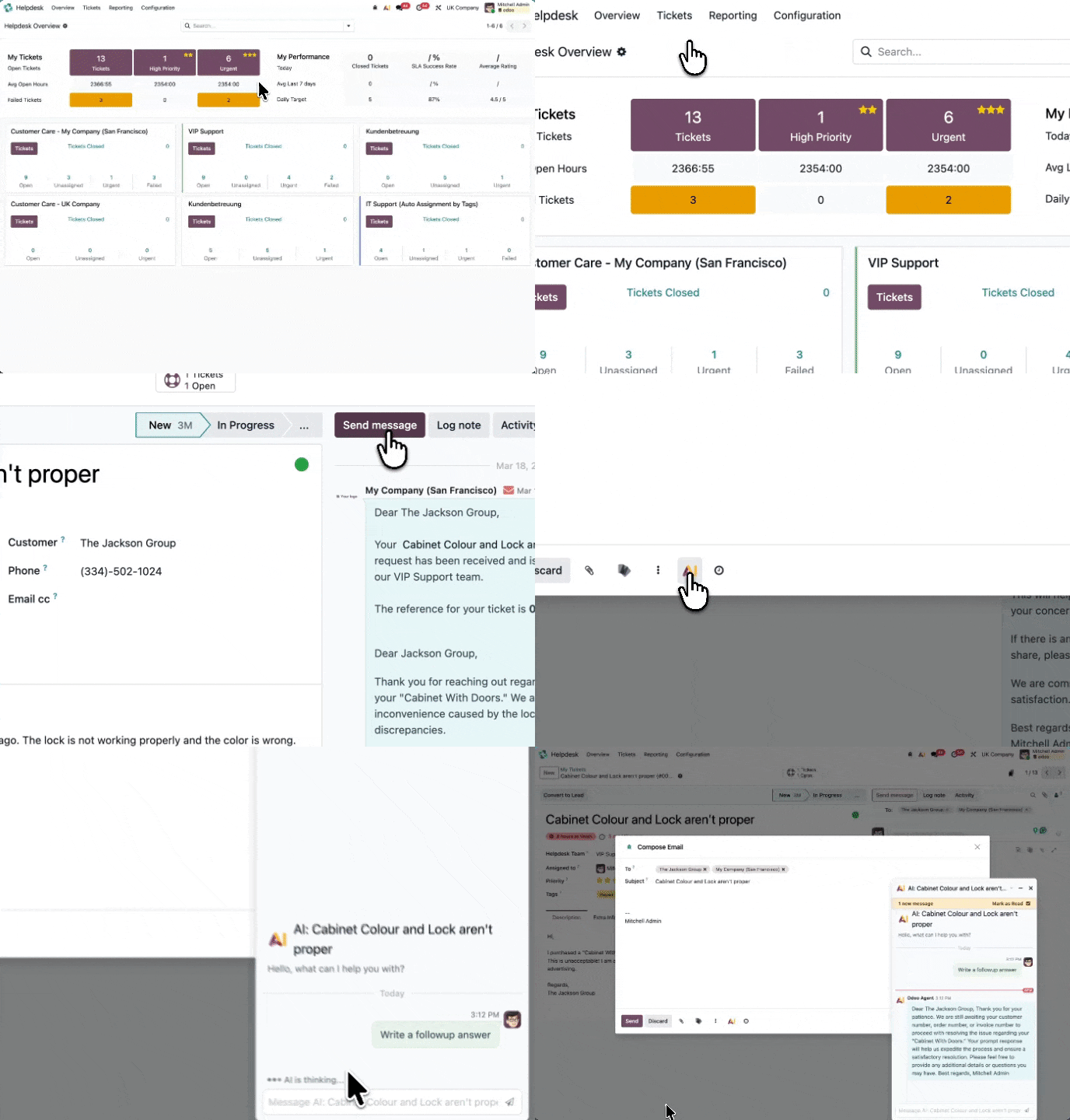
The AI button in Chatter
On any record (sales order, helpdesk ticket, contact, etc.), you’ll spot an AI button in the message thread. Use it to summarise the conversation, draft a reply, or get context on the record.
Email and note drafting
When you open the compose window to send an email or write an internal note, an AI button appears. Ask it to draft the message, adjust the tone, or write a follow-up.
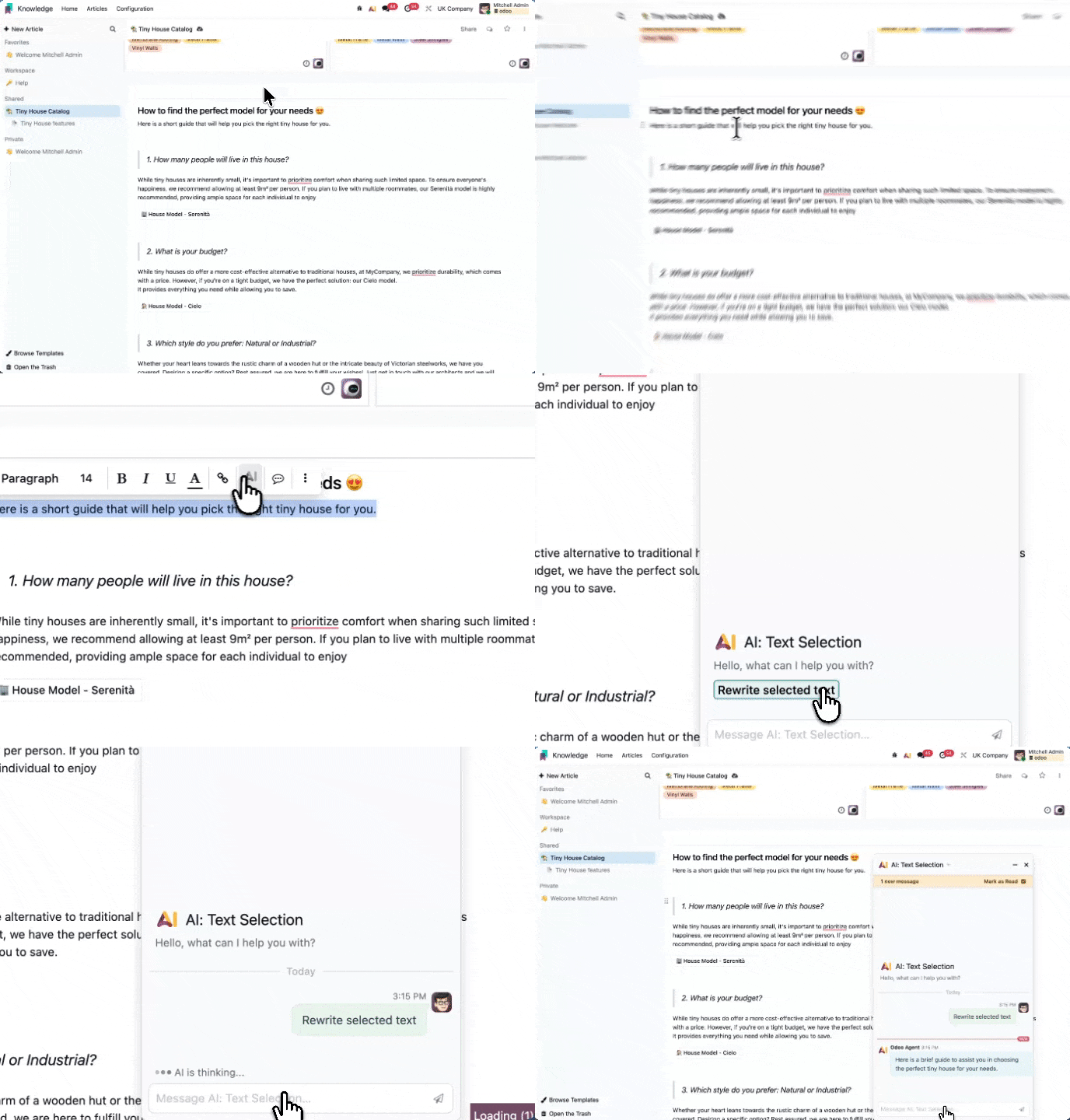
Text rewriting
This appears when you highlight any text inside a description field, an internal note, or a Knowledge article. The AI options appear inline to rewrite, shorten, or change the style.
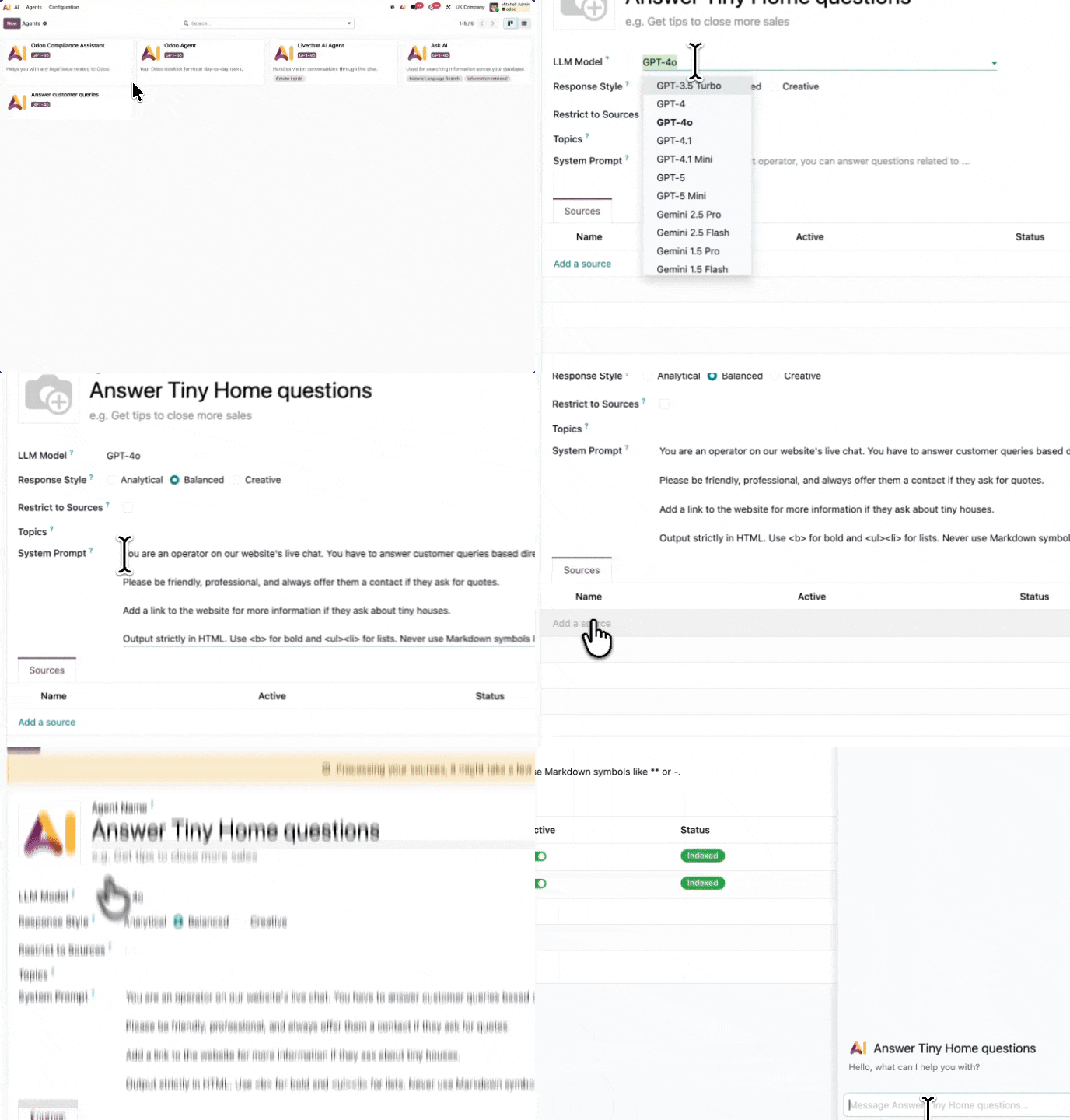
The AI app
A dedicated section in the Odoo menu (if your admin has set it up) where you can browse available agents, chat with them directly, and create your own.
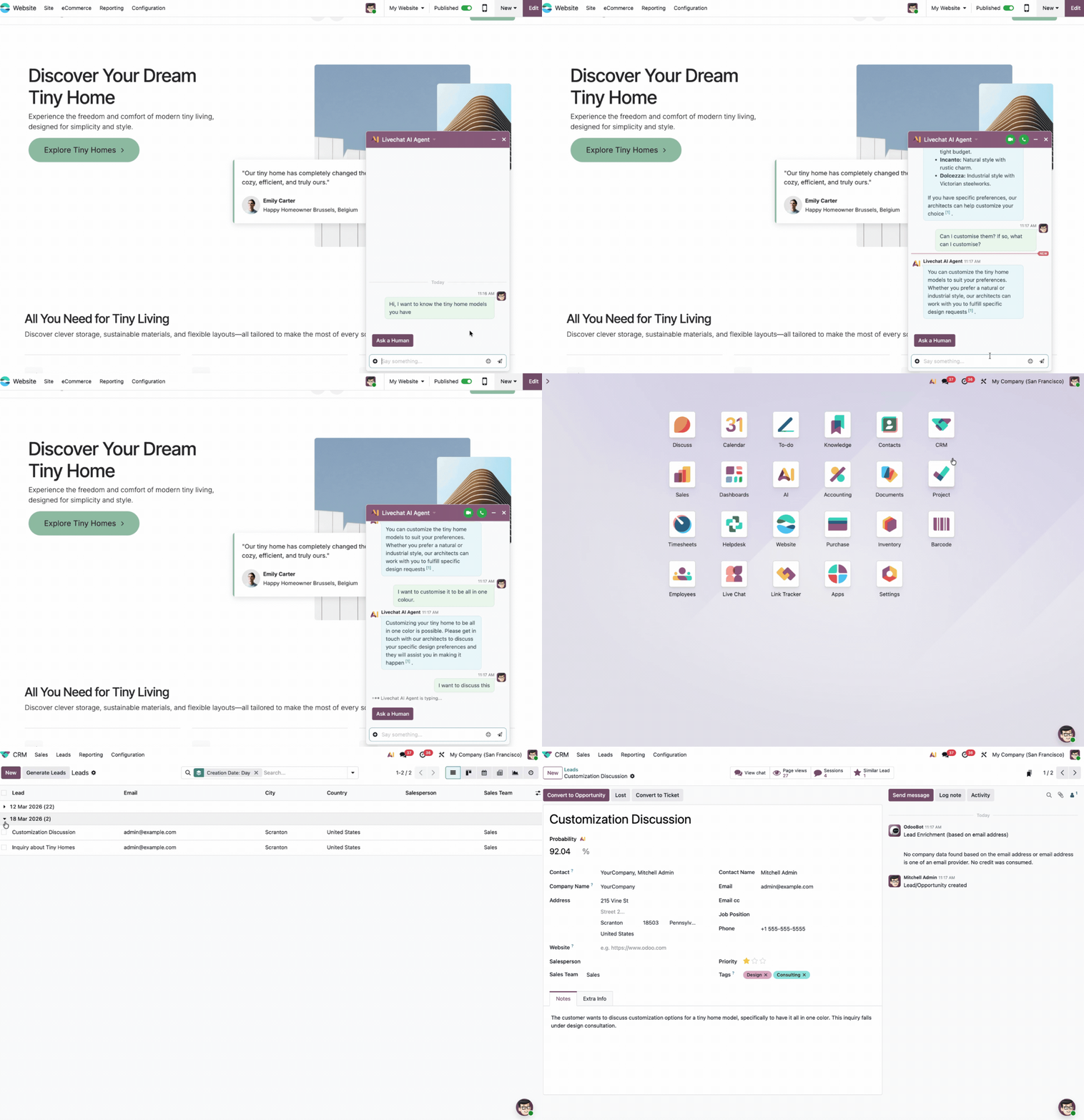
Live chat
On websites using Odoo's live chat widget, an AI agent can handle visitor conversations and hand off to a human when needed.
There are 7 pre-configured AI agents in Odoo 19
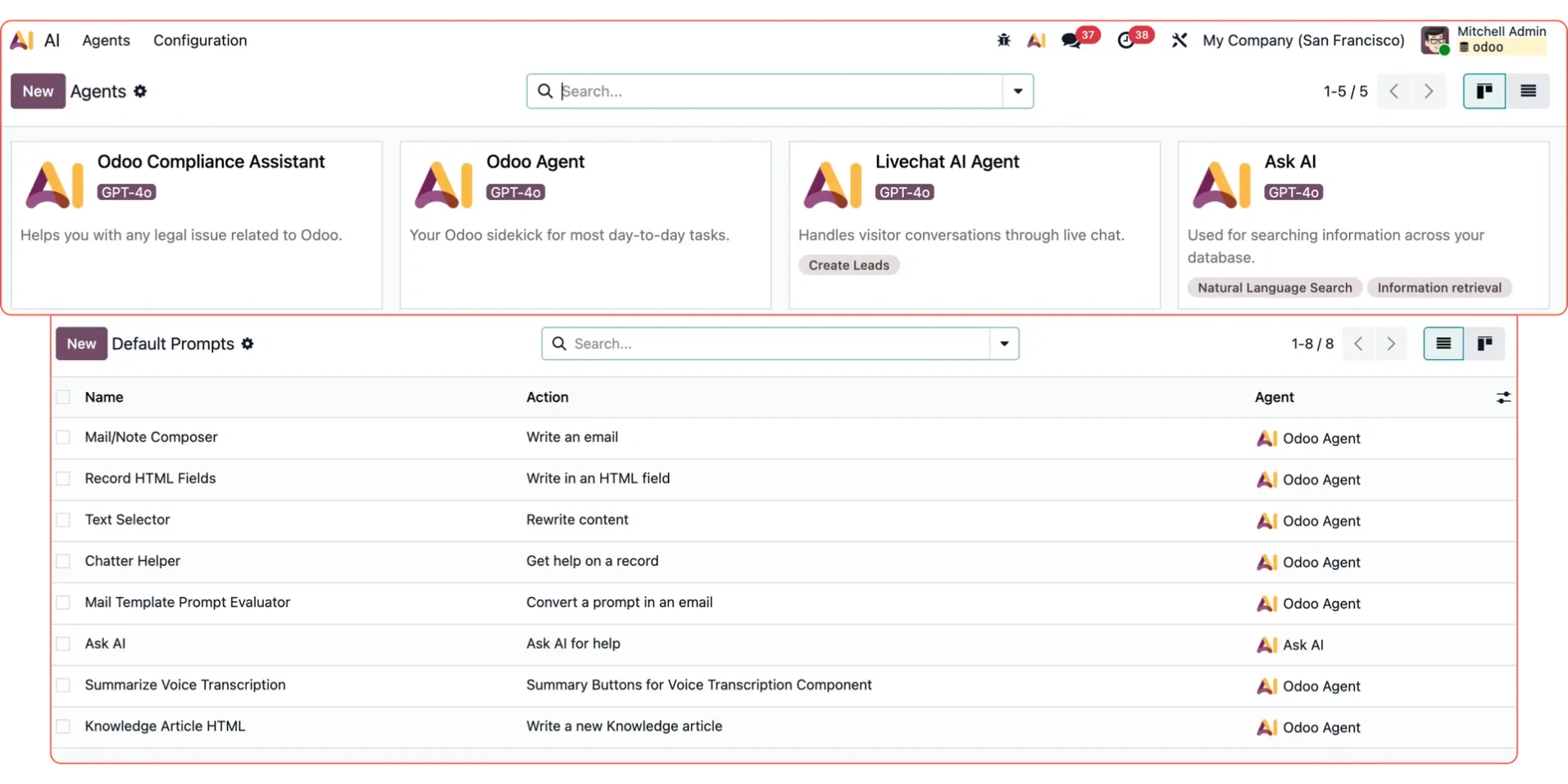
Odoo 19 includes seven built-in AI agents that function across the platform. We’ve broken down each one, where to find it, and how it operates.
Odoo Agent
Appears in: Chatter AI, email drafting, description fields, text rewriting, and voice summaries.
This is your primary Odoo assistant, powering most AI interactions. It manages tasks like drafting replies, summarising conversation history, and refining text. You can customise its personality by uploading internal documents and setting specific prompts to ensure it understands your unique business context.
Technical sheet
Default model: gpt-4o
Response style: Balanced
Type: System agent (cannot be deleted).
Ask AI
Appears in: The top-right button, visible on every screen.
Ask AI either answers questions directly from your data or opens the relevant view with filters applied. For example, you can ask "Show me open sales orders" or query top customers. It features 15 ready-to-use prompts (like inventory status or cash flow), which appear as quick-access buttons the moment you open the panel.
Technical sheet
Default model: gemini-2.5-flash (hard-coded)
Response style: Analytical
Type: System agent.
Note: Ask AI uses gemini-2.5-flash for its speed in high-volume queries. It is powered by two distinct systems: Information Retrieval for direct answers and Natural Language Search for navigation.
Livechat AI Agent
Appears in: The website live chat widget.
This agent acts as an automated operator for website visitors. It is concise, professional, and adapts to the visitor's language. If it can't resolve a query, it gathers contact details to create a CRM lead. It is programmed with specific guardrails to avoid technical jargon like "lead created" in its customer-facing replies.
Technical sheet
Default model: gpt-4o
Response style: Analytical
Type: Pre-configured (customisable).
Website Page Generator
Appears in: The website builder during new page setup.
This agent automates web copy generation. Describe the page's purpose and choose a tone, and the agent populates the layout with relevant text. It works in the background during the generation process rather than as a chat interface.
Technical sheet
Default model: gpt-4.1
Type: System agent
Status: Disabled by default.
Call Summariser
Appears in: The VoIP call log.
This agent simplifies post-call admin by condensing transcripts into short labels (under 10 words). It automatically identifies the dominant language and logs the summary as soon as a call ends, provided the VoIP AI feature is active.
Technical sheet
Default model: Your default LLM
Type: System agent
Status: Disabled by default.
Odoo Compliance Assistant
Appears in: The AI app configuration tab.
Loaded with the Odoo Enterprise Agreement, this assistant provides factual answers regarding licensing. It is primarily included in demo data as a blueprint for how to configure a document-focused agent for compliance workflows.
Technical sheet
Default model: gpt-4o
Response style: Analytical
Status: Hidden (demo data only).
Custom Odoo AI Agents
Appears in: The dedicated AI app.
You can also build custom agents for specific workflows. They use the same infrastructure as system agents and support the same sources and fields. However, they remain unlocked, allowing you to modify or delete them as your requirements change.
How to set up Odoo AI Agents
Below, we explain how to use Odoo's built-in AI tools most effectively and how to configure your own. We've split this into three parts:
Using Ask AI
Using AI in your records
Creating your own AI Agent.
1. Using Ask AI
Ask AI is the most versatile agent and the one users naturally reach for first.
To use it, click the Ask AI button in the top-right corner of any Odoo screen to open the chat panel. From there, you can either type a question freely or select one of the quick-prompt buttons. These quick prompts cover the most common day-to-day queries, such as top performers, recent activity, inventory status, and today's schedule.
The agent is smart enough to decide whether to answer your question directly in the chat or open a specific view for you. For example:
If you ask, "Who are my top customers?" it responds with a written list
If you ask, "Show me my top customers," it automatically opens a pivot table or list view with the correct filters applied.
Tips for getting the best results:
Navigate vs Answer: Use the word "show" when you want to navigate to a specific screen. Use "who", "how many", or "what" when you want a direct, factual answer
Refine your results: If the outcome isn't quite right, just tell it to adjust. Replying with "Group that by month instead" or "Filter to just this quarter" works perfectly. Ask AI remembers the context of your conversation and adjusts the view accordingly
Trust the data: Ask AI strictly queries your live database. It never guesses or hallucinates figures. If it cannot find the information, it will clearly tell you so.
2. Using AI in your records
Every record in Odoo integrates AI directly into the compose and chatter areas. Here is exactly what each button does:
The Chatter AI button
Open any record and look for the AI button within the message thread. You can use it to:
Summarise the entire conversation history (e.g., "What is the status of this project?")
Draft a reply that matches the tone of previous messages
Ask specific questions about the record (e.g., "When was this last updated?").
Email drafting
When writing an email directly from a record, the AI button in the compose window can draft the entire message for you. Give it a short description of what you want to say, and it will write the full text (including greetings) while adapting to the tone of the previous correspondence in the thread.
Inline text rewriting
Highlight any text inside a description field, internal note, or Knowledge article. A small menu will appear offering options to rewrite, shorten, expand, or adjust the tone. Your highlighted text is instantly replaced with the improved version.
Rich-text description fields
In any rich-text field (such as a product description, project task, or opportunity), you will find an AI button designed to help you seamlessly draft or expand your content right there on the page.
3. Creating your own AI Agent
You don't need any technical expertise to build a highly effective custom agent.
Step 1: Basic configuration
Navigate to AI → Agents → New. Upload a profile photo and give your agent a name and a brief description. Because this photo appears in chatter threads whenever the agent responds, it is best to pick something easily recognisable. The description helps your colleagues understand exactly what the agent is built to do.
Step 2: Choose a model and response style
The AI model dictates which underlying service powers the agent. The default (gpt-4o) works brilliantly for most business needs. Next, choose a response style to shape how the agent writes:
Analytical: Short, precise answers. Ideal for internal tools, support, and factual lookups
Balanced: The default option. Works perfectly for the vast majority of use cases
Creative: More expressive and varied writing. Best for content drafting, marketing, and brainstorming.
Step 3: Write your instructions
This is the most critical step. Tell the agent exactly who it is, what it helps with, and how it should behave, writing naturally in plain sentences. Here are a few examples of highly effective instructions:
"You are a procurement helper for the purchasing team. You help staff check stock levels, explain supplier terms, and draft purchase enquiry emails. If someone asks about anything outside procurement, politely tell them you can only help with purchasing topics."
"You are an onboarding guide for new employees at Acme Corp. You help newcomers understand internal policies, find the right teams to contact, and navigate their first week. Keep answers friendly, encouraging, and supportive."
"You answer questions about our product range. Always include the product code in your answers. If you're not sure about a detail, say so clearly and do not guess."
Step 4: Add your documents
In the Sources tab, upload the files and pages the agent should learn from. It accepts PDFs, Word documents, URLs, Knowledge articles, and files from the Documents app.
Each source takes a brief moment to process. You'll see its status change from Processing to Indexed. Once indexed, the agent can quote from it, cite it, and use it to answer queries.
There is no limit to how many sources you can add.
Outdated sources can be reprocessed at any time with a single click.
If you want the agent to rely only on your internal documents rather than general AI knowledge, be sure to tick "Only answer from my sources".
Step 5: Test it before sharing
Always click the Test button at the top of the form before rolling it out. This opens a private chat between you and the agent. Ask it something your documents cover, then ask it something entirely outside its scope to ensure it declines correctly. If your team is multilingual, test it in another language. Once you are happy with how it performs, share the link with your team or ask your admin to embed it in a specific area of the interface.
5 tips for getting better results from Odoo AI
1. Customise the default Odoo Agent first
The default system prompt is minimal by design. Your very first task should be writing a proper, tailored system prompt for the standard Odoo Agent so that it reflects your company's specific context, tone, and terminology.
2. Be highly specific in Ask AI
The more context you provide, the better the result. "Show me sales this month" is a good start, but "Show me a bar chart of sales by salesperson this month, sorted by highest first" is much better.
3. Keep your instructions short and direct
An agent with five clear sentences of instructions will drastically outperform one bogged down by three paragraphs of edge cases. Always write for the most common scenario first.
4. Upload your best documents, not all your documents
A single, well-maintained Knowledge article will produce much better answers than a 200-page policy PDF containing ten years of outdated amendments. Quality always matters more than quantity.
5. Use "Only answer from my sources" for sensitive topics
For anything regarding compliance, HR policy, or contractually sensitive information, turning this feature on is crucial. It ensures the agent cannot drift into general AI knowledge that might contradict your specific company guidelines.
Let's discuss your Odoo AI setup
Our team is actively working with clients on Odoo AI setups and can tailor it to your specific use cases.