MCP, or Model Context Protocol, gives AI models a universal way to connect to external databases and business systems.
Because MCP follows an open standard, you can connect your Odoo to any AI assistant and give it the power to create, read, update, and delete (CRUD) your data.
You can go a long way with CRUD capabilities in Odoo. For finance teams, that can look like a no-touch invoice reconciliation workflow, automated by writing a single prompt to your AI.
See how the much. Odoo MCP Server applies that standard to your Odoo system so an AI assistant can take action and automate accounting for you.
Odoo MCP use case: reconcile open invoices and manage assets
Note: this tutorial used the much. Odoo MCP Server and Claude Desktop Opus 5 on the high setting.
First, why choose the Odoo MCP Server by much.?
Odoo 20 will launch a native MCP server for Enterprise users, but companies on older versions would have to upgrade or go without.
The much. Odoo MCP Server brings your Odoo data into the AI tool your team already uses, so they can get business context and take action without opening Odoo:
Available for all users: supports Odoo 16, Odoo 17, Odoo 18, Odoo 19 and all future versions, both on Enterprise and Community
Full CRUD: lets your AI assistant create, read, update and delete records directly in Odoo from a single prompt
Safe: inherits the user's access rights, and Odoo's validation rules still apply to everything it does
Auditable: gives you a full audit trail as every API call is logged.
For accounting teams, this means the repetitive work of booking and reconciling vendor bills can be handed over to AI.
Step into the shoes of a finance manager who has a batch of new vendor bills to process, including a purchase that needs to be recorded as an asset.
With the Odoo MCP server, their AI assistant will:
Book each bill in Odoo
Reconcile the bills against open bank transactions
Create outgoing payments for bills that are still unpaid
Create and configure assets where needed.
Step 1: Prepare your Odoo database
You need a purchase journal for vendor bills and a bank journal with unreconciled transactions. Add any localisations you need at this step.
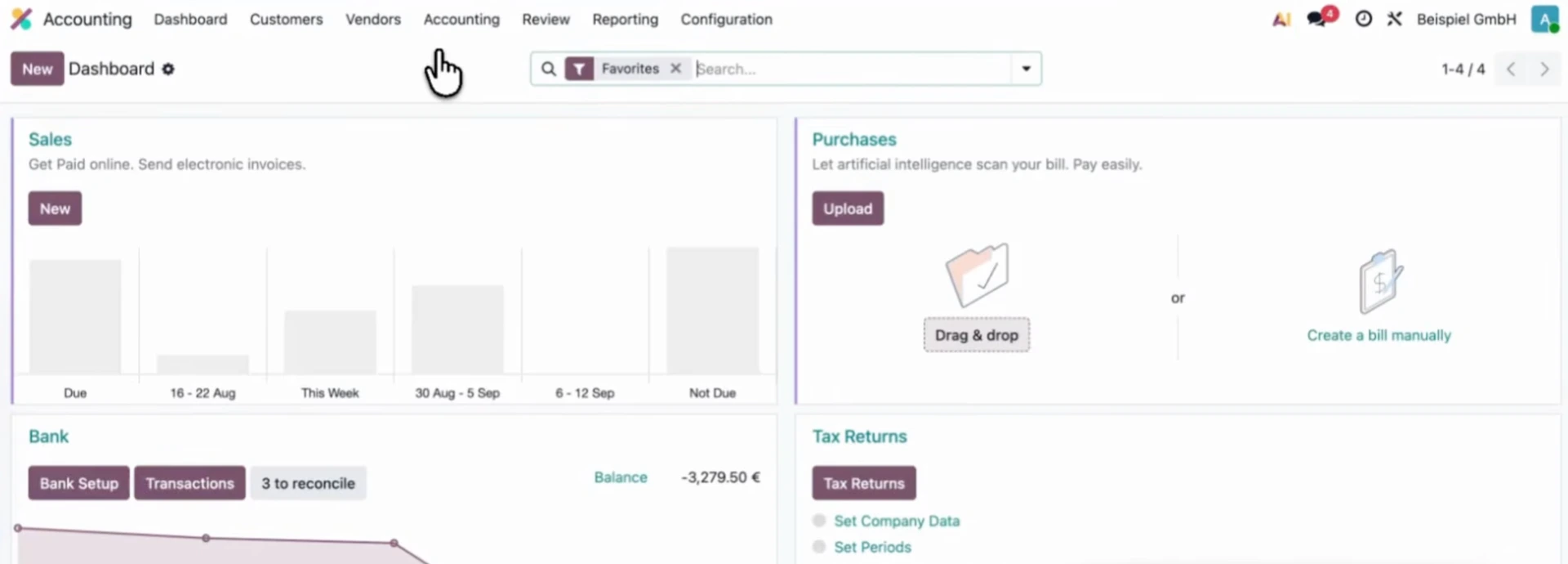
Odoo Accounting dashboard with Bank Journal, Purchases and vendor bills, and Tax returns
Step 2: Turn on automatic asset creation
Go to Accounting → Configuration → Chart of Accounts, open the asset account you use (for example, office equipment) and set asset automation to create in draft.
When a bill line is posted to this account, Odoo creates a draft asset linked to the bill, ready for the AI agent to configure.
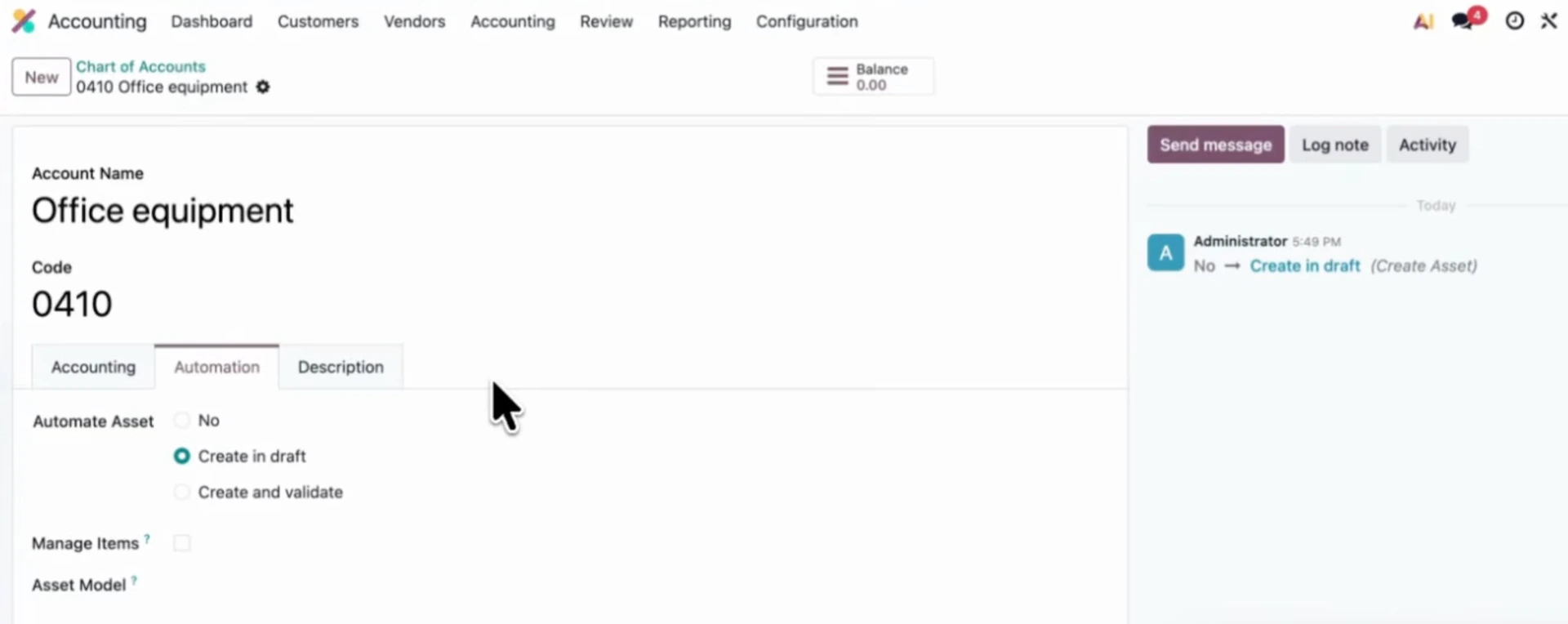
Configure your Chart of Accounts for Asset Automation
Step 3: Connect your AI assistant
Install the much. Odoo MCP Server module and connect your AI client. Use a capable model, since this workflow involves hundreds of API calls - we chose Claude Opus 5 on the high setting.
Step 4: Prompt your AI assistant with the task
Upload the invoice PDFs and describe the whole job in one prompt, for example:
"Book these invoices as vendor bills. Reconcile them with open bank transactions where possible, and create payments for any unpaid bills before their due date. Configure and confirm any assets."
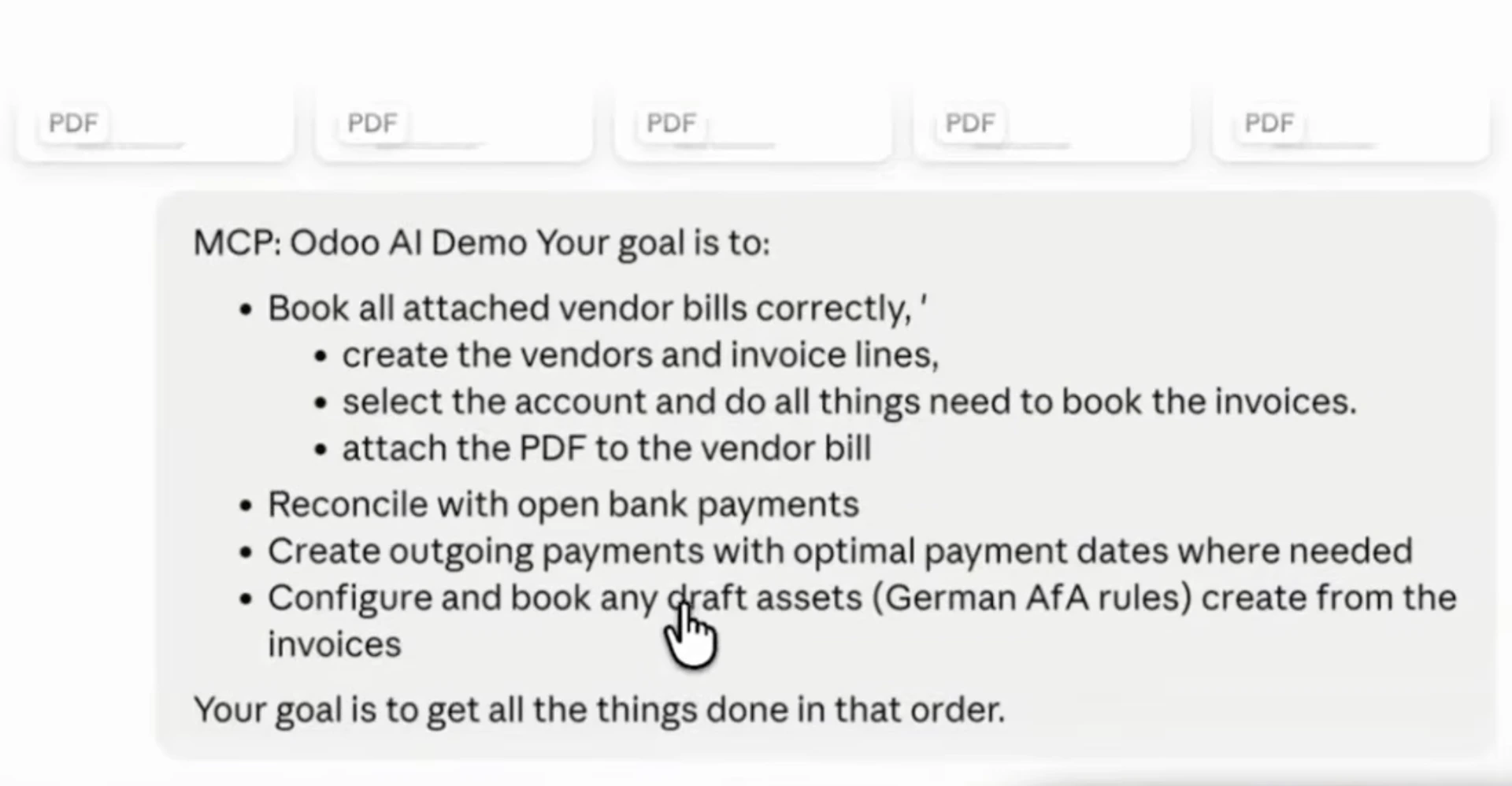
Prompt your AI assistant to create and update your accounting records
Step 5: Resolve validation stops
Odoo's validation still applies to everything the AI does.
If a bill contains invalid data, such as an incorrect VAT ID, Odoo rejects it, and the AI stops to flag the problem.
You should always fix data errors, like vendor records and VAT IDs, at the source instead of telling the AI to work around the check.
Step 6: Review the results
Check the AI's work in Odoo:
Bills: correct accounts, taxes and due dates
Reconciliation: paid bills matched to the right bank transactions
Payments: open bills scheduled before they fall due
Assets: active, on the right account, with the correct depreciation method and useful life.
Step 7: Audit the logs
The MCP module logs every API call the AI makes. You can see which tools it used, which records it changed and how long each call took. This gives you an audit trail and helps you find any failures in performance.
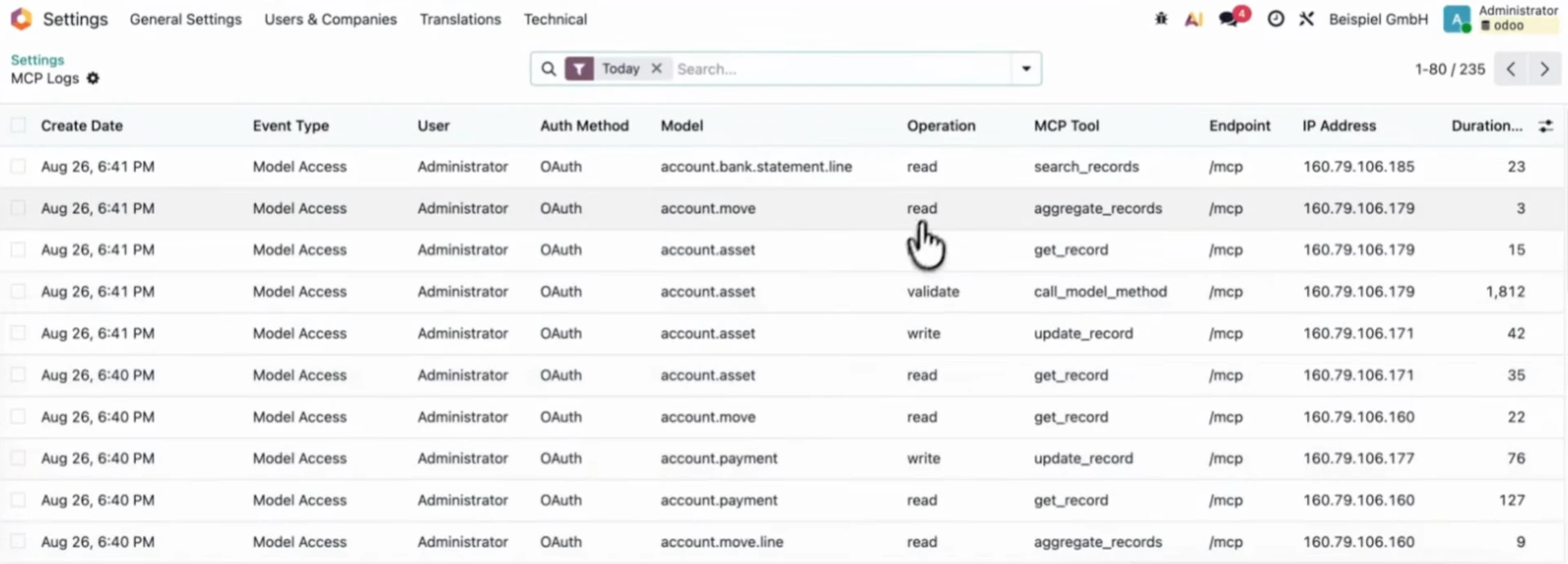
Check everything the AI did in the MCP module logs via Settings
Bonus: build your own AI skill for Odoo Accounting
This workflow runs with no custom knowledge, using only the MCP server and a capable model. For day-to-day use, the finance manager can customise an AI skill: knowledge that tells the AI what it can do and how the company does its accounting.
To build the skill, you need to:
Review past accounting data to see how transactions have been booked
Mark the accounts used most often, so the AI books consistently
Write a full description of each process in the workflow: booking vendor bills, reconciling them against bank transactions, creating payments and configuring assets.
With the skill in place, the AI follows the company's own processes every time the finance manager hands over a new batch of invoices.
Our CEO Simon Stappen shared how to automate this accounting workflow with your AI assistant in 5 minutes. Check it out:
For more Odoo MCP server use cases, check out:
How to set up the much. Odoo MCP Server module
Connecting AI tools to Odoo can be done via three methods: OAuth 2.1 user login, API keys and a local stdio bridge client.
Which connection method should you use?
For Odoo 18, 19 and onwards: Odoo speaks MCP natively at /mcp. Log in with your Odoo account (OAuth 2.1) or use an API key
For Odoo 16 & 17: Connect through the local bridge client (uvx mcp-server-odoo) with an API key - this is also handy for desktop CLI tools that only support stdio.
Follow these steps to set up:
Download the Odoo MCP Server module by much. from the Odoo App Store
Enable models and assign operation permissions in Odoo in the Settings app
Add your Odoo URL ([https://your-odoo.com/mcp](https://your-odoo.com/mcp)) to your AI client
Log in with your Odoo account and approve access.
Or watch a tutorial on how to configure our MCP server, from installing the module in Odoo to asking your first question in Claude.
Odoo MCP Accounting FAQs
Can I automate Odoo Accounting with an MCP server?
Yes. With the much. Odoo MCP Server, you can connect your AI assistant to Odoo and automate accounting tasks like booking vendor bills and reconciling bank transactions. Describe the task in a single prompt, and your AI assistant carries it out directly in Odoo.
Can the Odoo MCP server create and update accounting records?
Yes. The much. MCP Server gives your AI assistant full create, read, update and delete (CRUD) rights in Odoo. It can then post vendor bills, create outgoing payments and confirm assets. Odoo's validation rules still apply, so if a bill contains an error like an incorrect VAT ID, Odoo rejects it and the AI flags the problem for a human to fix.
Is it safe to connect an AI assistant to Odoo Accounting via the MCP server?
Yes. Your AI assistant inherits the same access rights as the Odoo user. If that user can't see a record, neither can the AI, and no separate access points are created. For strict data policies, you can connect a self-hosted open-source model or via EU cloud hosting with custom encryption keys and zero data retention.
Let's build your AI-assisted workflows with Odoo MCP
Our team of experts can help you set up AI-assisted Odoo workflows or explore specific Odoo MCP use cases tailored to your business.