In Odoo 20, you manage users under Settings › Users & Companies › Users: create the user, send the invitation, pick a role (Light, User or Administrator), choose the allowed companies and set the level per app. Behind those levels, groups carry access rights, and each access right can hold a domain that limits which records it covers.
We checked every step of this tutorial on an Odoo 20 Enterprise test database in November 2026. Odoo 20 was released on 24 September 2026; for an overview of the release, read Meet Odoo 20: all new features revealed.
Table of contents
Where do you manage users in Odoo 20?
How do you create and invite a user in Odoo 20?
Which user types and roles does Odoo 20 have?
How do groups and privileges work in Odoo 20?
How do access rights and the record domain work in Odoo 20?
How do you control which companies a user can access?
How do you secure accounts with passwords, 2FA, passkeys and API keys?
Where do you manage users in Odoo 20?
Open the Settings app. The Users section of the general settings shows the number of active users, a field to invite new users by email address and the link “Manage Users”. The same list opens from the menu Users & Companies › Users.
The list shows name, login, role and status for each user. By default it is filtered to “Internal Users”; the search filters also offer “Portal Users”, “Inactive Users” and the two-factor authentication status.
The Users & Companies menu has three entries: Users, Groups and Companies. Groups only appears in developer mode, which you can switch on by adding ?debug=1 to the URL.
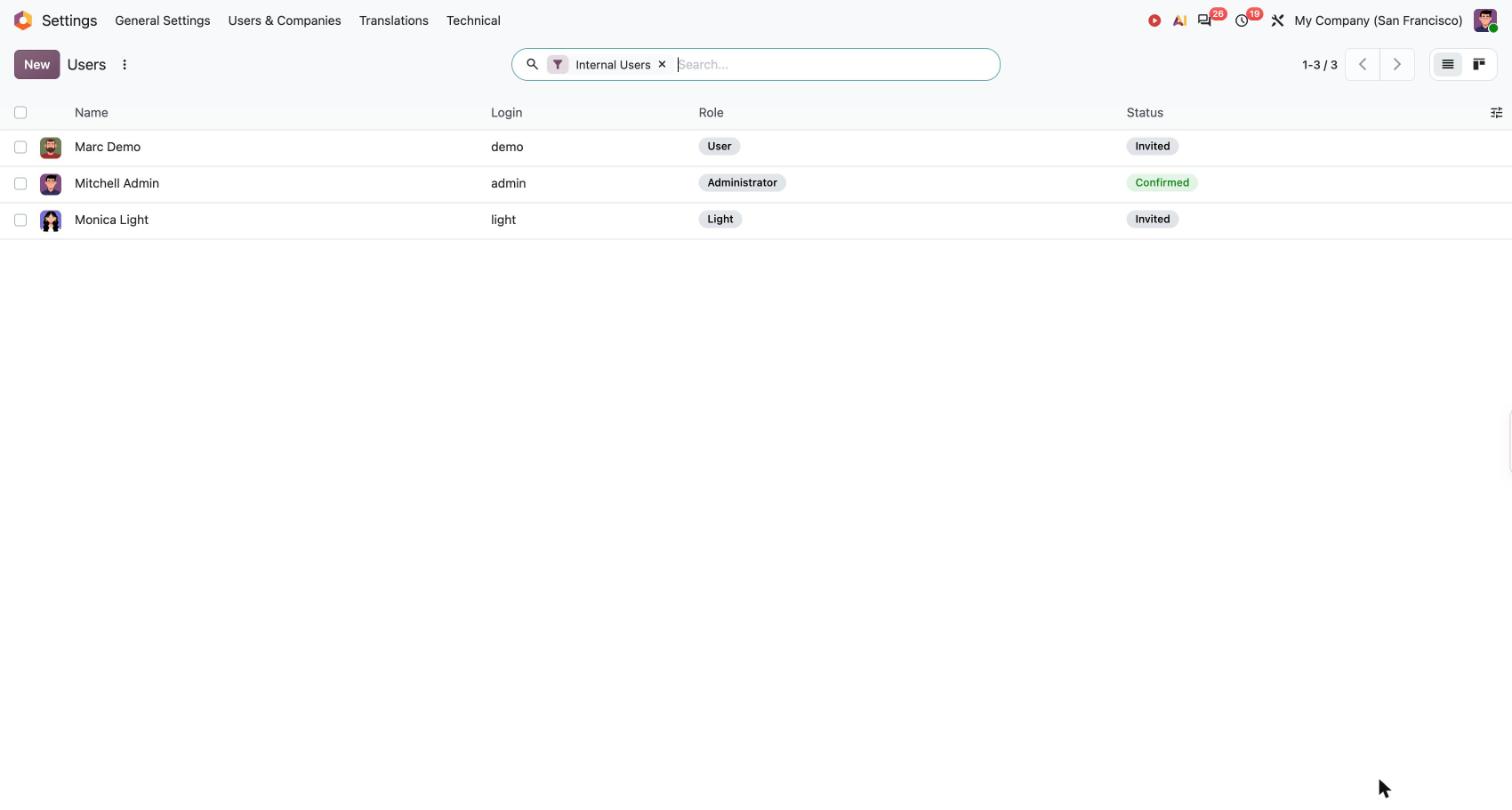 The Users list in the Odoo 20 Settings app, with name, login, role and status
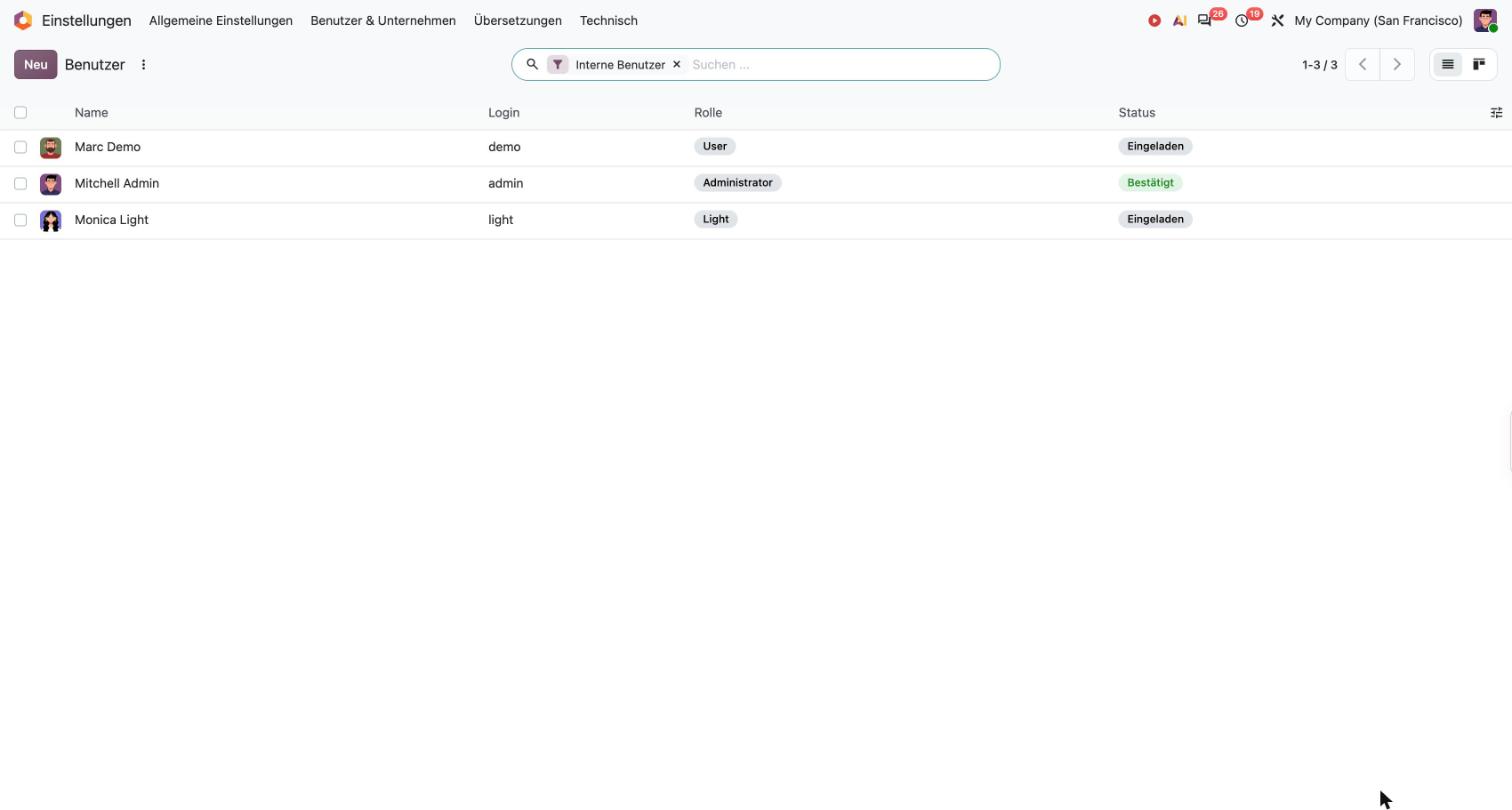 The Users list in the Odoo 20 Settings app, with name, login, role and status
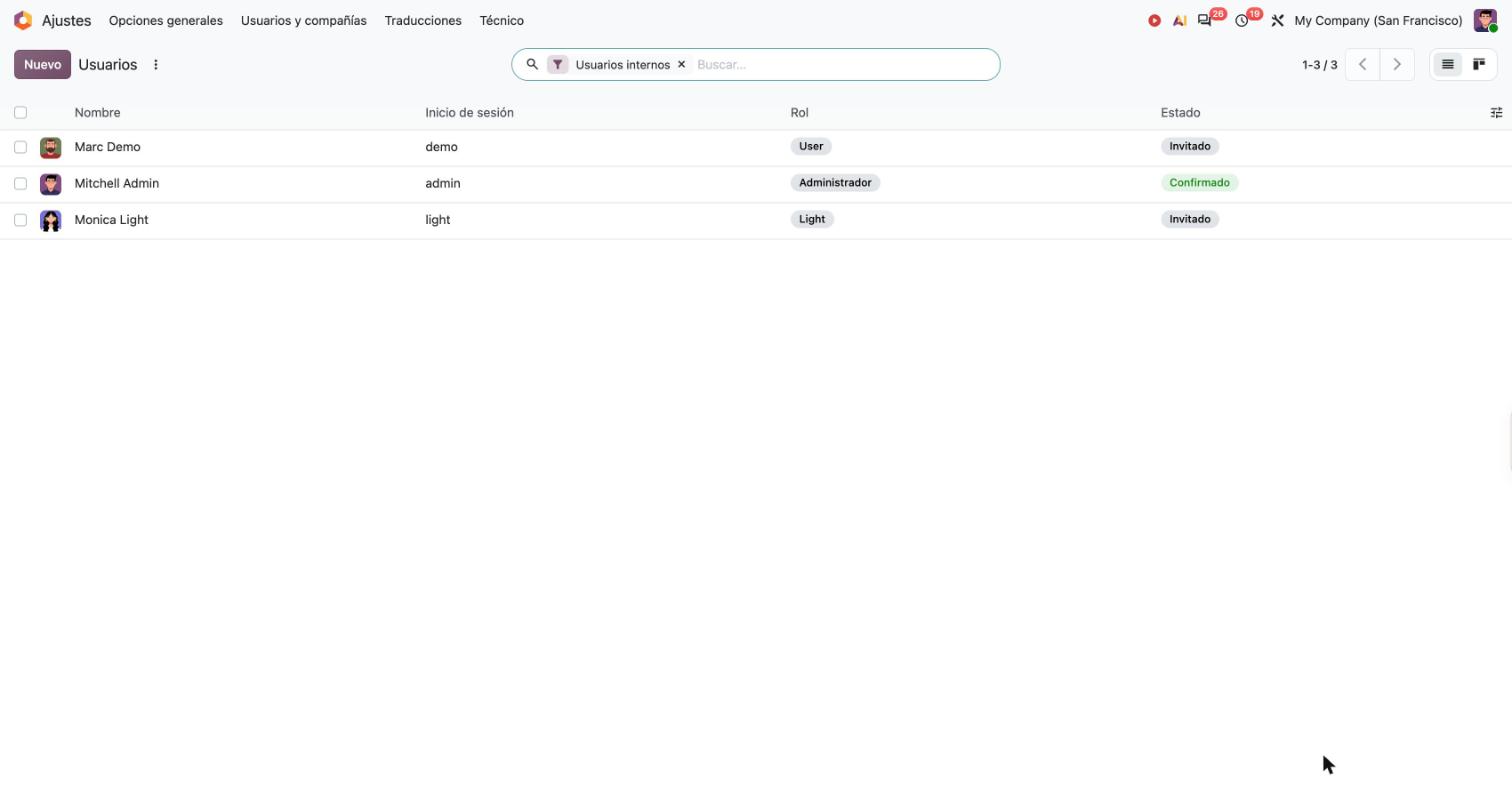 The Users list in the Odoo 20 Settings app, with name, login, role and status
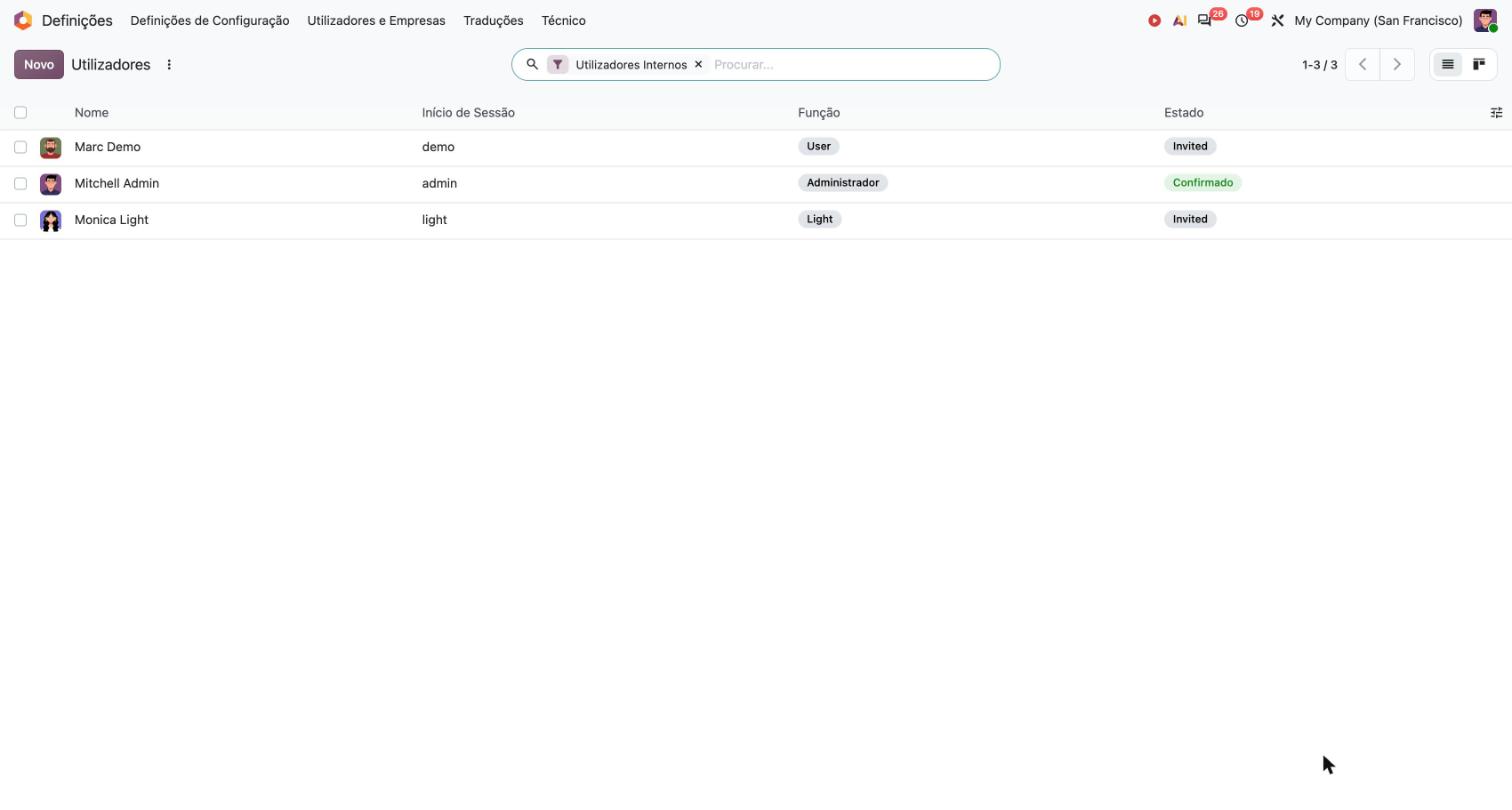 The Users list in the Odoo 20 Settings app, with name, login, role and status
How do you create and invite a user in Odoo 20?
- Go to Settings › Users & Companies › Users and click “New”.
- Enter the name and the login, normally the user’s email address. A phone number is optional.
- On the “Access Rights” tab, choose the role: Light, User or Administrator. A new user starts with User.
- In the same section, select the companies the user may work in and the default company.
- Below the roles, set the level for each app, for example Sales, Accounting or Inventory. Leave an app empty if the user should not work in it.
- Save, then click “Send an Invitation Email”. The status is “Invited” until the user has set a password and logged in; after that it is “Confirmed”.
After saving, the form shows a fourth tab, “Security”, and two counters at the top: “Groups” and “Access Rights”. They open the complete list of groups and access rights that apply to this user, which is the fastest way to check what somebody can really do.
You can also invite a colleague straight from the general settings: type the email address into “Invite New Users”. Odoo creates the user with the default access rights, which an administrator can adjust under “Default Access Rights” in the same settings.
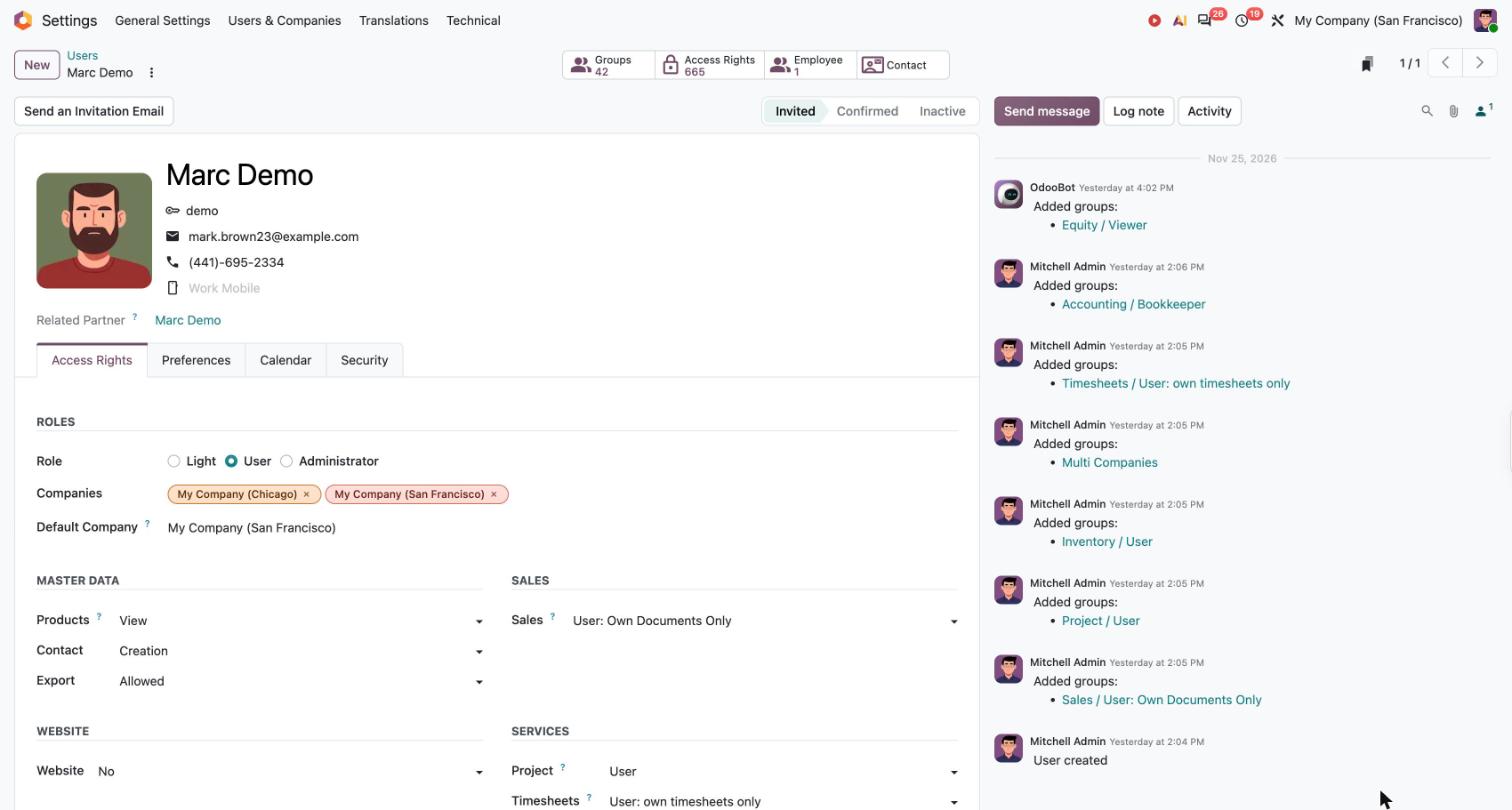 User form in Odoo 20: the Access Rights tab with the role and the level per app
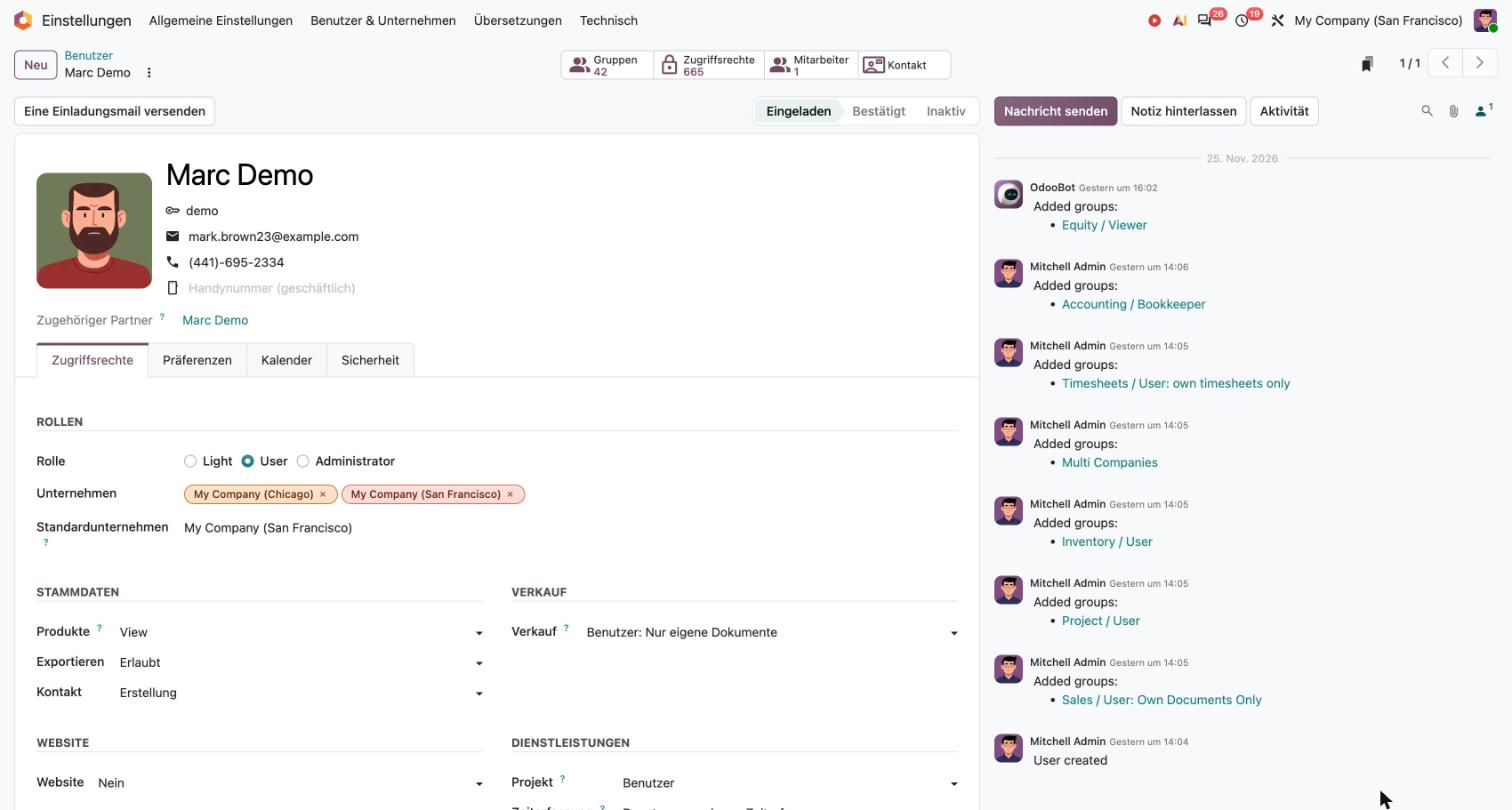 User form in Odoo 20: the Access Rights tab with the role and the level per app
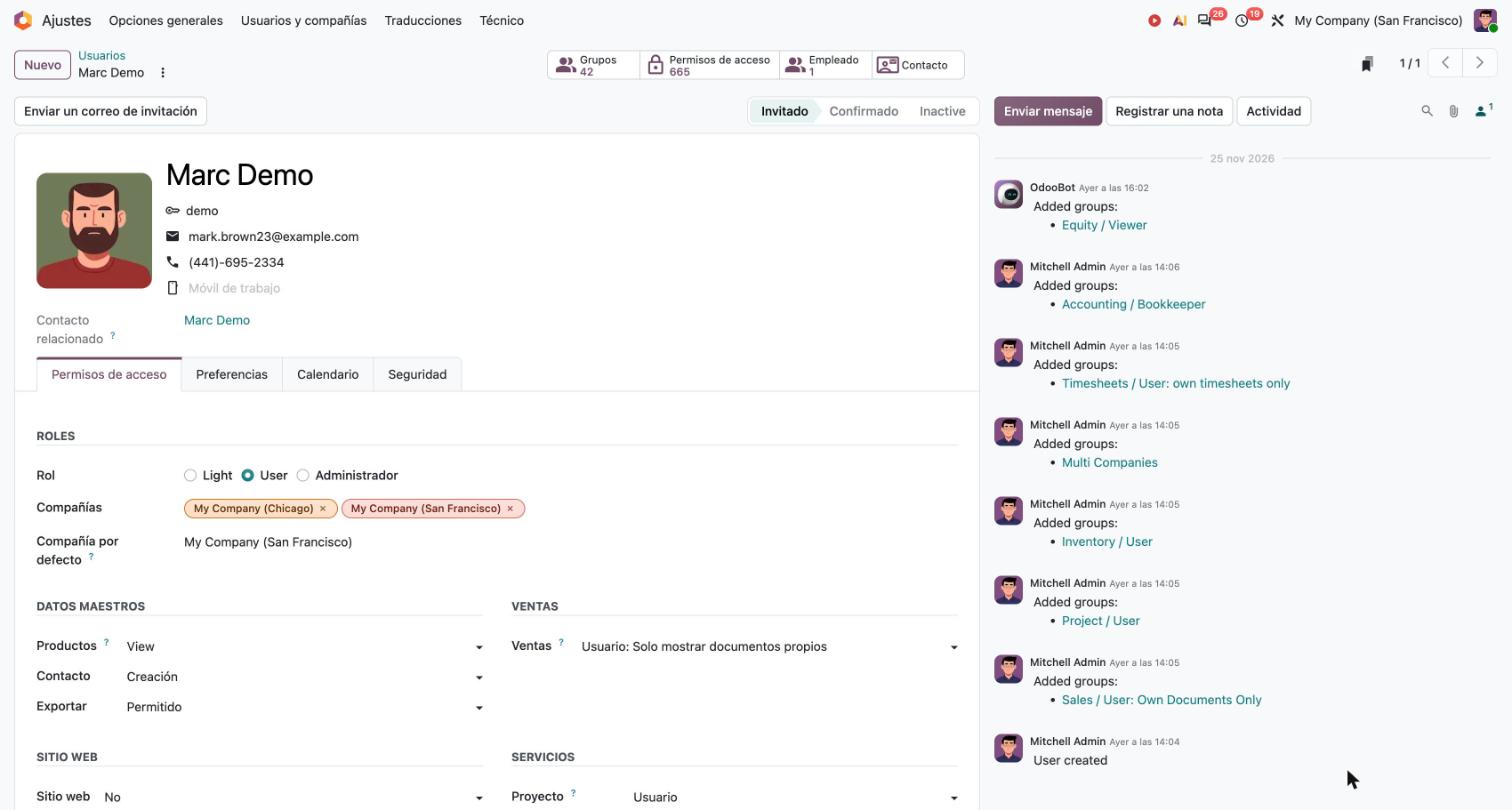 User form in Odoo 20: the Access Rights tab with the role and the level per app
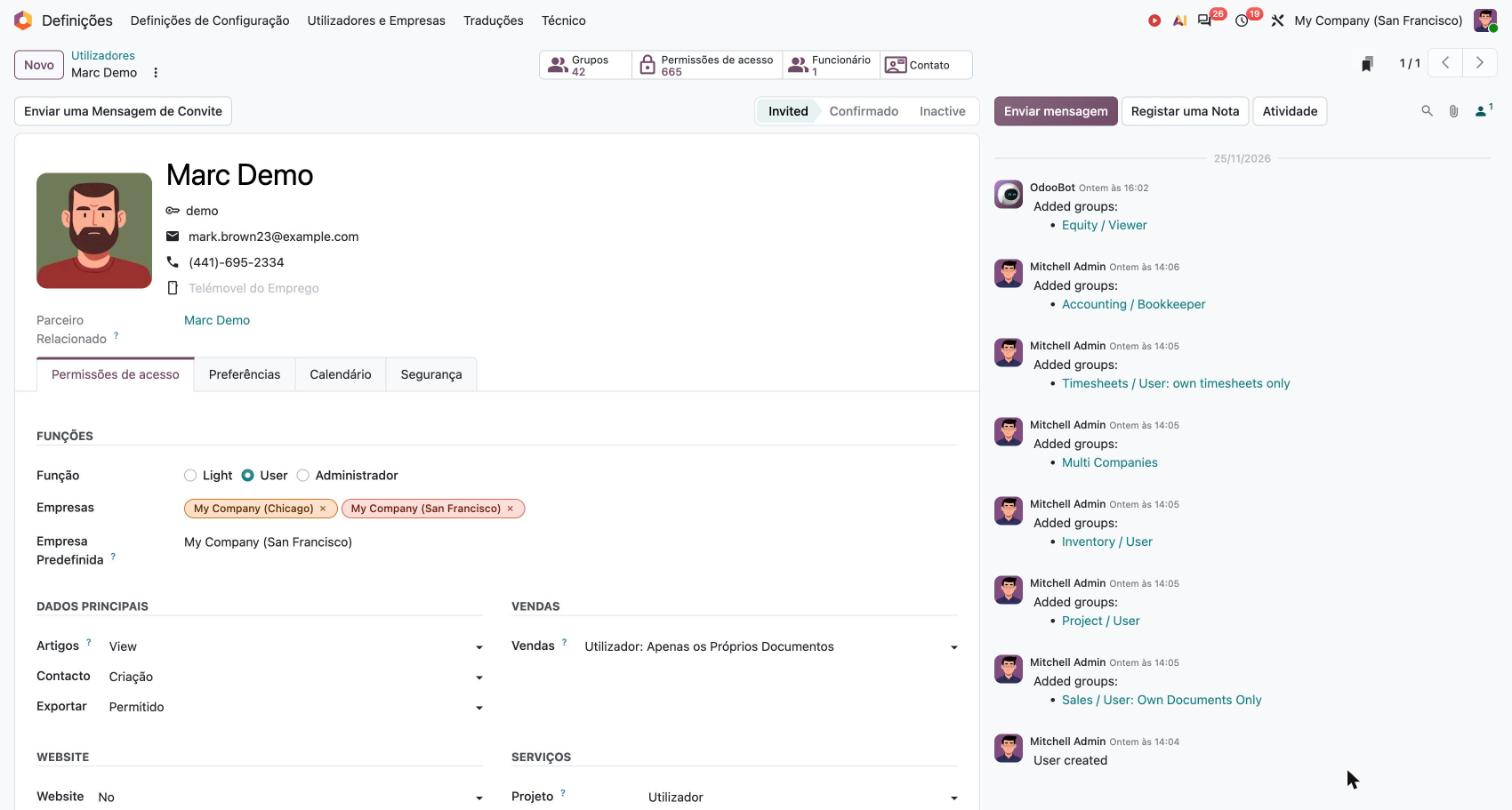 User form in Odoo 20: the Access Rights tab with the role and the level per app
Which user types and roles does Odoo 20 have?
Odoo 20 still distinguishes internal, portal and public users, but it now expresses them as groups named Role / User, Role / Portal and Role / Public. A user can only be in one of the three: Odoo defines them as disjoint groups.
- Internal users (Role / User) work in the backend. On the user form, the Role field refines them: Light, User or Administrator.
- Portal users (Role / Portal) are customers or suppliers who see their own documents in the portal. You create them from the contact: open the contact, choose the action “Grant portal access” and send the invitation.
- Public users (Role / Public) are website visitors who are not logged in.
The Administrator role gives access to the settings. The Light role is a reduced tier: according to the Odoo 20 release notes, light users can be restricted to the Barcode app, and the Light demo user in our test database had exactly that one app.
Do not confuse this with the Roles list under Discuss › Configuration › Roles. Those roles are for @-mentions: everyone who holds the role is notified when it is mentioned in a conversation. They grant no access.
How do groups and privileges work in Odoo 20?
A group bundles what a job function needs: access rights, menus and views. The levels you pick per app on the user form are groups, for example Sales / User: Own Documents Only, Sales / User: All Documents and Sales / Administrator.
Odoo 20 orders these levels with a privilege. In the interface it is called a scope: the Sales scope contains the three Sales groups in ascending order, and the user form shows one selection field per scope. In developer mode, the list is under Settings › Technical › Security › Scopes.
Open a group under Settings › Users & Companies › Groups to see its six tabs:
- Users: the users explicitly assigned to the group.
- Dependencies: implied groups whose rights the group inherits, implying groups, and disjoint groups that cannot be combined with it.
- Access Rights: the access rights of the group per model, each with its operations, its domain and its type.
- Menus and Views: the menus and views reserved for this group.
- Settings: the scope the group belongs to and the maximum lifetime of API keys for its users.
In developer mode, the user form also lists “Extra Rights”: single groups without a scope, such as Multi Companies, Technical Features or MCP User, which you tick individually.
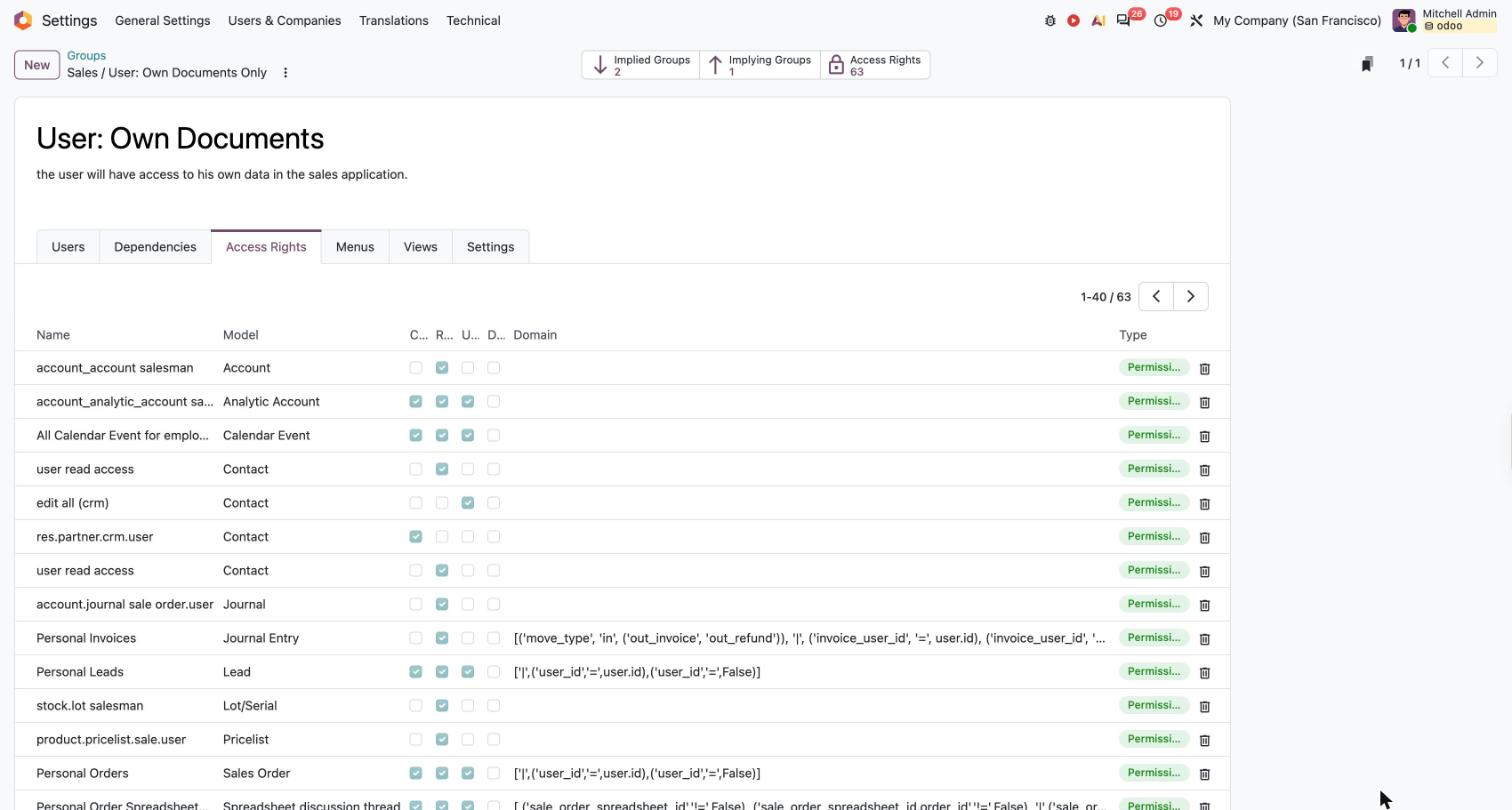 Group form in Odoo 20: the Access Rights tab lists each access right with its operations and domain
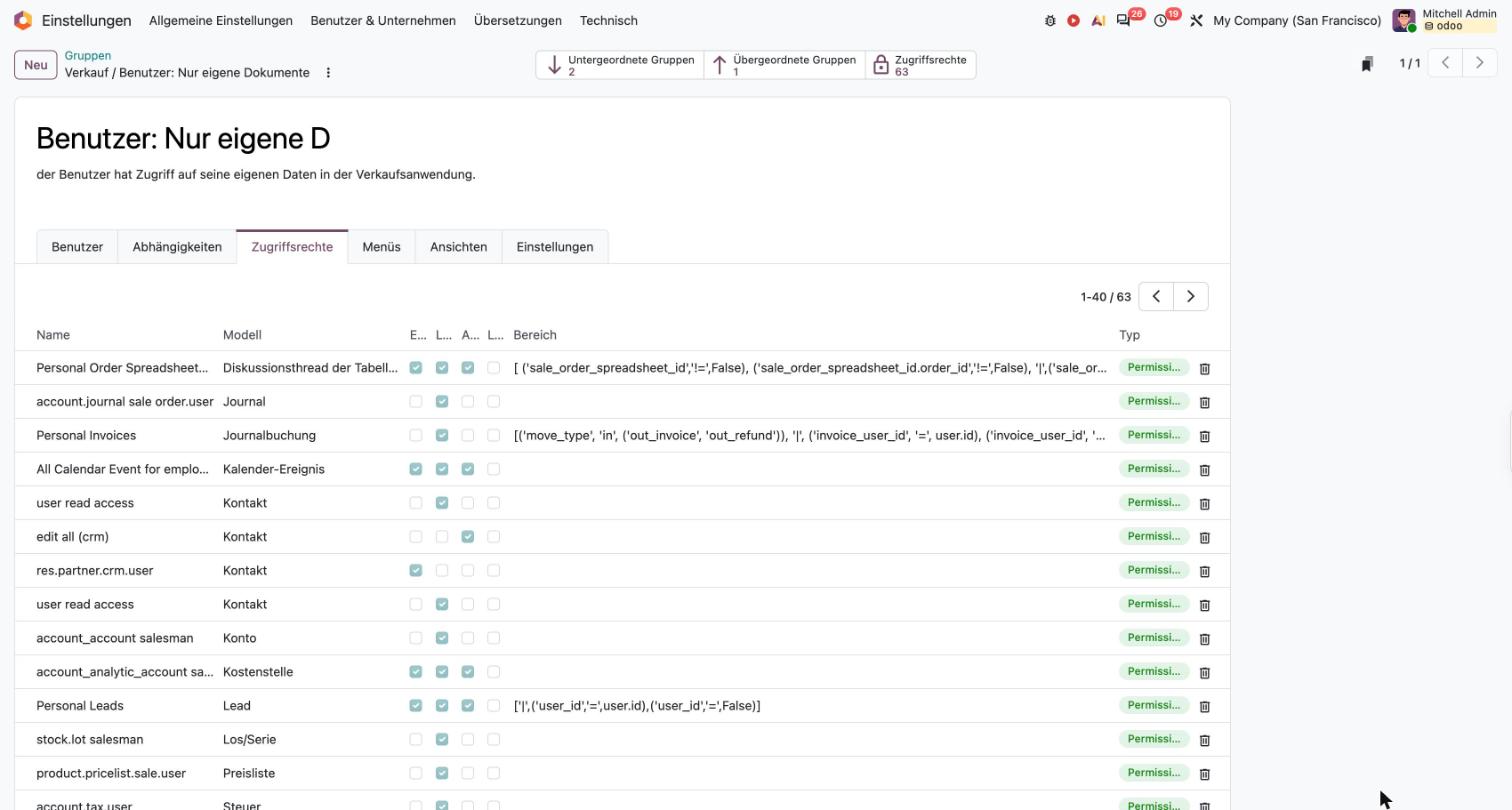 Group form in Odoo 20: the Access Rights tab lists each access right with its operations and domain
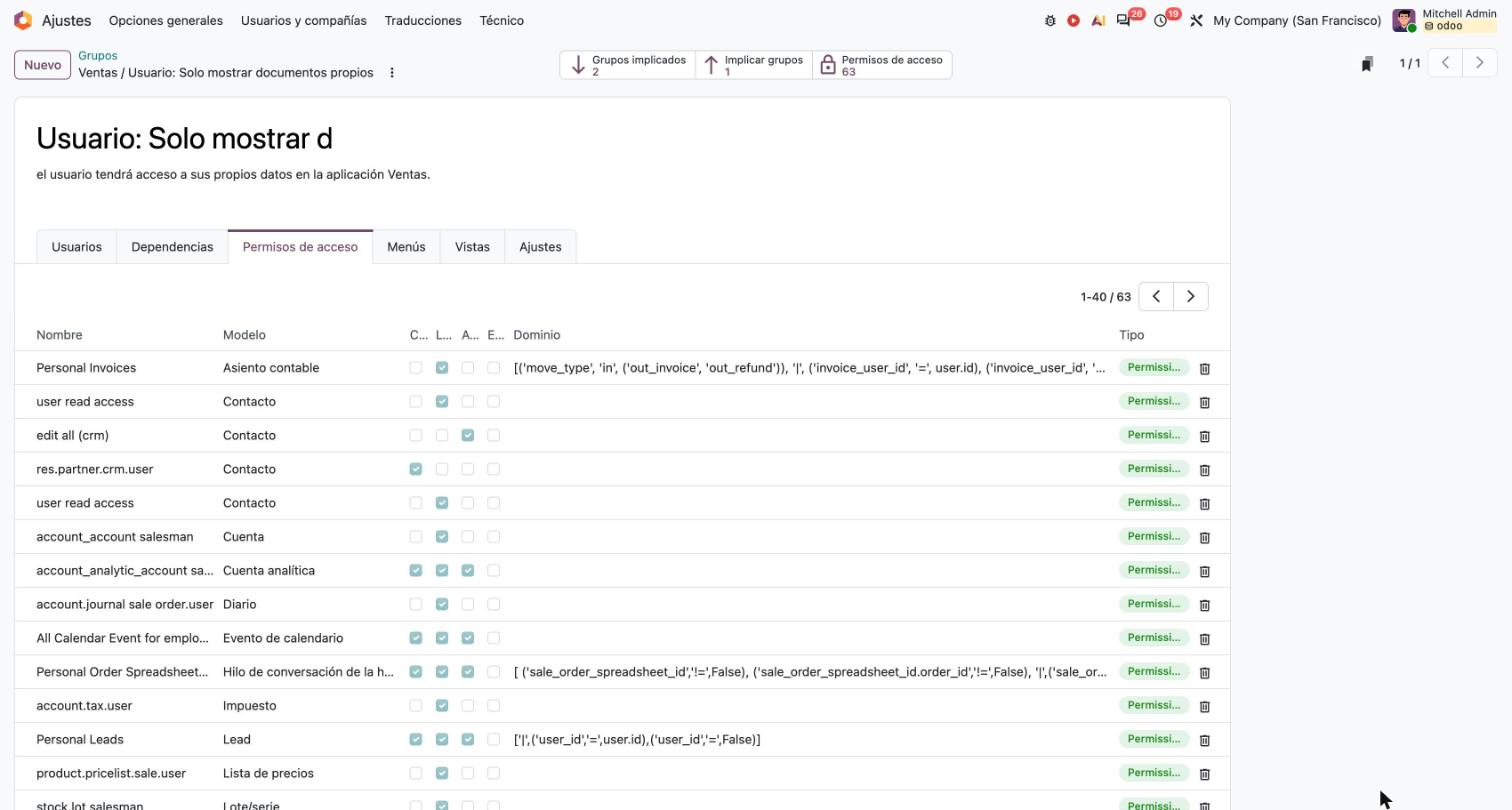 Group form in Odoo 20: the Access Rights tab lists each access right with its operations and domain
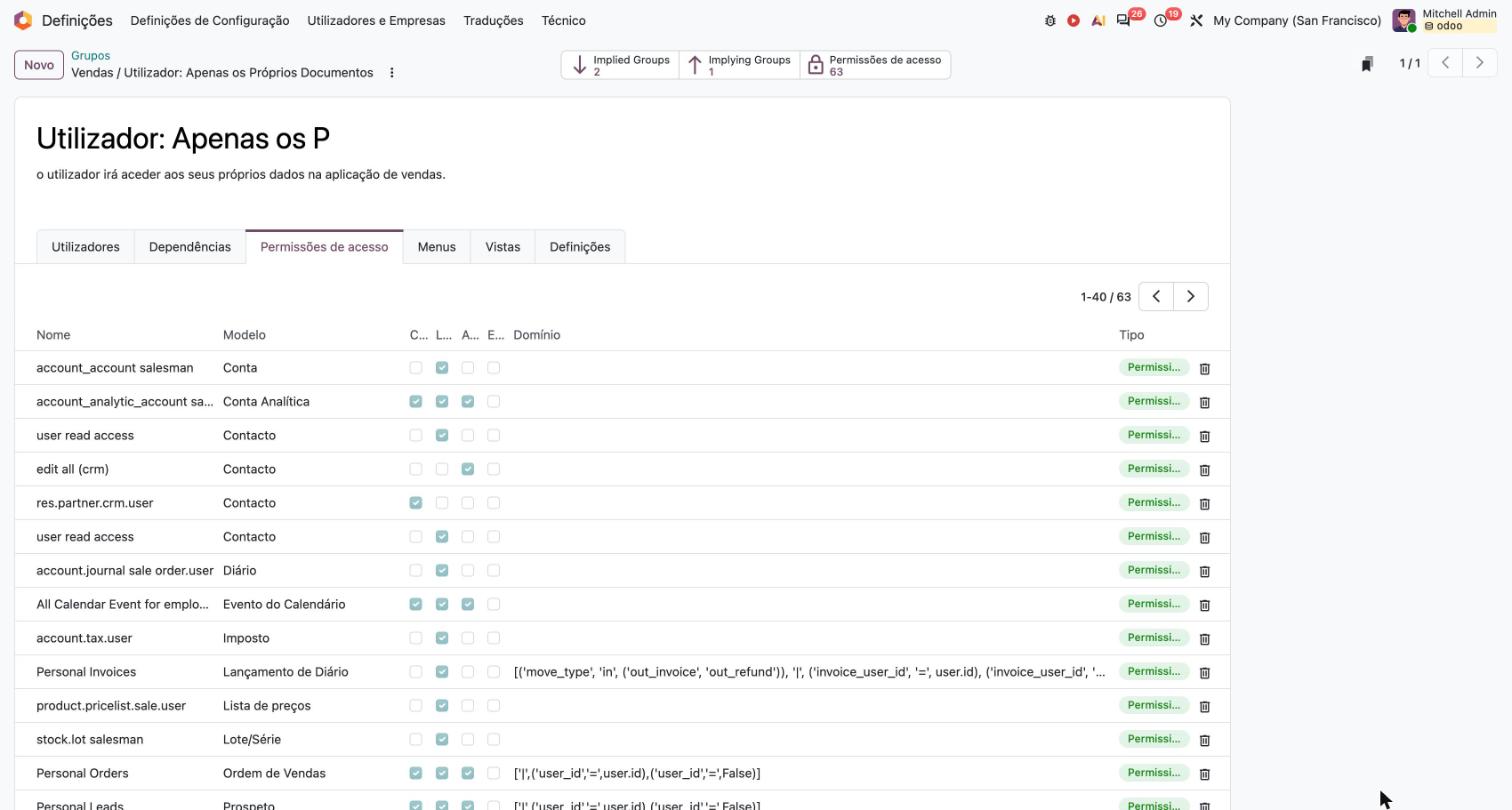 Group form in Odoo 20: the Access Rights tab lists each access right with its operations and domain
How do access rights and the record domain work in Odoo 20?
An access right in Odoo 20 says which group may create, read, update or delete the records of one model, and its domain says for which records. Record rules no longer exist as a separate object: our Odoo 20 test database has neither a Record Rules menu nor a record-rule model, only Settings › Technical › Security › Access Rights.
Record rules were removed and a domain was added directly on the access right, as Odoo states in the Odoo 20 release notes.
Each access right has these fields:
- Name, Model and Group.
- Operations: Create, Read, Update and Delete, each as a checkbox.
- Domain: a filter in Odoo domain syntax. If it is empty, the access right covers all records of the model.
- Type: Permission or Restriction.
A standard example is the access right “Personal Orders” on the model Sales Order for the group Sales / User: Own Documents Only. It allows create, read and update, and its domain limits it to orders whose salesperson is the current user or empty. The group Sales / User: All Documents has the access right “All Orders” without a domain.
Two rules decide the result, and Odoo prints them on the Help tab of every access right:
- Permissions belong to a group and add up. If a user is in several groups, one matching permission is enough.
- Restrictions have no group and apply to every user. All of them must be satisfied, and no permission can bypass them.
“Start from the standard groups and add one narrow permission when a role really needs it. A restriction applies to every user, so we treat each new one as a design decision that needs an owner and a test,” says Andrey Ivanov, Engineering Manager at much. Consulting.
Developers find the technical reference of the access model in Odoo’s security documentation for Odoo 20.
One caveat: when we wrote this in November 2026, the functional “Access rights” page of the Odoo 20 user documentation still described record rules. When in doubt, trust what your own database shows.
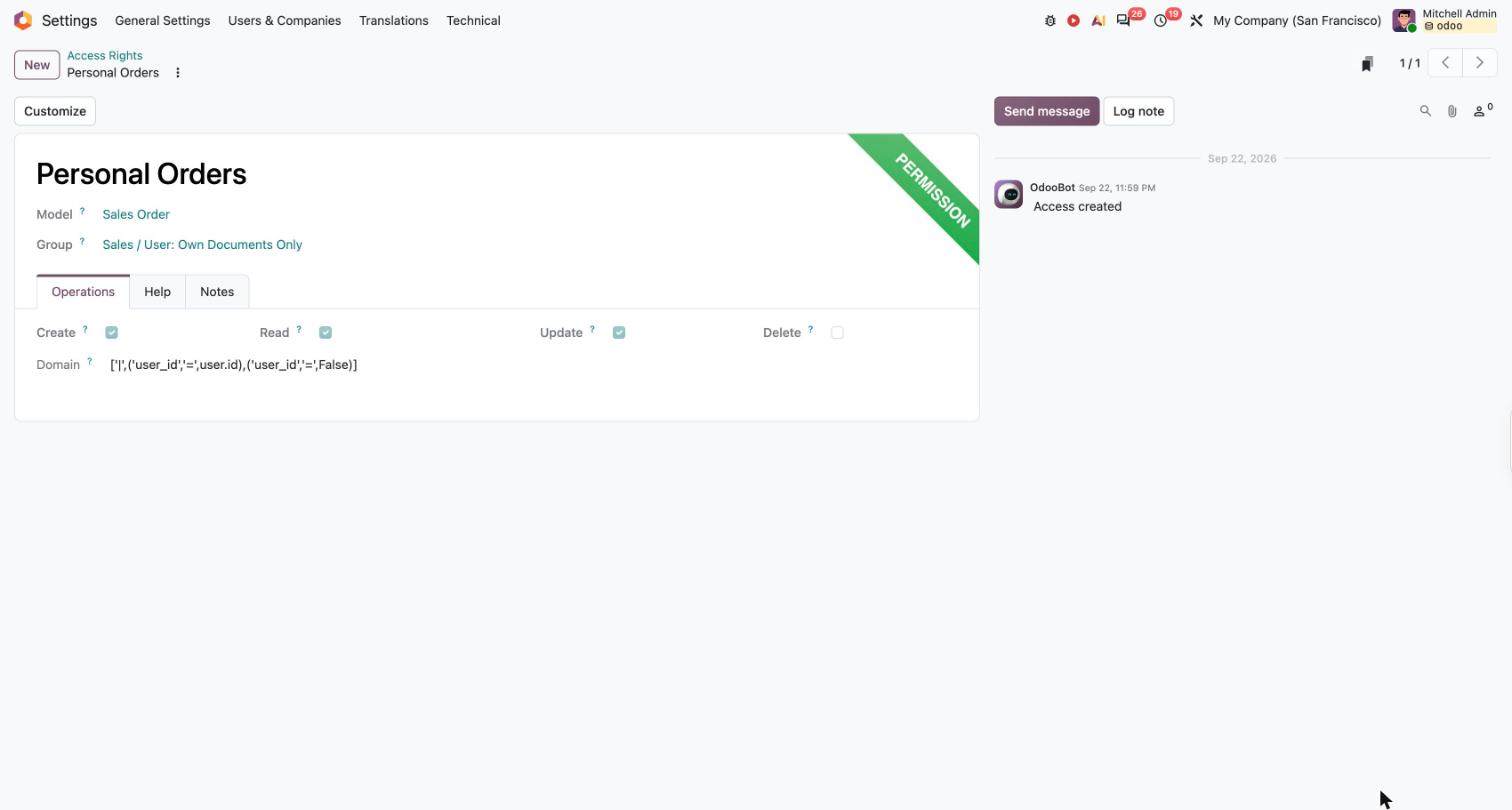 An access right in Odoo 20 with its operations and the record domain
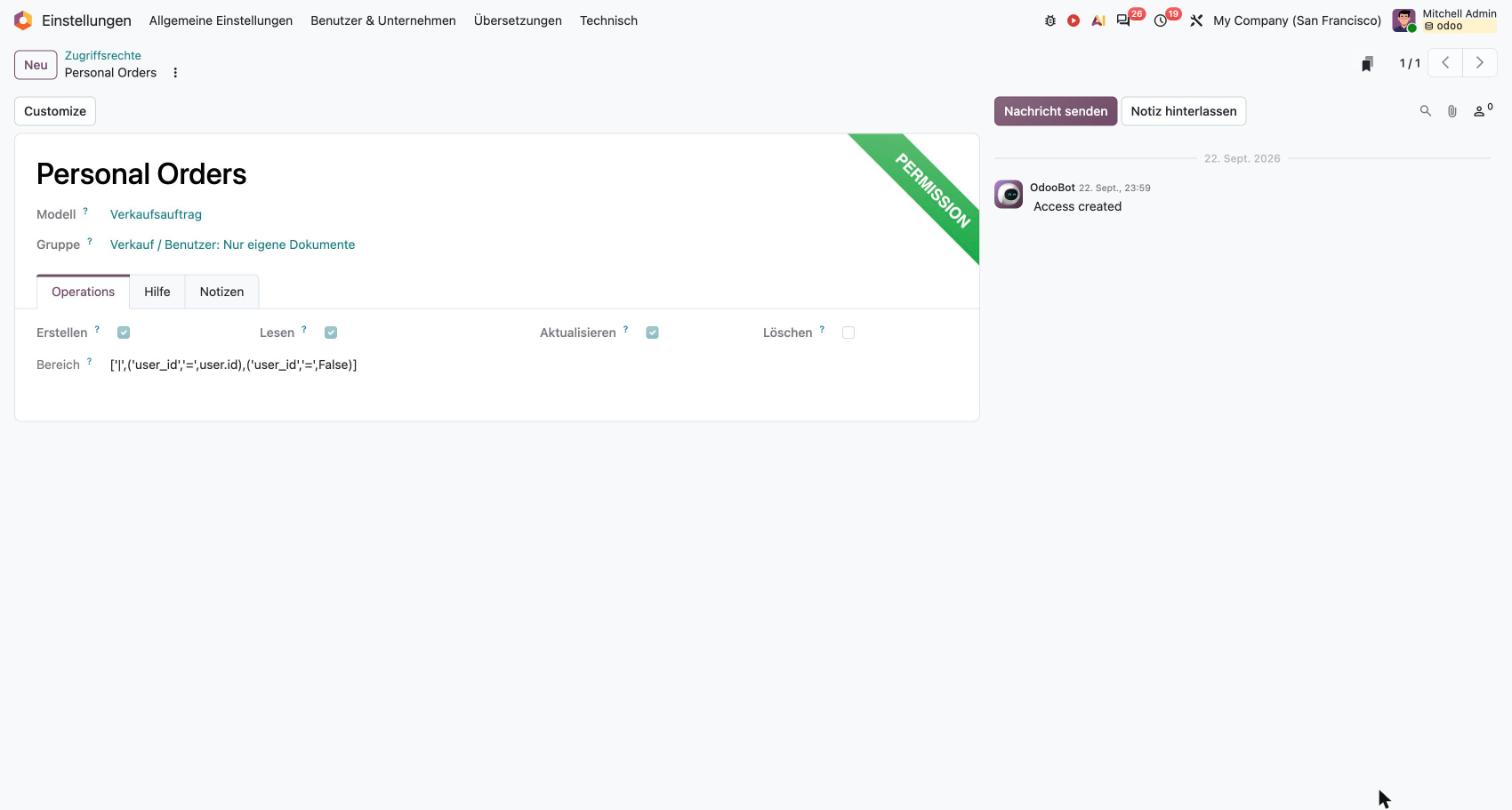 An access right in Odoo 20 with its operations and the record domain
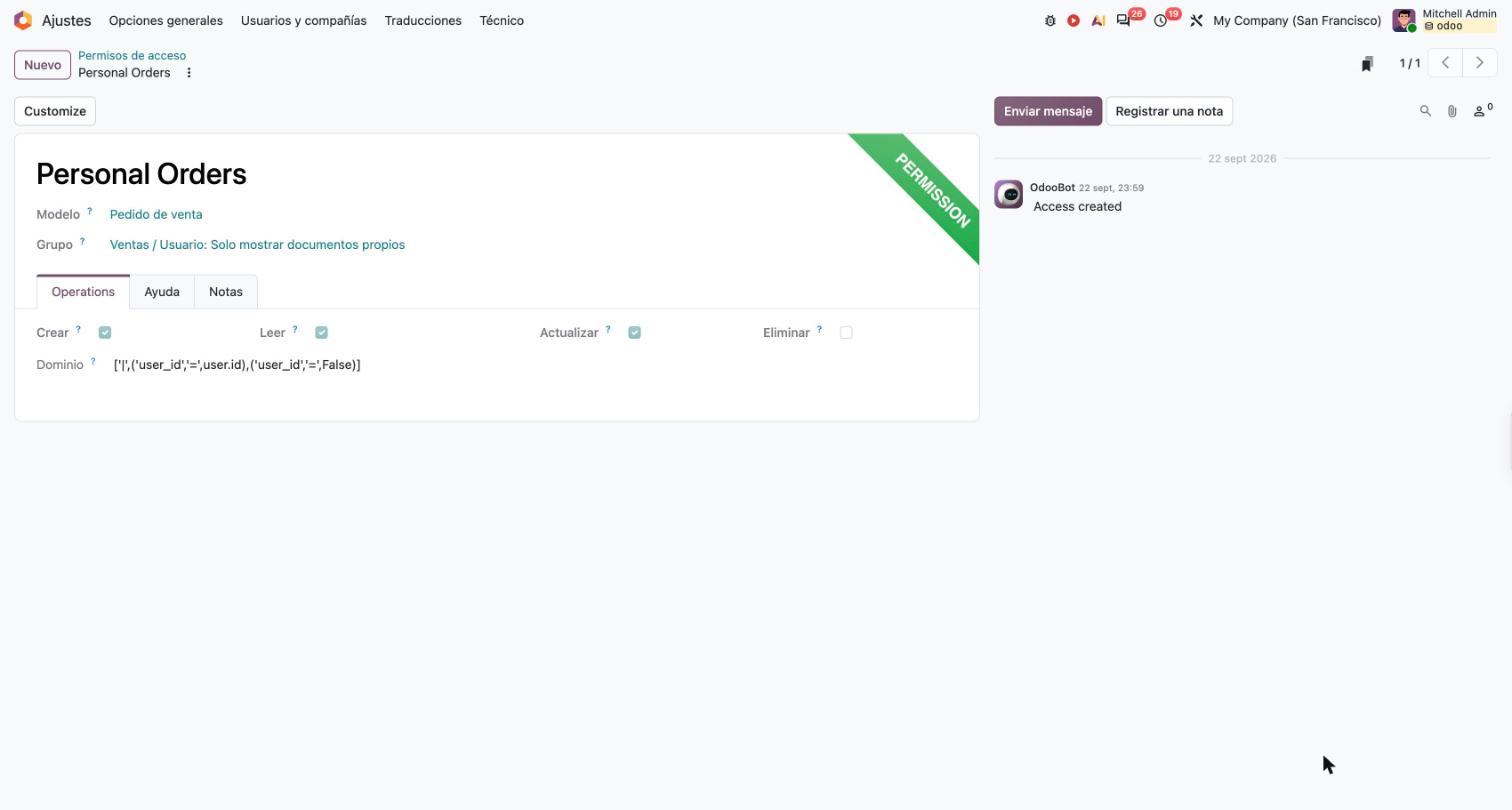 An access right in Odoo 20 with its operations and the record domain
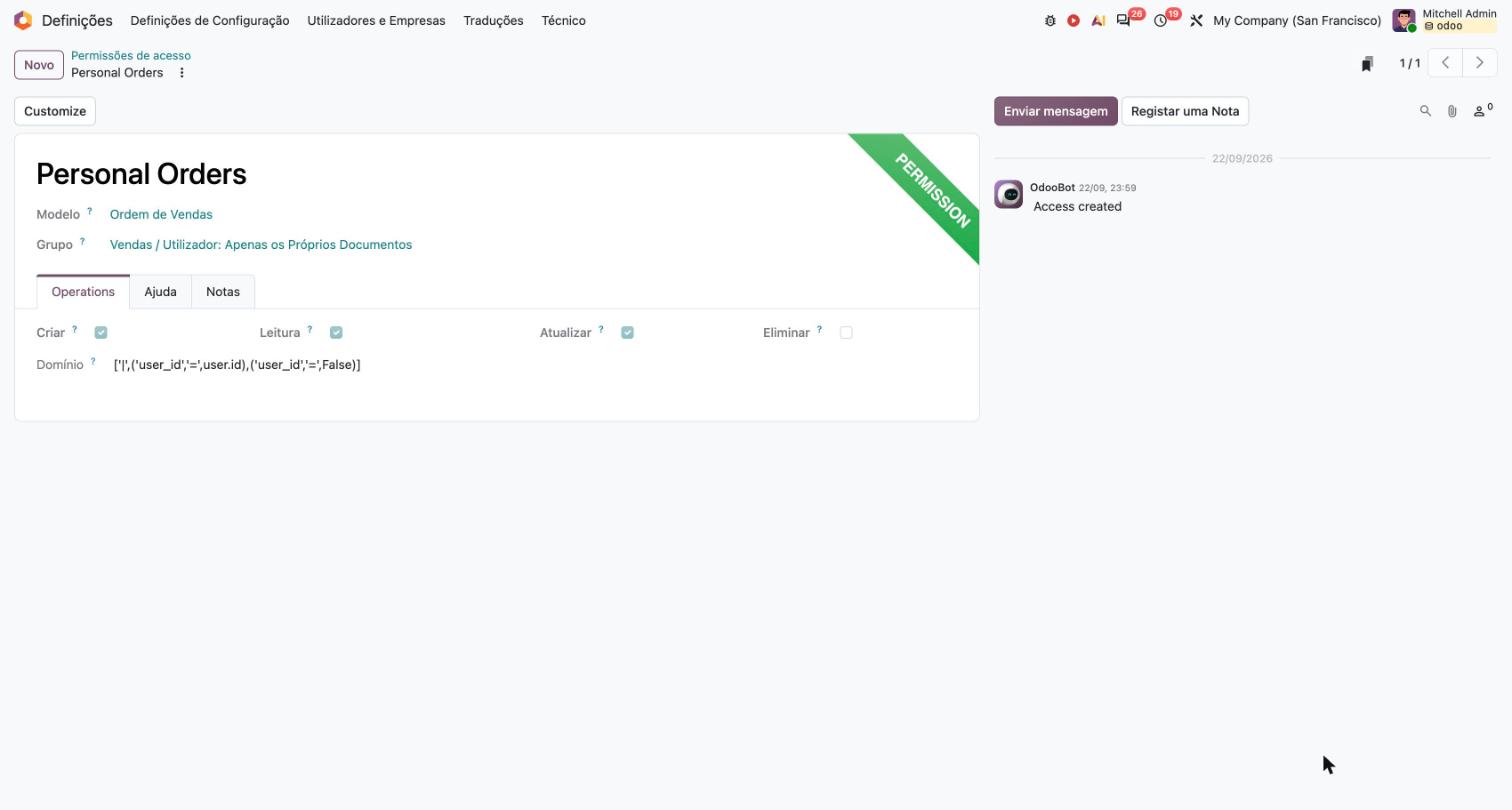 An access right in Odoo 20 with its operations and the record domain
How do you control which companies a user can access?
Company access is set on the user form, in the Roles section of the “Access Rights” tab. “Companies” lists every company the user may work in; “Default Company” is the one that is active after login.
A user with more than one company switches between them, or activates several at once, with the company selector in the header. Odoo explains the selector in its multi-company documentation.
Technically, this is a restriction: the standard access right “Sales Order multi-company” has no group and the domain [('company_id', 'in', company_ids)], so nobody sees orders of a company that is not allowed for them. Many business documents carry the same kind of restriction.
Working with several companies in one Odoo Enterprise database costs no extra fee.
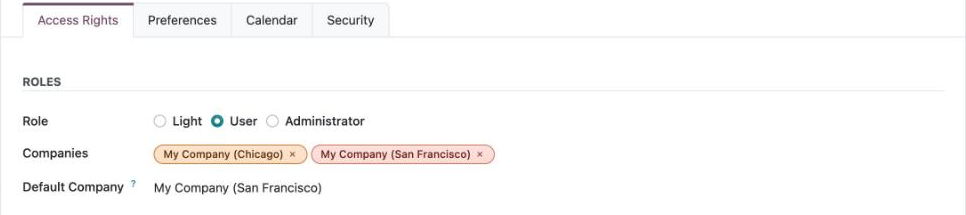 Companies and Default Company in the Roles section of the Odoo 20 user form
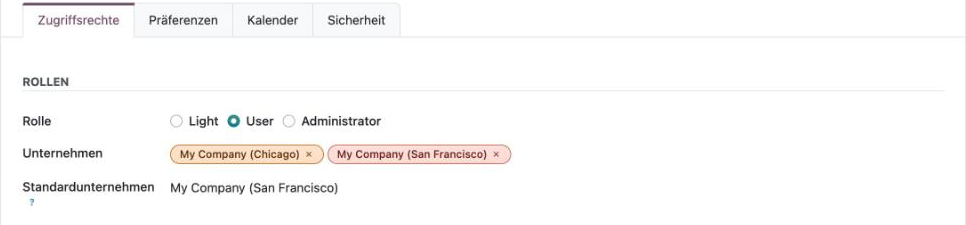 Companies and Default Company in the Roles section of the Odoo 20 user form
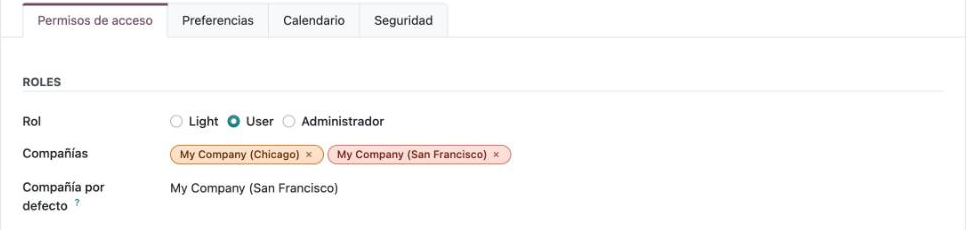 Companies and Default Company in the Roles section of the Odoo 20 user form
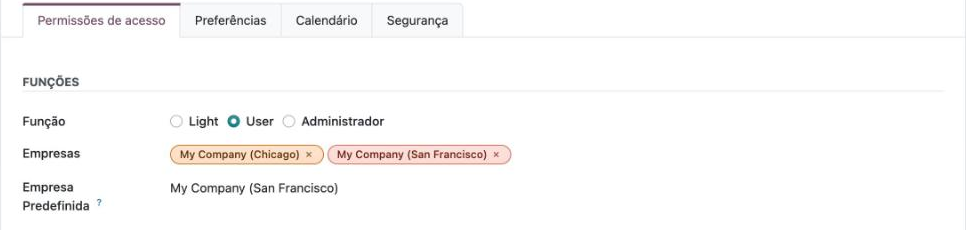 Companies and Default Company in the Roles section of the Odoo 20 user form
How do you secure accounts with passwords, 2FA, passkeys and API keys?
The “Security” tab of the user form collects everything about sign-in:
- Password: users change their own password; an administrator can set a new one or click “Send Password Reset”.
- Two-factor authentication: “Enable 2FA” on your own account, or “Invite to use 2FA” for a colleague. In the general settings, “Enforce two-factor authentication” makes a code by email mandatory for employees or for all users who have no other second factor. Background is in Odoo’s 2FA documentation.
- Passkeys: “Add Passkey” registers a passkey as a sign-in method for the account.
- API keys: “Create API Key” generates a key with a scope and an expiry date for connections via RPC or MCP. The maximum lifetime is set per group.
- Devices: the list of sessions with device, IP address and last activity, with “Log out” for one device or for all of them.
For integrations and AI agents, create a dedicated user with exactly the groups it needs. With the MCP server installed, Odoo 20 has the groups MCP User and MCP Administrator for this; the setup and its limits are covered in our article on the Odoo 20 MCP server.
“Give an AI agent its own user and its own API key, never an administrator account. Then the groups and domains that limit a colleague also limit what the agent can read or change, and you can see which account made a change,” says Gustavo Aguiar, Engineering Manager at much. Consulting.
What changed since Odoo 16?
These are the differences you will notice if you learned user management with our Odoo 16 tutorial on users and access control:
- Record rules are gone. The record filter is now the domain of the access right, and global rules became restrictions without a group.
- The user form has a Role field (Light, User, Administrator), and the user types are now the groups Role / User, Role / Portal and Role / Public.
- The levels of an app are ordered by a privilege, shown as a scope.
- The group form has one Access Rights tab with domain and type, instead of separate tabs for access rights and record rules.
- Sign-in security sits on one “Security” tab of the user form, with passwords, 2FA, passkeys, API keys and devices.
- API keys serve RPC and MCP connections, and with the MCP server installed there are dedicated MCP groups.
Odoo 16 was released in October 2022 and its standard support ended in September 2025. The current policy is on Odoo’s page of supported versions.
FAQ: Users and access rights in Odoo 20
How do I create a new user in Odoo 20?
Go to Settings › Users & Companies › Users, click “New”, and enter the name and the login email. On the Access Rights tab, choose the role, the companies and the level per app, save, and click “Send an Invitation Email”. The user sets a password through the link in that email.
Are there still record rules in Odoo 20?
No. Odoo 20 removed record rules. Each access right now has its own domain that defines which records it covers, and access rights without a group act as restrictions for all users. You find them in developer mode under Settings › Technical › Security › Access Rights.
What is the difference between a permission and a restriction in Odoo 20?
A permission grants a group operations on a model, limited by its domain; permissions from several groups add up. A restriction has no group, applies to every user and cannot be bypassed by any permission. Company separation, for example, is built with restrictions.
What is the difference between internal, portal and public users in Odoo 20?
Internal users work in the backend, portal users are customers or suppliers who see their own documents, and public users are anonymous website visitors. Odoo 20 models them as the groups Role / User, Role / Portal and Role / Public; a user can only have one of them.
How do I restrict a user to certain companies in Odoo 20?
Open the user, go to the Access Rights tab and edit the Companies field in the Roles section; then choose the Default Company. The user only sees records of the listed companies, because standard restrictions filter business documents by the allowed companies.
How do I enforce two-factor authentication in Odoo 20?
Activate “Enforce two-factor authentication” in the general settings. Odoo then asks employees, or all users including portal users, for a code sent by email if they have not set up another second factor. Each user can also enable 2FA or add a passkey on the Security tab.
Do AI agents follow the same access rights as users in Odoo 20?
Yes. An agent connects with the API key of a user, so that user’s groups and access-right domains apply to it. Create a dedicated user with the group MCP User and only the app levels the agent needs. The details are in our article on the Odoo 20 MCP server.
Need help with users and access rights in Odoo 20?
much. Consulting has over 100 developers and consultants, with offices in Germany, Portugal and the UK. We review your groups, move custom record rules to Odoo 20 access rights during an upgrade and set up secure access for integrations and AI agents.