Automated replies are a double-edged sword. They save a tremendous amount of time, but also come across as generic.
The problem is that teams often don’t have time to personalise a template for every contact they receive.
With Odoo AI’s dynamic text fields, you can automate replies to your customers while addressing their specific concerns in a personalised way.
Odoo AI tailors your automated replies for customer satisfaction
A customer can tell when they receive a boilerplate email. As a result, they feel less valued.
With Odoo’s dynamic AI text, your automated emails become intelligent and context-sensitive with just a simple addition to your Odoo templates.
AI dynamic text fields let you:
- Automate without loss of quality: Your mass emails feel like personal messages
- Qualify contacts faster: You can request relevant information from your contact directly in your first reply to their initial email, and automatically create leads or tickets based on it
- Service your customers proactively: You answer frequently asked questions before the customer even asks them
- Scale: Each enquiry receives a well-thought-out reply, whether there are 10 or 1,000.
Odoo 19 introduced AI Agents for various use cases
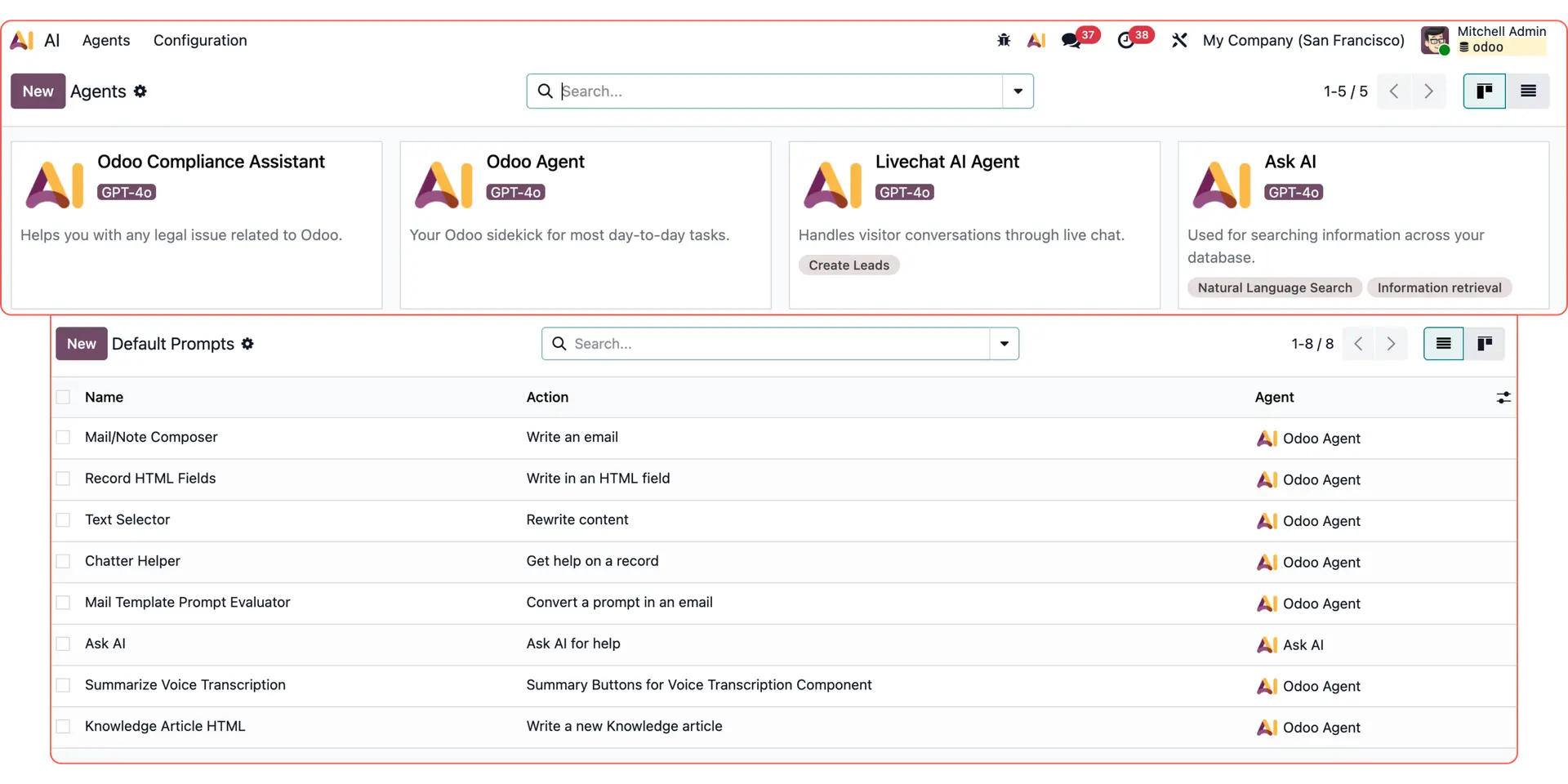
In version 19, Odoo introduced more autonomous AI with built-in agents like Ask AI, Odoo Agent, Compliance Assistant, and Livechat Agent. It also gave users the tools to build their own agentic AI workflows
For more Odoo AI use cases, check out:
Custom email replies with Odoo AI dynamic text
Reporting & data analysis with Odoo AI Agents
Follow-up emails with Odoo AI Agents
Responding to live chat leads with Odoo AI Agents
How to set up custom replies with Odoo AI dynamic text fields
Here’s how to set up and automate custom replies with AI dynamic text fields.
First, you need to set up your email templates with dynamic AI text. We’ll be using a Helpdesk ticket as an example, but the same workflow applies to any email template.
Make sure you switch on Debug mode in Odoo.
Then, go to Helpdesk → Configuration → Stages.
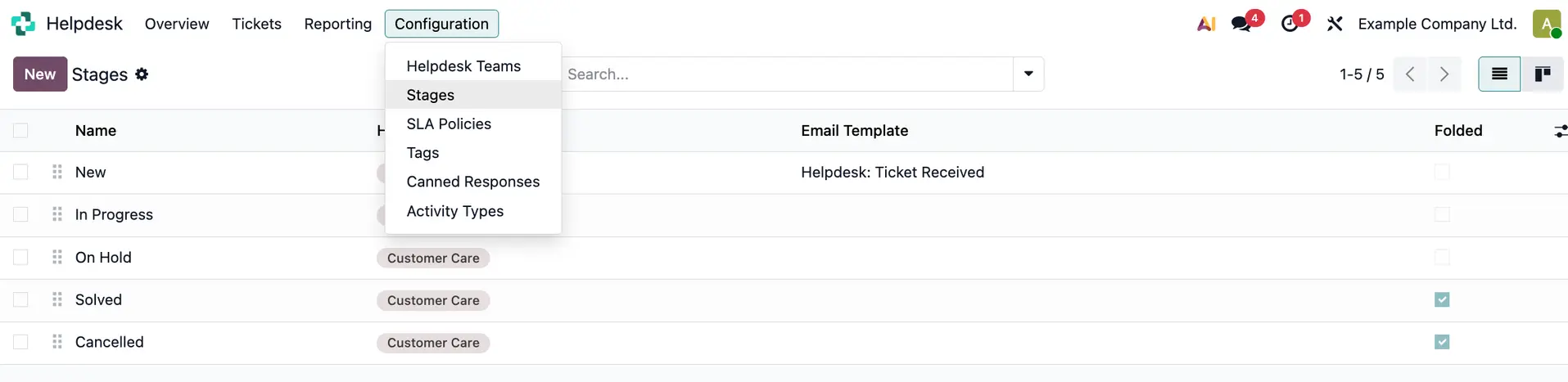
Go to stage “New” and select the “Helpdesk: Ticket Received” email template. You will get a pre-made template with fixed dynamic fields.
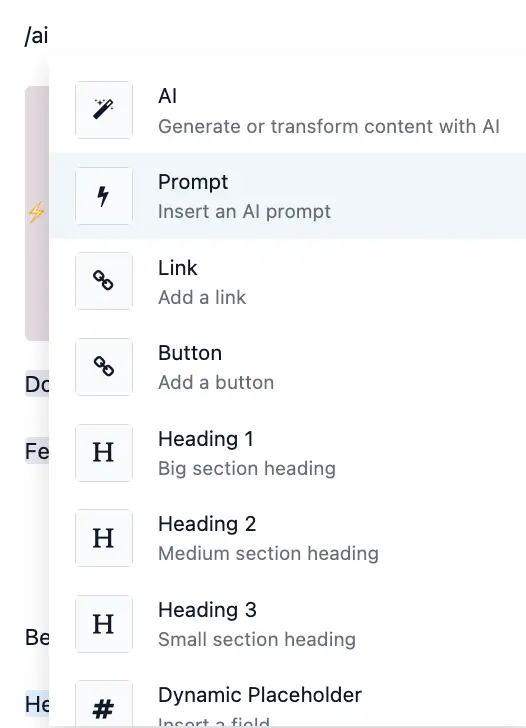
Add your dynamic AI text to the template. Type /AI and select the “Prompt” option. This will generate a purple field, where you can type in your prompts.
We wanted to ask our Helpdesk customer for specific information about their case: sales orders, customer numbers, invoices, etc. We also wanted to tailor our reply message to their specific case.
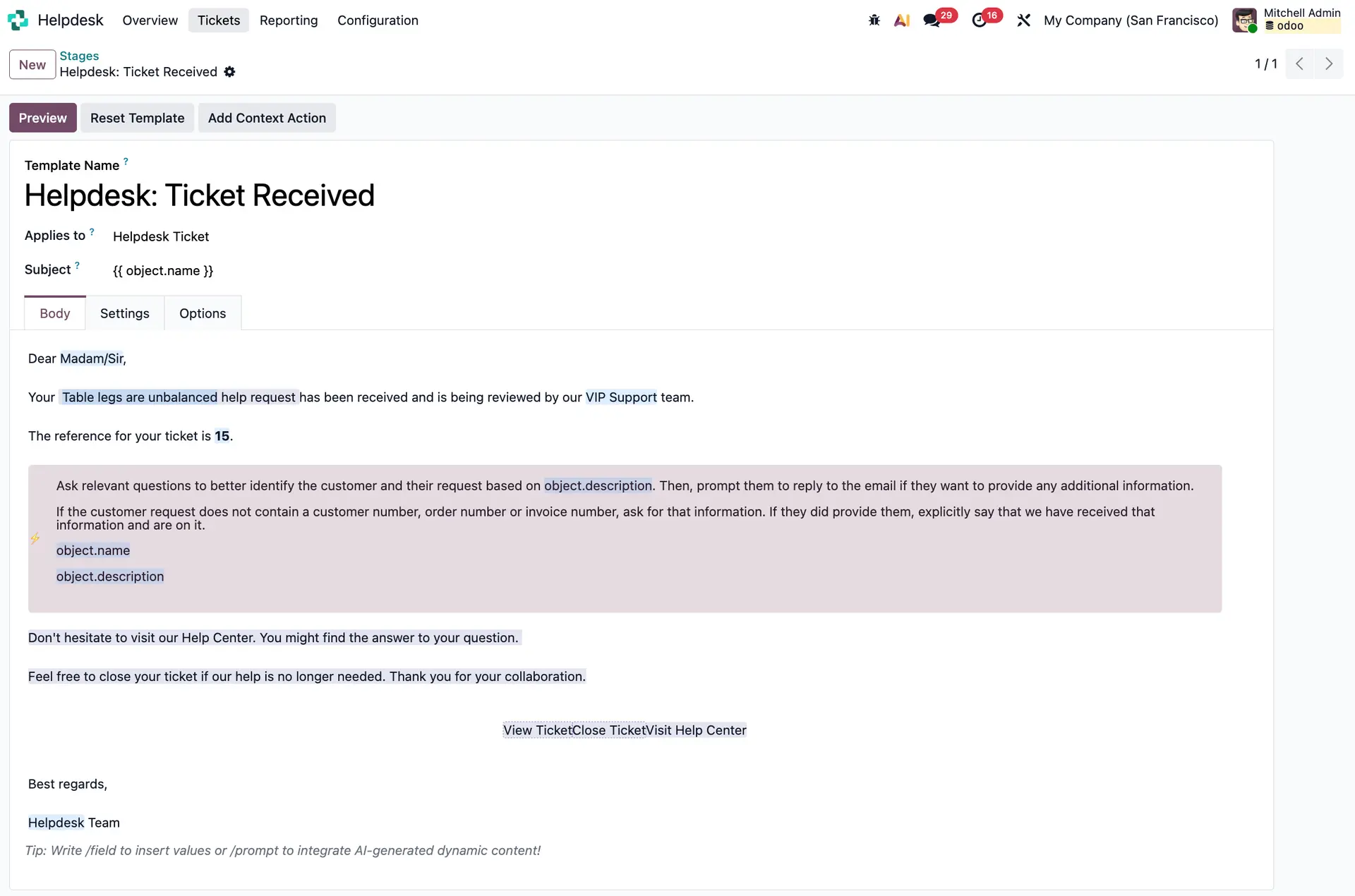
To do that, write a prompt in the dynamic AI text field. We told AI to:
“Ask relevant questions to better identify the customer and their request. Then, prompt them to reply to the email if they want to provide any additional information.”
For the reply to be as personalised as possible, include Dynamic Placeholders for ticket name and description.
Here is how we set it up:
For example, an existing helpdesk customer opens a new ticket. The ticket overview includes the customer's name and details about their situation.
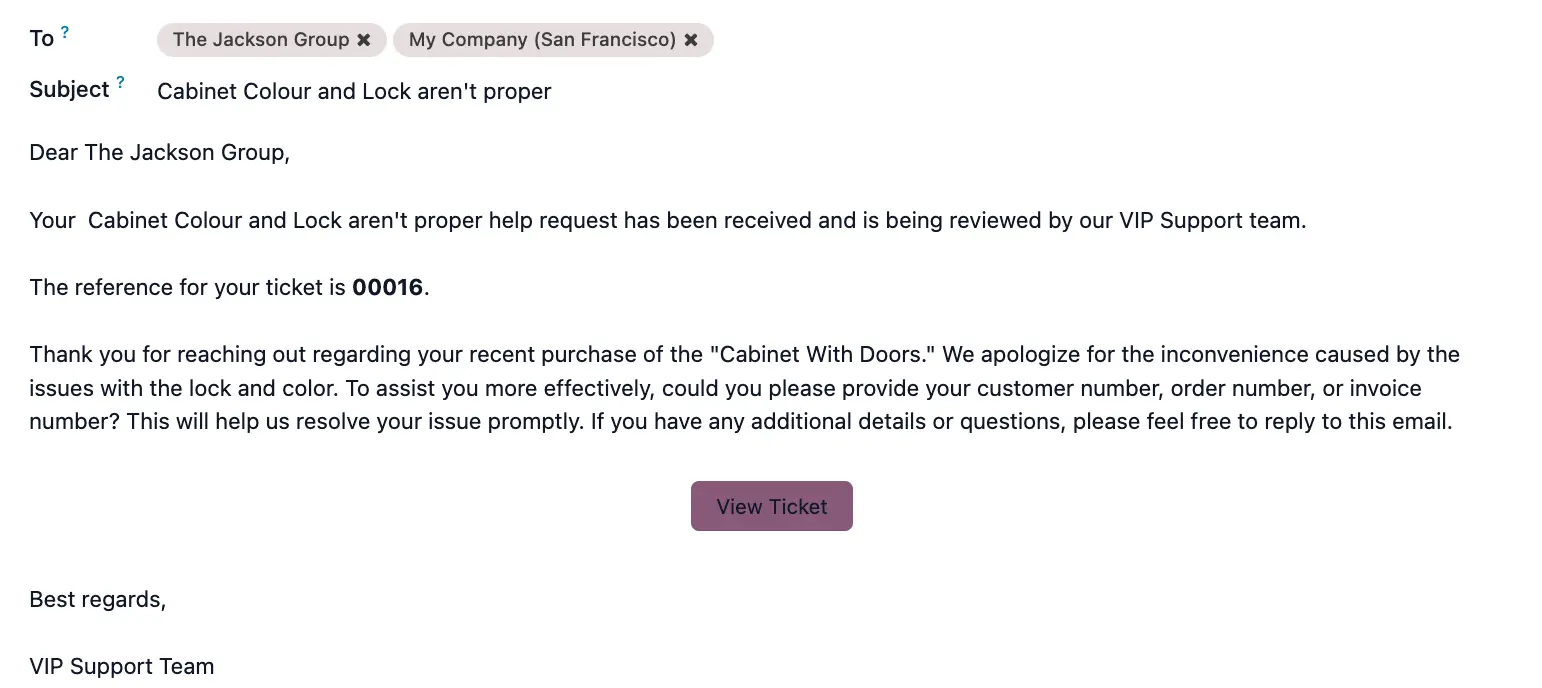
Odoo AI accesses all available information and generates customised text based on the contact’s initial message.
As our email template is set to be sent when a ticket is received, the customer automatically receives a personalised email that specifically addresses their concern.
You can also set up your AI dynamic text fields to:
- Ask relevant questions based on the information that the contact has shared
- Send frequently asked questions directly in the first email
- And more!
Let’s automate your processes with Odoo AI
If you have any questions on how this setup works or want to discover specific Odoo AI use cases, our team of experts can help.