Most businesses think they already have a document management system (DMS): SharePoint, Google Drive, or the attachment storage built into their ERP.
But a DMS needs to do more than store files. The three main benefits of a DMS are to:
maintain an unalterable compliance record
provide every team with efficient access to the correct version of every document
automate the intake of incoming files.
See how Odoo Documents fulfil all these requirements (and more) so that every file is a database record that fully integrates within your processes.
Odoo Documents meets the top 3 goals a DMS should achieve
A good DMS needs to meet 3 goals at once:
Zero-effort compliance: Creating a system-generated audit trail and embedded legal proof for every document action
Cross-functional efficiency: Linking live document records across ERP modules so every department works off a single source of truth without duplicating files
End-to-end automation: Pairing native OCR with AI Agents to extract external document data and trigger backend ERP tasks without human delay.
Odoo Documents delivers all three right out of the box.
DMS feature | What the business needs | How Odoo Documents delivers |
Core functionality | Version control, file clutter prevention, & stable naming | Background version archiving, one-click version restore, and auto-sorting attachments into the right folders |
Security & compliance | Tamper-proof audit trails, access management, regulatory holds, & legal proof | Role-based workspace access, manager-only folder locking, 30-day trash holding period before automatic permanent deletion, immutable activity logs, and embedded e-signature hashes |
Integration & architecture | Connected workflows across ERP modules & departments | Direct record attachments, live Knowledge article embeds, and cross-workspace file shortcuts |
External document management | Unified governance across internal ERP and cloud drives | Centralised workspace control for native Odoo files and external cloud storage integrations with Google Drive, OneDrive, etc. |
Automation & OCR | Native OCR scanning & elimination of manual data entry for incoming files | Automated OCR text extraction paired with AI Agents to execute backend ERP tasks |
The Odoo advantage - why an integrated DMS wins
Standalone DMS tools usually mean paying for one more app that is disconnected from your daily work.
Because Odoo Documents is built directly into the ERP, you don't pay for a separate software subscription. More importantly, your files don't live in isolation.
For example, when a user manually creates and attaches a document (like contracts, spec sheets, bills) or when Odoo generates a file automatically upon a trigger (e.g. sales or purchase orders), it’s saved as a record directly into the relevant module.
The more of Odoo you use, the better your DMS gets: every module you use automatically feeds files into the same central system without anyone having to re-upload or re-organise them.
1. Compliance: Odoo Documents creates zero-effort audit trails
The document log writes itself
Every time a user opens, downloads, edits, or changes the permissions on a document, Odoo logs it automatically in the document's record feed.
The entry is system-generated so that no user, including an administrator, can edit or delete it. For any document in the system, you can open log notes and see exactly who touched it and when.
File overwriting is forbidden by nature
An employee needs to update a document, like a revised policy or a new contract version.
Odoo Documents offers an option to Upload New Version, so users don’t need to replace the file or reupload various versions with minor tweaks.
This means that a document automatically updates to the new version while older versions remain saved in archives, in every place it may be attached across Odoo apps.
Any person looking for that file will access the newly updated one from now on. Odoo archives the previous version and keeps the document name stable.
The Manage Versions view shows every version in chronological order, and any of them can be restored.
For document templates that are filled with custom data every time, the older documents remain intact in the system. Only new templates will use the new version. For users, the problem of having endless “contract_FINAL_v2_revised_actual_final.pdf” files doesn't exist in a system where version history is automatic.
Documents connect to Odoo Sign for full data proof
When you trigger an Odoo Sign workflow on a document, the completed PDF contains more than a signature. It embeds:
The signer's name
Email
IP address
Timestamp of every step (opened, signed, countersigned)
A digital hash of the document.
The proof of execution is inside the document itself and not stored in a different app or platform.
Deletion is a standard protected action
When a file in Odoo Documents is deleted, it doesn’t erase its existence. Instead, it moves to a Trash workspace that only managers and administrators can access.
Files sit there for a defined retention period before permanent deletion is even possible.
For compliance, managers dealing with GDPR retention requirements or document hold periods, this removes the risk of accidental or unauthorised deletion.
2. Efficiency: Odoo links files across apps to keep every process up to date
A linked file inside a company procedure or guide usually breaks as soon as someone updates it, and users can get dead links or old versions when they click it.
Odoo solves this at the application level. Inside any Knowledge article, typing /document opens a selector connected directly to your Odoo Documents workspaces.
You embed the original file as either an inline preview or a compact card, without having to create copies or add download links.
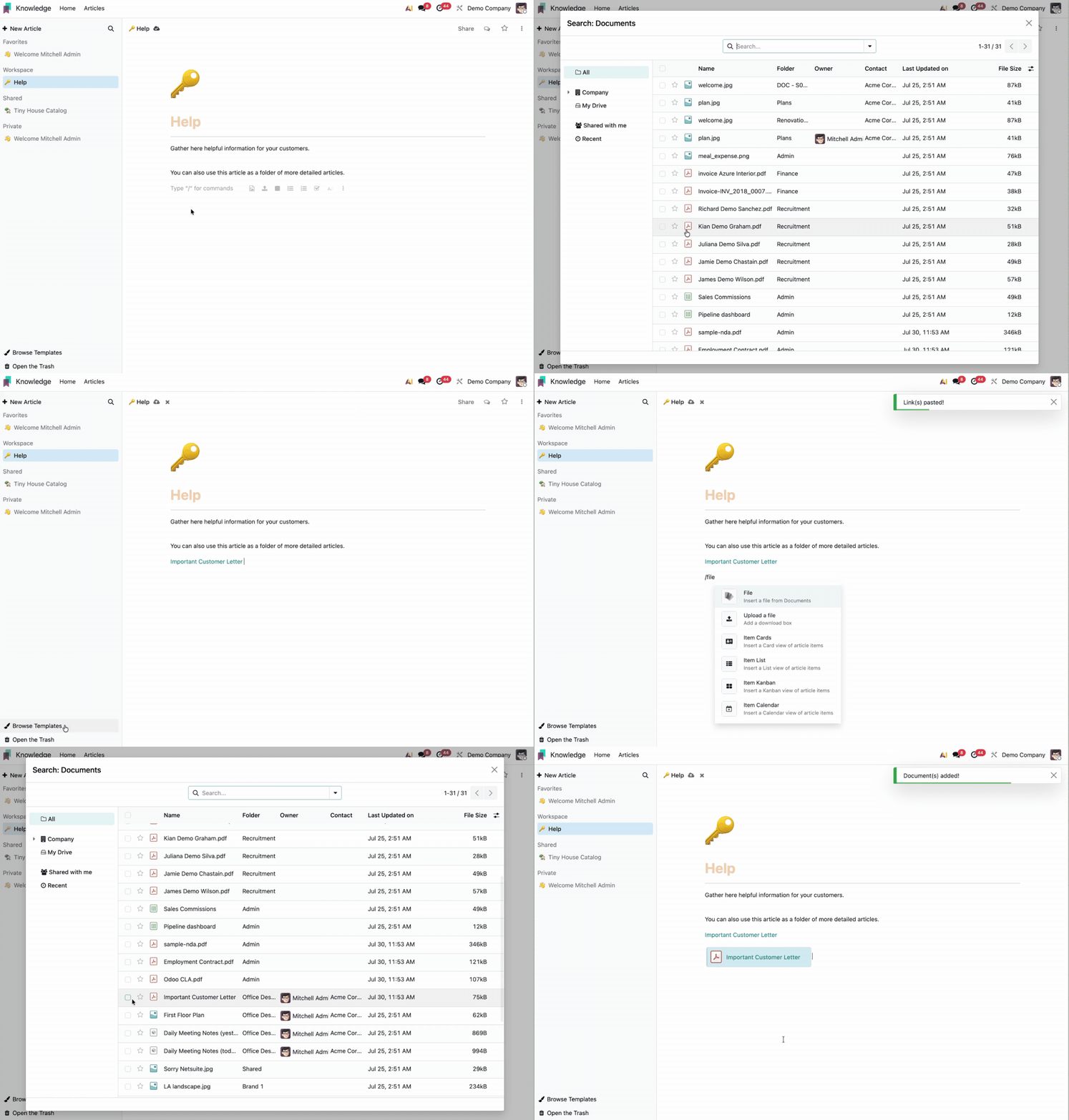
When the legal or compliance team uploads a new version of the master file in Odoo Documents, every Knowledge article embedding that file reflects the update automatically.
Often, there are documents that multiple teams need to access, like a global policy referenced by both Sales and Legal.
Odoo Documents offers a Create Shortcut action that places a pointer to the file in a second workspace. The original stays in one place, under one set of access controls, with one version history, and each team sees it in their own workspace.
Smart buttons bring this same connectivity to daily transactions. Smart buttons let you jump directly to the matching delivery slip or invoice directly without searching for attachments.
3. Automation: Odoo scans and creates audit-proof files with AI
For documents that originate outside Odoo (e.g., supplier invoices, scanned contracts, onboarding forms), the automation pipeline starts with document intake:
Email intake: You can set up a dedicated email address for each folder. Any file sent to that address is automatically saved and processed in the right place
Visual document splitting: If you upload batch-scanned multi-page PDFs, you can visually split them into individual files directly in the workspace before processing
OCR text extraction: Odoo reads and extracts content from uploaded files automatically with optical character recognition (OCR). This makes files fully searchable in Documents and allows apps like Accounting to read invoice data without manual data entry.
When an external file lands in a workspace, Odoo reads it automatically. From that point, an AI Agent takes over.
Odoo allows you to attach an AI Agent directly to an Odoo Documents workspace or a Knowledge article.
Once active, the agent monitors incoming files. When a new document arrives, it reads the content and cross-references it against your company SOPs (Standard Operating Procedures) stored in Knowledge.
Once active, the agent monitors incoming files. When a new document arrives, it works from the content OCR has already extracted and cross-references it against your company SOPs stored in Knowledge.
The AI Agent then executes the required ERP action, such as: creating a vendor record, setting a follow-up activity, or flagging a discrepancy without waiting for a human to review it first.
For example, here is how a supplier onboarding workflow looks in practice:
A supplier onboarding PDF arrives in the designated workspace via manual upload or email alias
If it's a multi-page scan, a user can visually split the PDF into separate records
The AI Agent cross-references the extracted data against your vendor compliance policy in the Knowledge app
If it passes, it creates a new Vendor Profile with the extracted tax details and sets a follow-up activity for an onboarding call
If something doesn't match, it flags the document for manual review.
How to configure Odoo Documents for compliance
Feature | Configuration path | Purpose |
Files centralisation | To route business record attachments into governed workspaces, go to: Documents > Configuration > Settings. Under Centralisation, assign target workspaces for each ERP app. | Routes business record attachments into governed workspaces |
Workspace access groups | To restrict visibility and edit rights by user group, go to: Documents > Configuration > Workspaces. Select the folder and assign user permissions under the Access Rights tab. | Restricts visibility and edit rights by user group |
Document tags | To enable status filtering (e.g., Draft, Signed, Audited), go to: Documents > Configuration > Workspace Tags. Create a tag category, add tags, and assign them to specific workspaces. | Enables status filtering (Draft, Signed, Audited) |
Locking policy | To lock a compliance folder so that signed or audited files cannot be modified without management approval, go to: Documents > Configuration > Workspaces. Select the folder, and configure the Locking Policy under the Access Rights tab. | Prevents modification of locked files without approval |
Trash retention | To enforce a recovery window before permanent deletion, go to: Documents > Configuration > Workspaces. Select the folder, open the Details panel, and set the trash retention window. | Enforces a recovery window before permanent deletion |
OCR / digitisation | To enable automatic text extraction on incoming files, go to: Documents > Configuration > Settings. Scroll to Digitisation, check the box to enable OCR, and select your processing mode. | Enables automatic text extraction on incoming files |
Email alias intake | To assign an email alias that routes incoming attachments directly into a workspace, go to: Documents > Configuration > Workspaces. Select the folder, and enter a dedicated email address in the Email Alias field. | Assigns an email alias to route attachments to OCR automatically |
AI Agent | To monitor incoming files and execute ERP actions, open any workspace folder, click the right-hand panel, open the AI Assistant tab, and set up your trigger rules. | Monitors incoming files and executes ERP actions |
Odoo Documents FAQs
Does Odoo Documents fulfil the core goals of a DMS?
Yes. Odoo Documents achieves zero-effort compliance through tamper-proof logs, delivers cross-functional efficiency by linking live files across ERP apps, and automates document intake using native OCR and AI Agents.
Is Odoo Documents fully compliant and audit-proof?
Yes. The system automatically logs every file action into an unalterable activity feed that even admins can't edit. It enforces background version archiving, embeds legal e-signatures via Odoo Sign, and restricts permanent file deletion through a protected Trash workspace.
How does Odoo Documents automate data entry for incoming files?
The Odoo Documents app automatically extracts text from PDFs and scanned files using built-in OCR. Connected AI Agents can then read this data, cross-reference it against your internal procedures, and automatically execute backend ERP tasks like creating vendor profiles or invoices.
Let's discuss your Odoo Documents setup
Our experts help you design document workflows that centralise your files and hold up when auditors come knocking.